Web to PDF Chrome Extension: Save Any Webpage as PDF

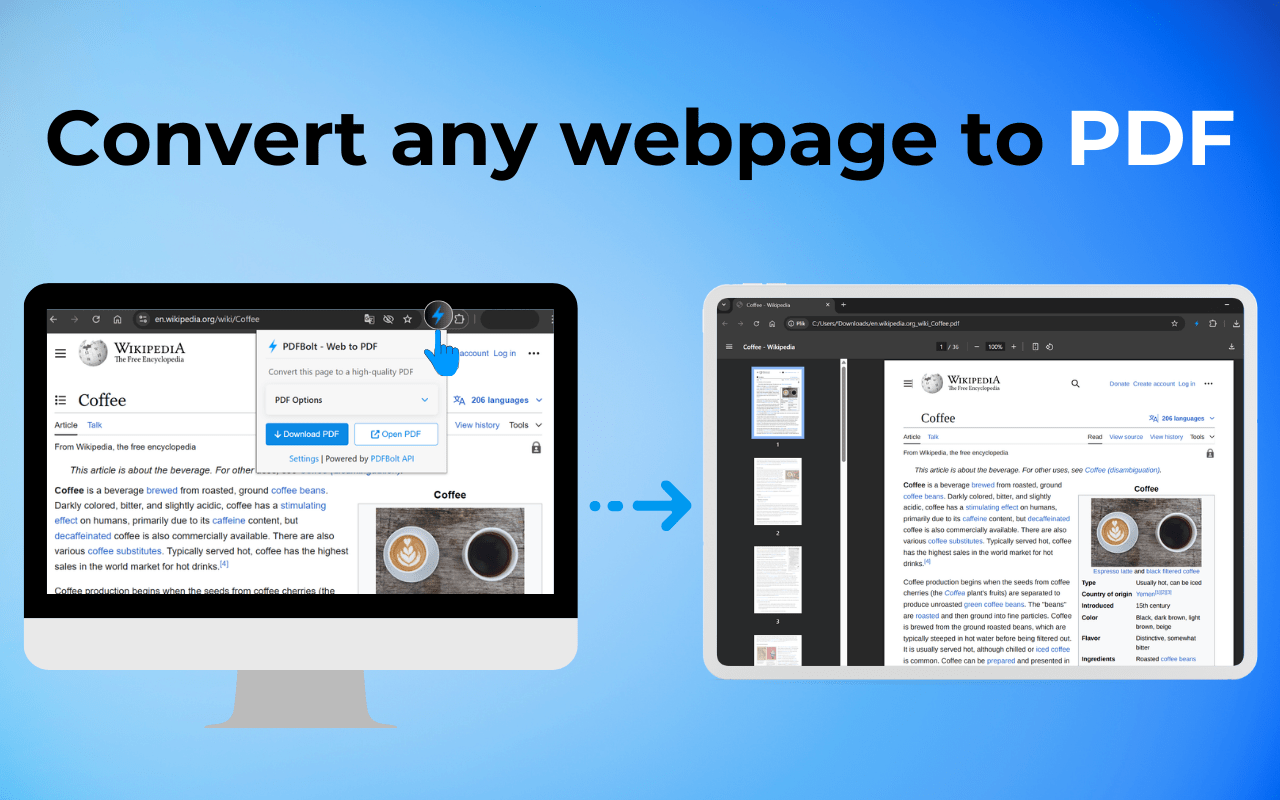
Need to save a webpage as a PDF without losing the layout? The PDFBolt – Web to PDF Chrome extension converts any webpage to PDF directly from your browser in one click. Pick the page size, set margins, choose between screen and print view, and download or open the result.
How the Webpage to PDF Extension Works
The PDFBolt – Web to PDF extension sends the current page URL to the PDFBolt API, which renders it with headless Chrome and returns a PDF. The output matches what you see in the browser, including JavaScript-rendered content.
Key Features
1. One-Click Webpage to PDF Conversion
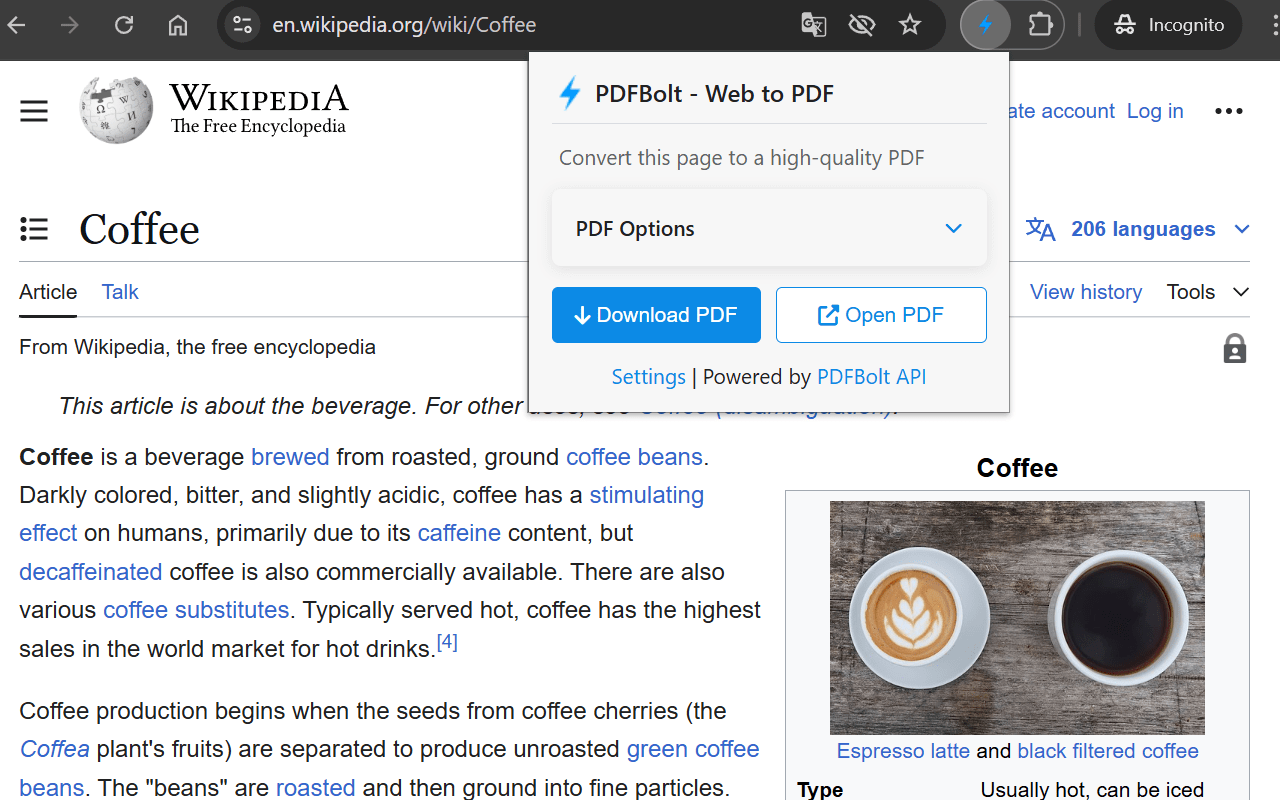
With PDFBolt – Web to PDF installed, converting a webpage to PDF takes one click: open the extension, then select Download PDF or Open PDF. No print dialogs, no extra steps.
2. PDF Formatting Options
- Paper format selection – Choose from standard formats including Letter, A4, A3, and many more.
- Orientation – Toggle between portrait and landscape modes.
- Background elements – Option to include or exclude background colors and images.
- Display mode – Select between "Screen view" and "Print view" rendering.
- Custom margins – Set precise margin values for all four sides of the document.
- Scale adjustment – Fine-tune the scale factor between 0.1x and 2x.
- Page ranges – Specify exact pages to include when converting multi-page content.
- Footer options – Add page numbers to your PDF.
3. Dual Output Options
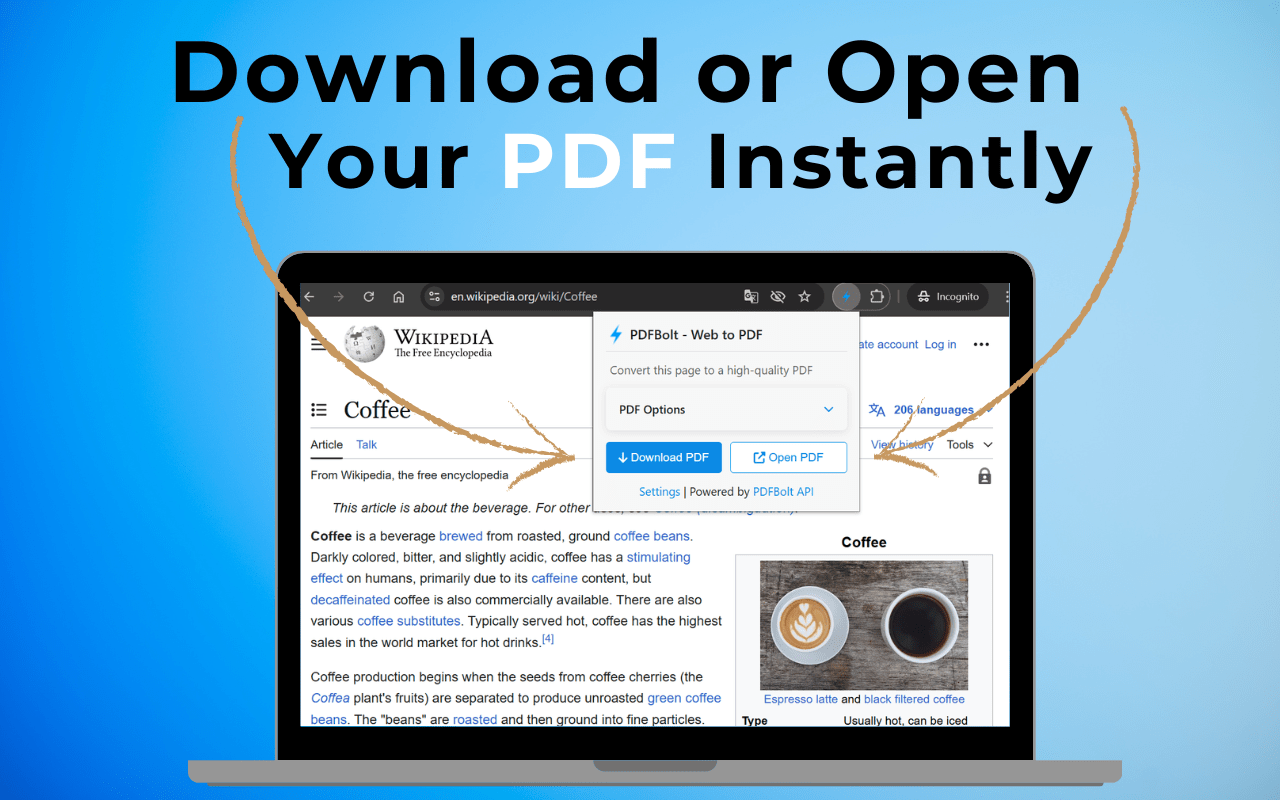
PDFBolt – Web to PDF gives you two output methods:
- Download PDF – Save the converted file directly to your downloads folder.
- Open PDF – View the generated PDF instantly in a new browser tab.
4. API-Powered Reliability
The extension calls the PDFBolt API server-side, so conversion happens in the cloud rather than in your browser. This means consistent output across any website and no performance hit on your machine.
Getting Started: Convert Webpage to PDF in Chrome
Quick Setup
- Install the extension from the Chrome Web Store.
- Sign up for a free PDFBolt account at pdfbolt.com.
- Navigate to the API Credentials tab and copy your API Key.
- Click the PDFBolt extension icon in your Chrome toolbar and select Settings.
- Paste your API Key and click Save.
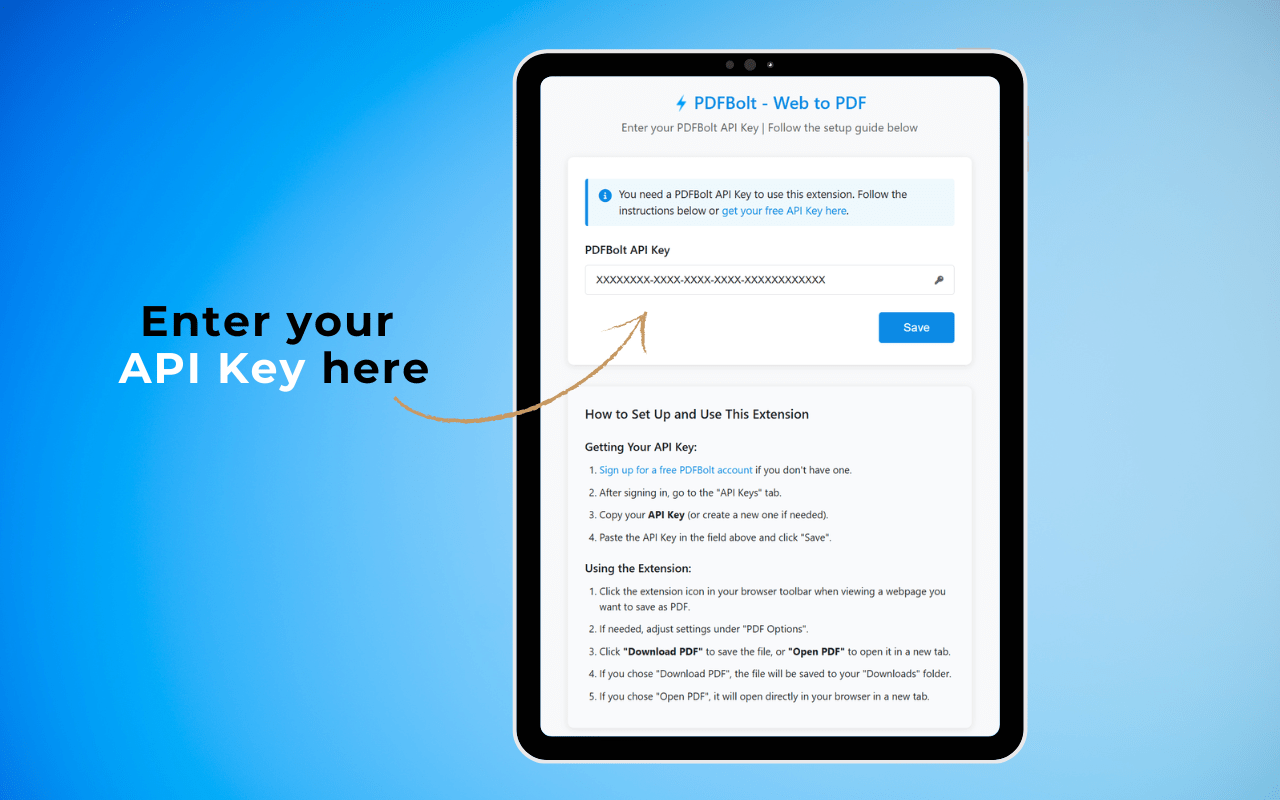
That's it! The extension is now ready to use.
You only need to set up your API Key once – the extension securely stores it in your browser, so you won't need to enter it again.
Convert Your First Webpage to PDF
- Navigate to any webpage you want to convert.
- Click the PDFBolt icon in your Chrome toolbar.
- Adjust any PDF options if needed (optional).
- Click Download PDF to save the file or Open PDF to view it instantly.
Customization Options
Paper Format and Orientation
The extension supports all standard paper sizes and orientation options (see the full parameter reference for details):
- Paper Sizes: A0-A6, Letter, Legal, Tabloid, and Ledger formats.
- Orientation: Choose between portrait or landscape layout.
Display Mode Options
The extension offers two rendering modes:
- Screen view – Captures the page exactly as it appears in your browser.
- Print view – Renders the page as it would appear when printed, applying any print-specific CSS styles defined by the website.
Margin Control
With margin control, you can fine-tune how content fits on the page:
- Add generous margins for note-taking.
- Minimize margins to maximize content space.
- Create asymmetric margins for binding or presentation purposes.
Footer Options
For documents that require page numbering, PDFBolt – Web to PDF offers two footer styles:
- Simple page number (e.g., "1").
- Page number with total (e.g., "1 / 7").
Combined with appropriate bottom margin settings, footers work well for multi-page articles and reports.
Tips for Best PDF Output
Optimizing for Different Content Types
- Text-heavy pages: Use "Print view" mode with custom margins for readability. For tips on structuring content for PDF, see Optimizing HTML for PDF Output.
- Visual content: Select "Screen view" with background elements enabled to preserve the page design.
- Multi-page articles: Enable footers with page numbers for easier navigation.
Handling Problematic Pages
For websites with unusual layouts or heavy JavaScript:
- Adjust the scale setting so all content fits on the page.
- Toggle between Screen and Print view modes to see which renders better.
- For complex layouts, try a different paper format (e.g., A3 or Tabloid).
Convert HTML to PDF with a simple API call. PDFBolt HTML to PDF API handles rendering with headless Chrome and returns PDFs via a REST endpoint.
Conclusion
The PDFBolt – Web to PDF Chrome extension lets you convert any webpage to PDF without touching Ctrl+P. Pick a page size, set your margins, choose screen or print view, and click Download. The extension handles the rest through the PDFBolt API, so the output stays consistent regardless of how complex the page is. If you'd rather not install anything, the same engine also powers our free online webpage to PDF converter, where you paste a URL straight in the browser.
If you need programmatic PDF generation instead, the same API powers HTML to PDF conversion and URL to PDF conversion via REST endpoints.
Forget about Ctrl+P. Click → Convert → Done. ✨