HexaPDF Ruby Tutorial: PDF Generation in Rails


Many Ruby on Rails applications need PDF features that go beyond basic document creation. HexaPDF is a pure Ruby library built for both generating and manipulating PDF files. Unlike libraries that focus only on PDF generation, HexaPDF covers the full PDF lifecycle – from programmatic document creation to modifying existing files. It supports digital signatures, encryption, form handling, and document merging, making it a good fit for Rails applications with complex document workflows.
What is HexaPDF? Ruby PDF Library Overview
HexaPDF is a pure Ruby library for creating and manipulating PDF documents. It covers reading, writing, editing, encrypting, and signing PDFs from a single gem. Since it is implemented entirely in Ruby, it behaves consistently across different environments and platforms without requiring external binaries.
HexaPDF Advantages for Rails PDF Processing
Here is what HexaPDF brings to a Rails project:
- Low-level Canvas API for precise control over document elements and manual positioning.
- Full PDF manipulation – modify, merge, and update existing PDF files.
- Rich text formatting with detailed typography control and font management.
- Security features including AES encryption, digital signatures, and access controls.
- Interactive form support with AcroForm implementation and annotation handling.
- Low memory footprint thanks to lazy loading and streaming I/O.
- HexaPDF is designed for programmatic PDF creation, not HTML to PDF conversion. It provides a Ruby API for building PDF documents from scratch or manipulating existing ones.
- If you need HTML to PDF conversion, consider specialized solutions like HTML to PDF API or browser-based tools.
Getting Started with HexaPDF in Ruby on Rails
Because HexaPDF is written entirely in Ruby, adding it to a Rails project is simple – no native extensions or external binaries to worry about. The following steps cover the setup and first PDF document.
- HexaPDF requires Ruby 2.7 or newer.
- Dependencies:
cmdparse(CLI binary),geom2d(layout),openssl, andstrscan. - Pure Ruby: No external binaries or platform-specific frameworks required.
HexaPDF Gem Installation
Add HexaPDF to your Rails application by including it in your Gemfile:
gem 'hexapdf'
Then install the gem:
bundle install
HexaPDF operates under a dual licensing model:
- AGPL v3 License: Free for open-source projects where you provide source code access.
- Commercial License: Required for proprietary applications where source code cannot be shared.
Create Our First PDF with HexaPDF
Start with a simple PDF generator in Rails to see HexaPDF's basic capabilities:
# app/controllers/pdfs_controller.rb
class PdfsController < ApplicationController
  def generate
    # Create new PDF document
    doc = HexaPDF::Document.new
    page = doc.pages.add
    canvas = page.canvas

    # Set font family and size
    canvas.font('Helvetica', size: 28)

    # Add text at specific coordinates
    canvas.text("Welcome to HexaPDF!", at: [50, 750])

    pdf_data = doc.write_to_string

    # Send PDF to browser
    send_data pdf_data,
              filename: "hexapdf_introduction.pdf",
              type: "application/pdf",
              disposition: "inline"
  end
end
Add the corresponding route:
# config/routes.rb
Rails.application.routes.draw do
  get 'generate_pdf', to: 'pdfs#generate'
end
This basic example shows HexaPDF's canvas-based approach to PDF creation, where you control element positioning and styling directly.
Working with Text Using HexaPDF
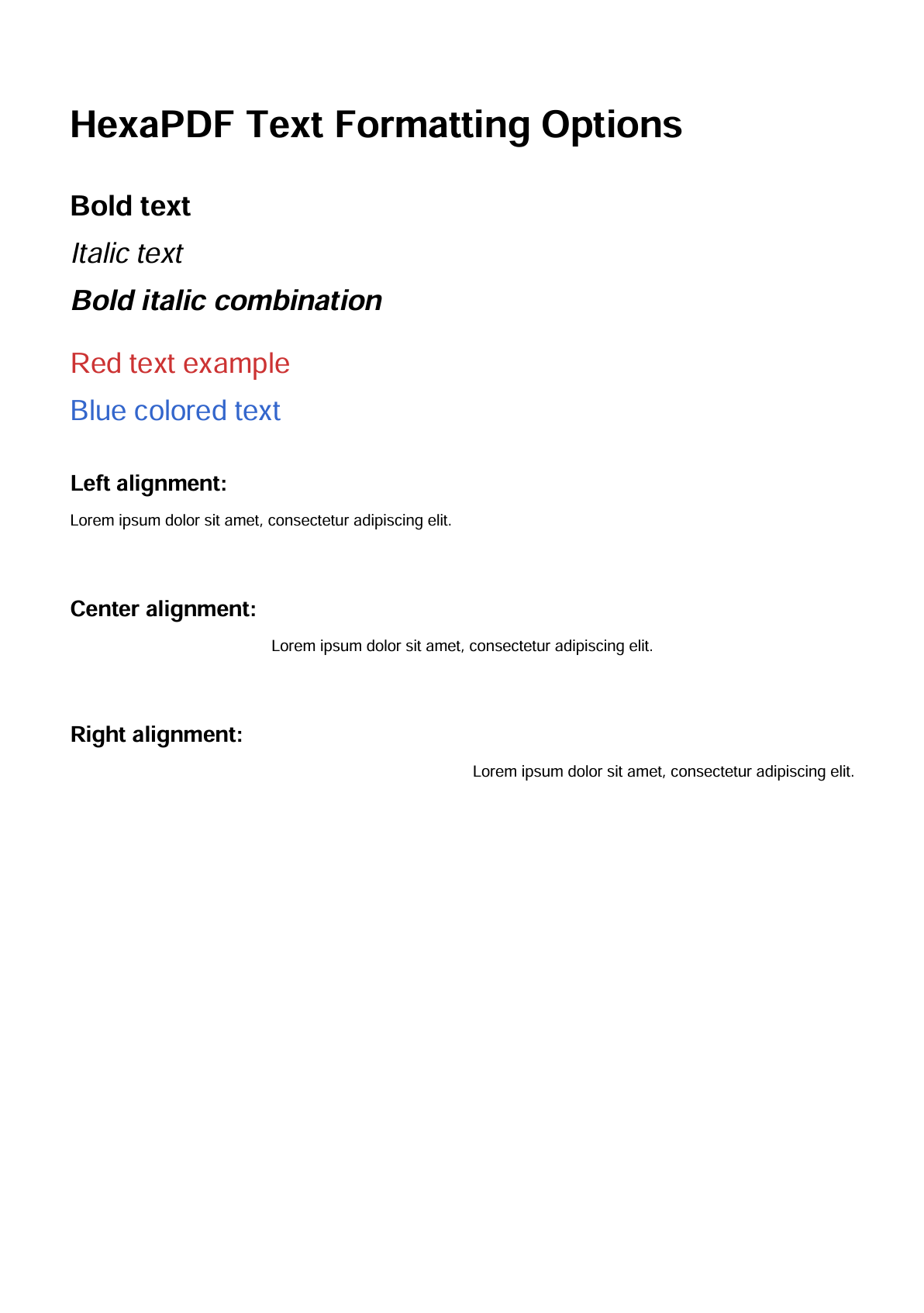
HexaPDF provides detailed text formatting capabilities for professional document creation, including font variants, color control, and text alignment.
Text Formatting Options in HexaPDF
The code below covers HexaPDF's core text formatting features: font variants (bold, italic, bold-italic), colored text, and text alignment.
View text formatting example
# app/controllers/pdfs_controller.rb
class PdfsController < ApplicationController
  def generate_pdf
    require 'hexapdf'

    doc = HexaPDF::Document.new
    canvas = doc.pages.add.canvas

    # Document title
    canvas.font('Helvetica', size: 24, variant: :bold)
    canvas.text("HexaPDF Text Formatting Options", at: [50, 750])

    y_position = 700

    # Font variants
    canvas.font('Helvetica', size: 18, variant: :bold)
    canvas.text("Bold text", at: [50, y_position])
    y_position -= 30

    canvas.font('Helvetica', variant: :italic)
    canvas.text("Italic text", at: [50, y_position])
    y_position -= 30

    canvas.font('Helvetica', variant: :bold_italic)
    canvas.text("Bold italic combination", at: [50, y_position])
    y_position -= 40

    # Text with color (RGB values from 0 to 1)
    canvas.fill_color(0.8, 0.2, 0.2) # Red color
    canvas.font('Helvetica', size: 18)
    canvas.text("Red text example", at: [50, y_position])
    y_position -= 30

    # Blue text
    canvas.fill_color(0.2, 0.4, 0.8)
    canvas.text("Blue colored text", at: [50, y_position])
    y_position -= 40

    # Reset to black for alignment demonstration
    canvas.fill_color(0, 0, 0)
    canvas.font('Helvetica', size: 12)

    # Text alignment demonstration
    sample_text = "Lorem ipsum dolor sit amet, consectetur adipiscing elit."

    width = 500
    height = 80
    y_base = y_position - 20

    tf = doc.layout.text_fragments(sample_text, font: doc.fonts.add("Helvetica"))
    tl = HexaPDF::Layout::TextLayouter.new

    [:left, :center, :right].each_with_index do |align, index|
      x = 50
      y = y_base - index * (height)

      # Label for alignment type
      canvas.font('Helvetica', size: 14, variant: :bold)
      canvas.text("#{align.to_s.capitalize} alignment:", at: [x, y + 15])

      # Apply alignment and render text
      canvas.font('Helvetica', size: 10)
      tl.style.text_align(align)
      tl.fit(tf, width, height).draw(canvas, x, y)
    end

    pdf_data = doc.write_to_string

    send_data pdf_data,
              filename: "text_formatting.pdf",
              type: "application/pdf",
              disposition: "inline"
  end
end
Generated PDF:
Custom Font Integration in HexaPDF
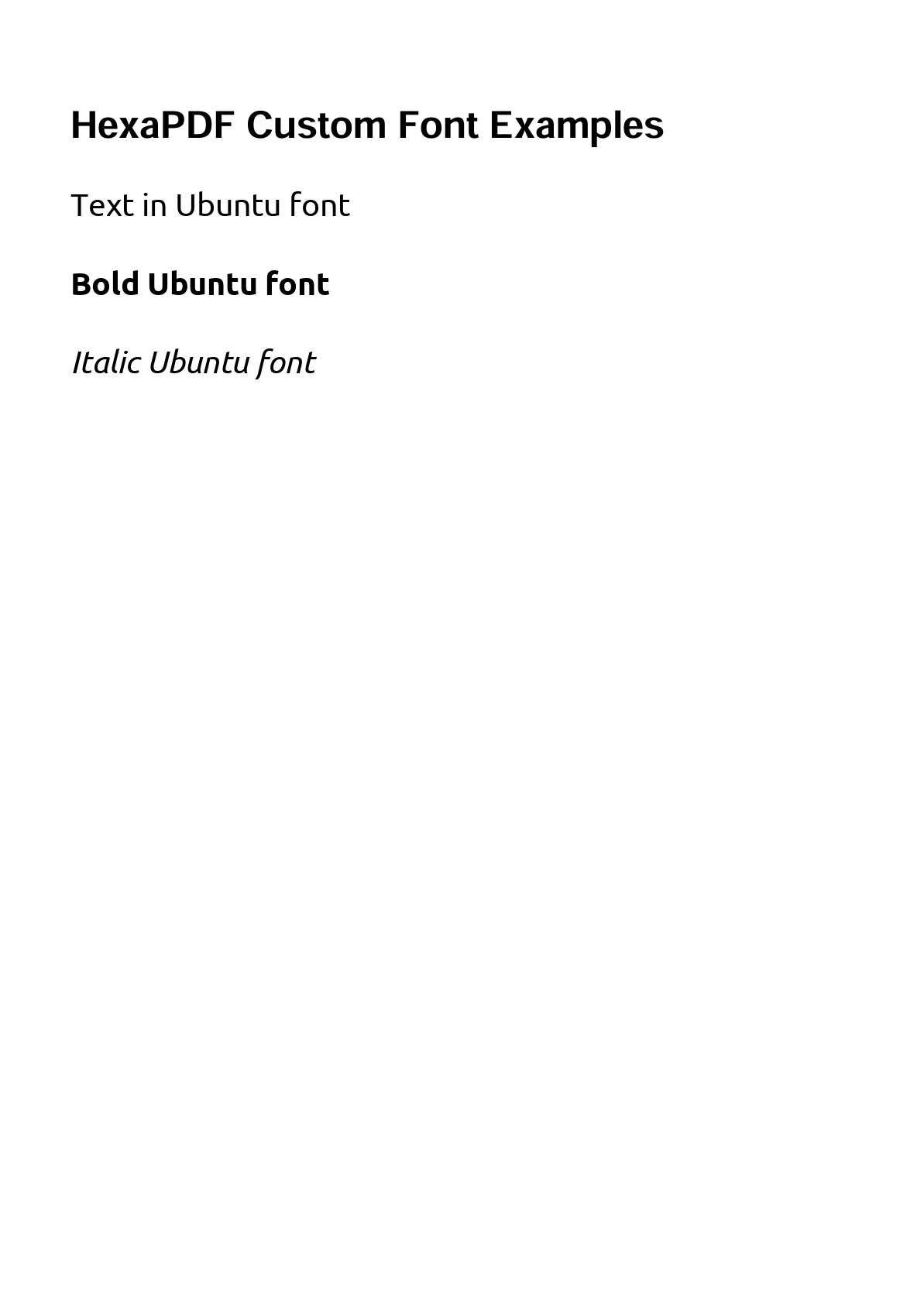
HexaPDF supports both the standard PDF fonts and custom TrueType fonts. This example shows how to integrate custom font variants into your PDF documents.
View custom font integration example
# app/controllers/pdfs_controller.rb
class PdfsController < ApplicationController
  def generate_pdf
    require 'hexapdf'

    doc = HexaPDF::Document.new
    canvas = doc.pages.add.canvas

    # Document title
    canvas.font('Helvetica', size: 24, variant: :bold)
    canvas.text("HexaPDF Custom Font Examples", at: [50, 750])

    # Method 1: direct font file path (use the full path)
    canvas.font(Rails.root.join('app/assets/fonts/Ubuntu-Regular.ttf').to_s, size: 20)
    canvas.text("Text in Ubuntu font", at: [50, 700])

    # Method 2: font mapping configuration (configure families and variants)
    doc.config['font.map']['CustomFont'] = {
      italic: Rails.root.join('app/assets/fonts/Ubuntu-Italic.ttf').to_s,
      bold: Rails.root.join('app/assets/fonts/Ubuntu-Bold.ttf').to_s
    }

    canvas.font('CustomFont', variant: :bold)
    canvas.text("Bold Ubuntu font", at: [50, 650])

    canvas.font('CustomFont', variant: :italic)
    canvas.text("Italic Ubuntu font", at: [50, 600])

    pdf_data = doc.write_to_string
    send_data pdf_data,
              filename: "custom_fonts.pdf",
              type: "application/pdf",
              disposition: "inline"
  end
end
Using Custom Fonts with HexaPDF in Rails
-
Create a fonts directory: Add your custom fonts to
app/assets/fonts. -
Download fonts from Google Fonts and place the
TTFfiles in the folder:
app/assets/fonts/
├── Ubuntu-Regular.ttf
├── Ubuntu-Bold.ttf
├── Ubuntu-Italic.ttf
└── Ubuntu-BoldItalic.ttf
- Register the font family in your HexaPDF code: Use HexaPDF’s font mapping configuration to define variants like regular, bold, and italic for your custom font family.
Result with custom fonts:
Working with Images and Graphics Using HexaPDF
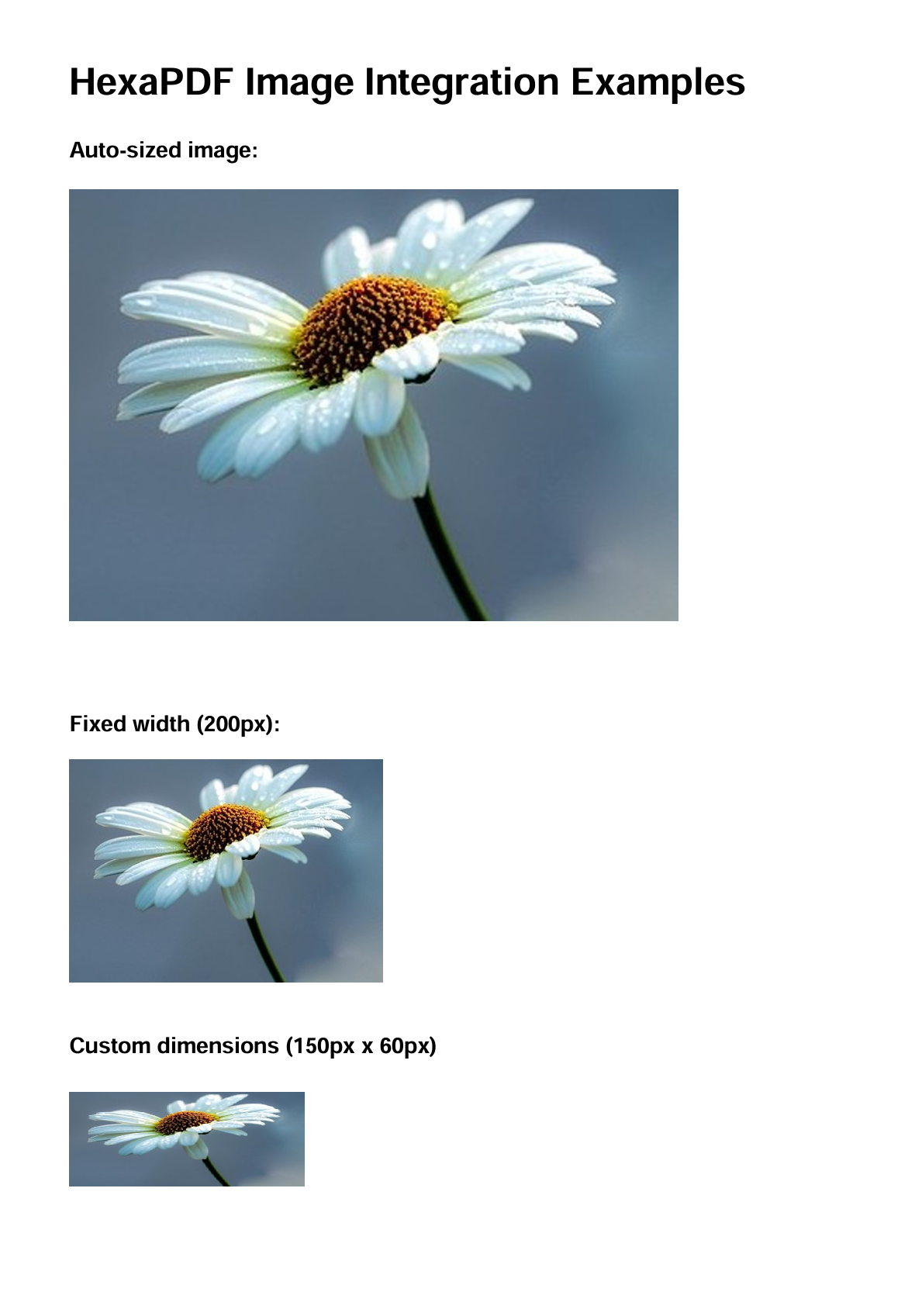
HexaPDF supports JPEG, PNG, and PDF image formats with flexible positioning and scaling options.
HexaPDF Image Handling
The following code places, scales, and positions images using HexaPDF's canvas API.
View complete image example
# app/controllers/pdfs_controller.rb
class PdfsController < ApplicationController
  def generate_pdf
    require 'hexapdf'

    doc = HexaPDF::Document.new
    canvas = doc.pages.add.canvas

    # Document title
    canvas.font('Helvetica', size: 24, variant: :bold)
    canvas.text("HexaPDF Image Integration Examples", at: [50, 780])

    y_position = 740

    begin
      # Basic image placement
      image_path = Rails.root.join('app/assets/images/sample.jpg')

      if File.exist?(image_path)
        # Auto-sizing based on image dimensions
        canvas.font('Helvetica', size: 14, variant: :bold)
        canvas.text("Auto-sized image:", at: [50, y_position])
        y_position -= 45

        canvas.image(image_path.to_s, at: [50, y_position - 250])
        y_position -= 320

        # Fixed width with proportional height
        canvas.font('Helvetica', size: 14, variant: :bold)
        canvas.text("Fixed width (200px):", at: [50, y_position])
        y_position -= 25

        canvas.image(image_path.to_s, at: [50, y_position - 135], width: 200)
        y_position -= 180

        # Explicit dimensions (may distort aspect ratio)
        canvas.font('Helvetica', size: 14, variant: :bold)
        canvas.text("Custom dimensions (150px x 60px)", at: [50, y_position])
        y_position -= 25

        canvas.image(image_path.to_s, at: [50, y_position - 60], width: 150, height: 60)

      else
        canvas.font('Helvetica', size: 12)
        canvas.text("Image not found at app/assets/images/sample.jpg", at: [50, y_position])
      end

    rescue => e
      canvas.font('Helvetica', size: 12)
      canvas.text("Error loading image: #{e.message}", at: [50, y_position])
    end

    pdf_data = doc.write_to_string
    send_data pdf_data,
              filename: "hexapdf_images.pdf",
              type: "application/pdf",
              disposition: "inline"
  end
end
Image placement result:
Creating Tables with HexaPDF
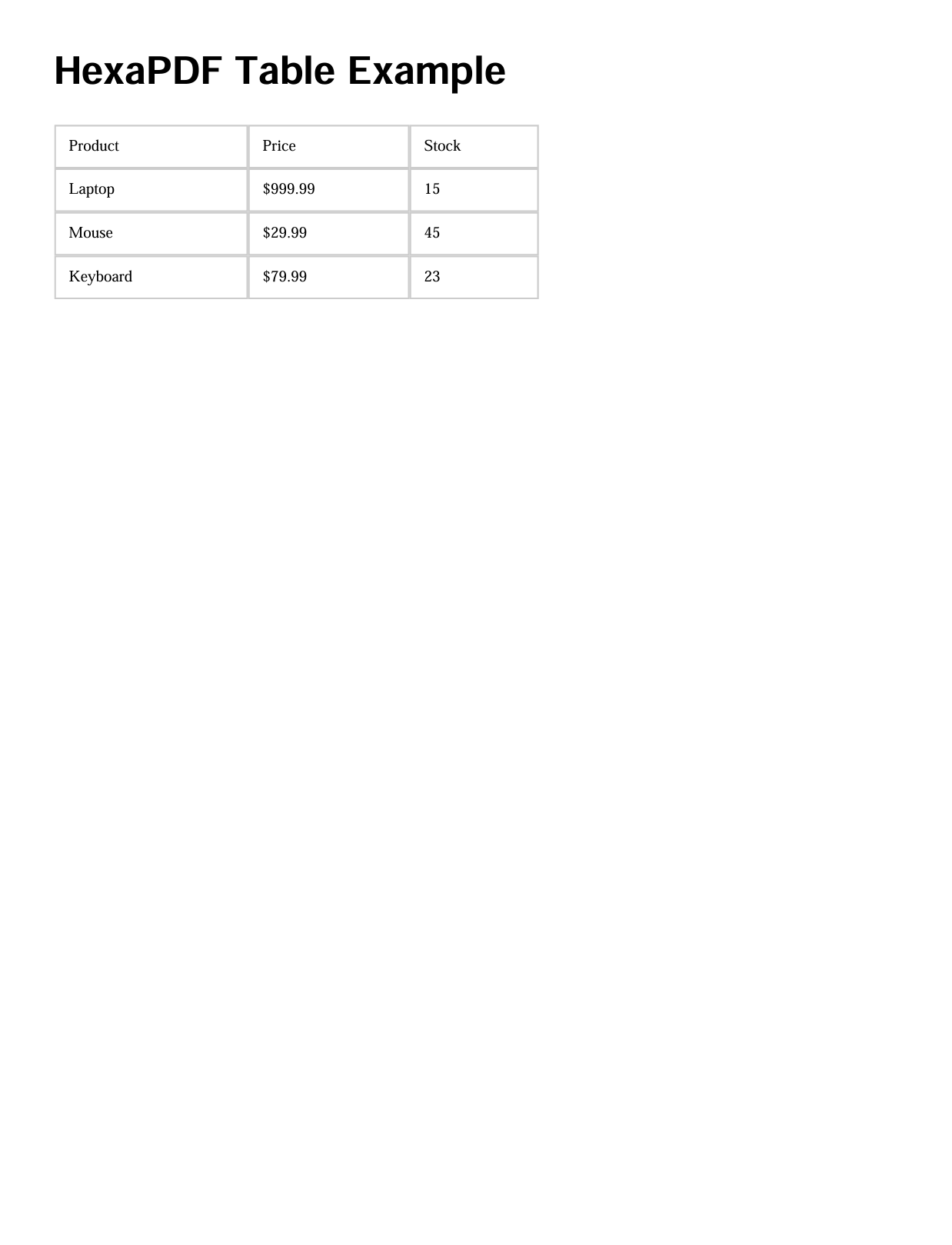
HexaPDF includes a TableBox layout system for structured data presentations with automatic formatting and page breaks.
HexaPDF Table Example
Here is a simple table built with HexaPDF's TableBox layout.
View table creation example
# app/controllers/pdfs_controller.rb
class PdfsController < ApplicationController
  def generate_pdf
    require 'hexapdf'

    # Create PDF with table using Composer
    pdf_data = StringIO.new

    HexaPDF::Composer.create(pdf_data) do |composer|
      composer.text("HexaPDF Table Example", font_size: 24,
                    font: 'Helvetica bold',)

      # Simple table with basic data
      table_data = [
        ['Product', 'Price', 'Stock'],
        ['Laptop', '$999.99', '15'],
        ['Mouse', '$29.99', '45'],
        ['Keyboard', '$79.99', '23']
      ]

      # Create table with fixed column widths
      composer.table(table_data, column_widths: [120, 100, 80],
                     margin: [20, 0, 0, 0],
                     cell_style: {
                       padding: 8,
                       border: { width: 1, color: 'cccccc' }
                     })
    end

    pdf_data.rewind
    send_data pdf_data.read,
              filename: "hexapdf_table.pdf",
              type: "application/pdf",
              disposition: "inline"
  end
end
Table output:
HexaPDF Security Features for PDF Encryption
HexaPDF includes password-based encryption, digital signatures, and granular permission controls.
HexaPDF Security Implementation
The code below creates a password-protected PDF with restricted permissions. The output document requires a password to open and limits what users can do with it.
View security example
# app/controllers/pdfs_controller.rb
class PdfsController < ApplicationController
  def generate_pdf
    require 'hexapdf'

    doc = HexaPDF::Document.new
    canvas = doc.pages.add.canvas

    # Document header
    canvas.font('Helvetica', size: 24, variant: :bold)
    canvas.fill_color(0.8, 0.2, 0.2)
    canvas.text("CONFIDENTIAL DOCUMENT", at: [120, 750])

    # Add some content
    canvas.fill_color(0, 0, 0)
    canvas.font('Helvetica', size: 16)
    canvas.text("This document contains sensitive information", at: [50, 700])

    # Apply encryption with maximum security restrictions
    doc.encrypt(
      algorithm: :aes,         # AES encryption (recommended)
      key_length: 128,                    # 128-bit key for broad compatibility
      user_password: "user123",           # Password required to open document
      owner_password: "admin456",         # Password for full access/permissions
      permissions: []                     # Empty array = no permissions allowed
    )

    pdf_data = doc.write_to_string

    send_data pdf_data,
              filename: "confidential_doc.pdf",
              type: "application/pdf",
              disposition: "attachment" # Force download
  end
end
Available Permission Options
HexaPDF allows fine-grained control over document permissions through the permissions parameter. You can specify which actions users are allowed to perform on the encrypted PDF document.
permissions: [
  :print,                   # Allow printing the document
  :modify_content,          # Allow content modification
  :copy_content,            # Allow copying text and images
  :modify_annotation,       # Allow adding/editing annotations
  :fill_in_forms,           # Allow filling in form fields
  :extract_content,         # Allow content extraction
  :assemble_document,       # Allow page reorganization
  :high_quality_print       # Allow high-quality printing
]
HexaPDF Invoice Generator: Complete Rails Tutorial
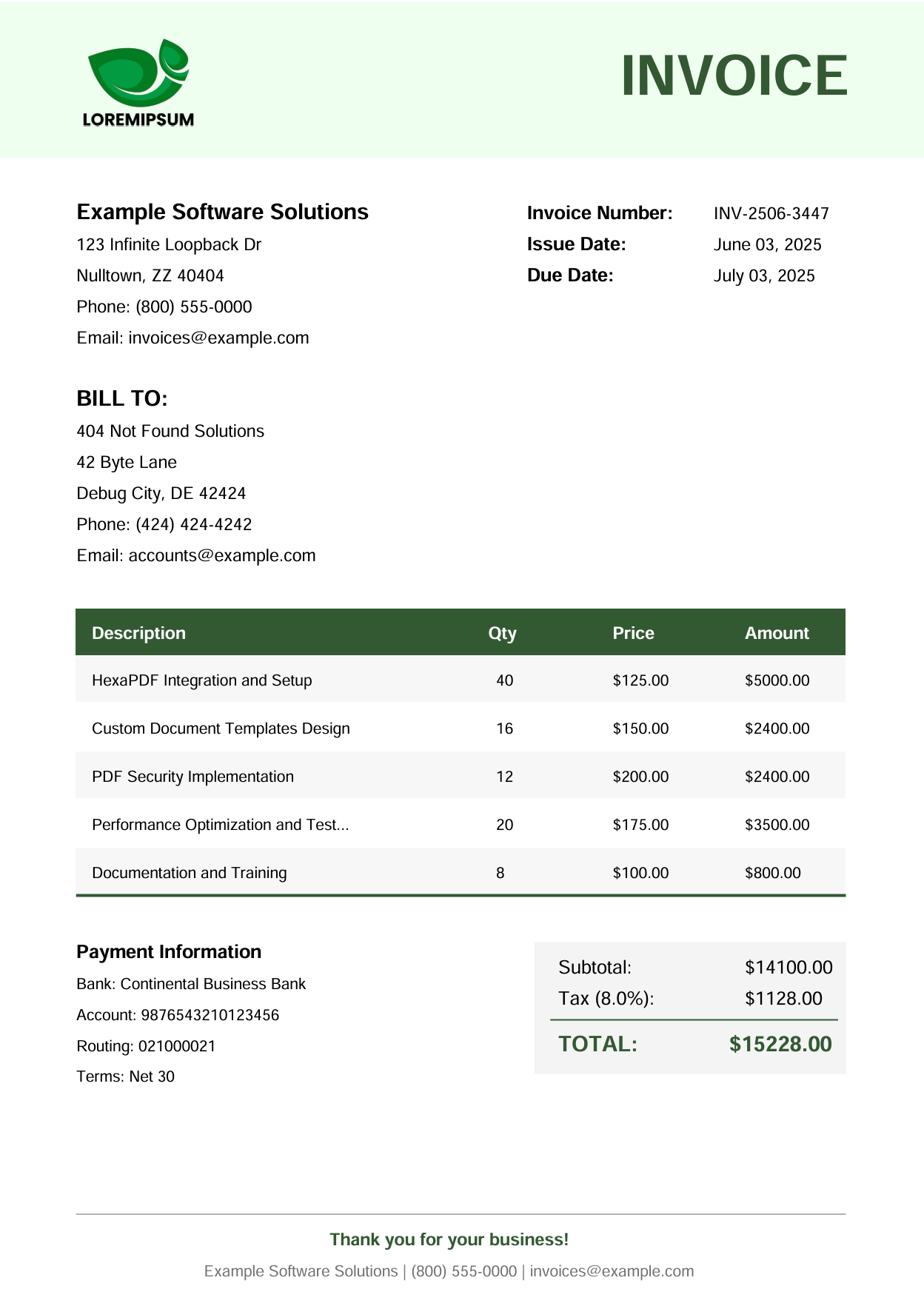
This section builds a full invoice generation system that shows HexaPDF's capabilities in a real business scenario – branded headers, a line-items table, tax calculations, and a payment section.
What we'll build:
- Invoice layout with company branding and exact element positioning.
- Manual table creation using HexaPDF's canvas API for complete control.
- Financial calculations including subtotals, tax, and totals.
- Service Object architecture following Rails best practices.
Project Structure
Organize your Rails application with proper separation of concerns:
app/
├── controllers/
│   └── invoices_controller.rb
├── services/
│   └── hexapdf_invoice_service.rb
└── assets/
    └── images/
        └── company_logo.png    # Optional
Step 1: Create the HexaPDF Invoice Service
The service class uses HexaPDF's canvas API for full control over document layout, including manual table creation, typography, and styling.
Click to view the complete HexaPDF invoice service
# app/services/hexapdf_invoice_service.rb
class HexapdfInvoiceService
  def initialize(invoice_data)
    @invoice = invoice_data
    # Auto-generate invoice number if not provided
    @invoice[:number] ||= generate_invoice_number

    # Start from top
    @y = 780
    @margin_left = 50
  end

  def generate
    require 'hexapdf'

    # Create new PDF document
    doc = HexaPDF::Document.new
    canvas = doc.pages.add.canvas

    # Build invoice sections in order from top to bottom
    add_header(canvas)
    add_company_info(canvas)
    add_client_info(canvas)
    add_invoice_details(canvas)
    add_line_items_table(canvas)
    add_totals_section(canvas)
    add_payment_info(canvas)
    add_footer(canvas)

    doc.write_to_string
  end

  private

  # Define consistent brand colors
  def light_green
    [0.94, 1.0, 0.94]
  end

  def dark_green
    [0.2, 0.35, 0.2]
  end

  # Generate unique invoice number
  def generate_invoice_number
    current_time = Time.current
    year = current_time.strftime("%y")
    month = current_time.strftime("%m")
    random_number = rand(1000..9999)
    "INV-#{year}#{month}-#{random_number}"
  end

  # Add header section
  def add_header(canvas)
    # Draw full-width header background
    canvas.fill_color(*light_green)
    canvas.rectangle(0, @y - 40, 595, 100)
    canvas.fill

    # Attempt to load and display company logo
    begin
      logo_path = Rails.root.join('app/assets/images/company_logo.png')
      if File.exist?(logo_path)
        canvas.image(logo_path.to_s, at: [@margin_left, @y - 20], width: 80)
      end
    rescue
      # Continue without logo if file not found
    end

    # Draw INVOICE title
    canvas.fill_color(*dark_green)
    canvas.font('Helvetica', size: 36, variant: :bold)
    canvas.text("INVOICE", at: [400, @y])

    # Reset fill color to black
    canvas.fill_color(0, 0, 0)
    @y -= 80
  end

  # Add company information section
  def add_company_info(canvas)
    company = @invoice[:company]

    canvas.font('Helvetica', size: 14, variant: :bold)
    canvas.text(company[:name], at: [@margin_left, @y])

    # Company contact details
    canvas.font('Helvetica', size: 11)
    canvas.text(company[:address], at: [@margin_left, @y -= 20])
    canvas.text("#{company[:city]}, #{company[:state]} #{company[:zip]}", at: [@margin_left, @y -= 20])
    canvas.text("Phone: #{company[:phone]}", at: [@margin_left, @y -= 20])
    canvas.text("Email: #{company[:email]}", at: [@margin_left, @y -= 20])

  end

  # Add client billing information section
  def add_client_info(canvas)
    client = @invoice[:client]

    # BILL TO
    canvas.font('Helvetica', size: 14, variant: :bold)
    canvas.text("BILL TO:", at: [@margin_left, @y -= 40])

    # Client contact details
    canvas.font('Helvetica', size: 11)
    canvas.text(client[:name], at: [@margin_left, @y -= 20])
    canvas.text(client[:address], at: [@margin_left, @y -= 20])
    canvas.text("#{client[:city]}, #{client[:state]} #{client[:zip]}", at: [@margin_left, @y -= 20])
    canvas.text("Phone: #{client[:phone]}", at: [@margin_left, @y -= 20])
    canvas.text("Email: #{client[:email]}", at: [@margin_left, @y -= 20])
  end

  # Add invoice details
  def add_invoice_details(canvas)
    y_base = 700

    # Labels for invoice information
    canvas.font('Helvetica', size: 12, variant: :bold)
    canvas.text("Invoice Number:", at: [340, y_base])
    canvas.text("Issue Date:", at: [340, y_base - 20])
    canvas.text("Due Date:", at: [340, y_base - 40])

    # Values for invoice information
    canvas.font('Helvetica', size: 11)
    canvas.text(@invoice[:number], at: [460, y_base])
    canvas.text(@invoice[:issue_date], at: [460, y_base - 20])
    canvas.text(@invoice[:due_date], at: [460, y_base - 40])
  end

  # Create itemized services/products table
  def add_line_items_table(canvas)
    @y -= 60
    table_width = 495
    row_height = 30

    # Draw table header
    canvas.fill_color(*dark_green)
    canvas.rectangle(@margin_left, @y, table_width, row_height)
    canvas.fill

    # Table header text
    canvas.fill_color(1.0, 1.0, 1.0)
    canvas.font('Helvetica', size: 11, variant: :bold)
    canvas.text("Description", at: [60, @y + 10])
    canvas.text("Qty", at: [315, @y + 10])
    canvas.text("Price", at: [395, @y + 10])
    canvas.text("Amount", at: [480, @y + 10])

    # Draw each line item row
    @y -= row_height
    @invoice[:line_items].each_with_index do |item, index|
      # Alternate row background colors
      if index.even?
        canvas.fill_color(0.97, 0.97, 0.97)
        canvas.rectangle(@margin_left, @y, table_width, row_height)
        canvas.fill
      end

      # Reset text color to black
      canvas.fill_color(0, 0, 0)
      canvas.font('Helvetica', size: 10)

      # Truncate long descriptions to fit in column
      description = item[:description].length > 35 ?
                      "#{item[:description][0..32]}..." :
                      item[:description]

      # Draw row data in columns
      canvas.text(description, at: [60, @y + 10])
      canvas.text(item[:quantity].to_s, at: [320, @y + 10])
      canvas.text("$#{sprintf('%.2f', item[:rate])}", at: [395, @y + 10])
      canvas.text("$#{sprintf('%.2f', item[:total])}", at: [480, @y + 10])

      @y -= row_height + 1
    end

    # Draw table bottom border
    canvas.stroke_color(*dark_green)
    canvas.line_width(2)
    canvas.line(@margin_left, @y + row_height, 545, @y + row_height)
    canvas.stroke
  end

  # Add financial totals section (subtotal, tax, total)
  def add_totals_section(canvas)

    # Calculate financial totals
    subtotal = @invoice[:line_items].sum { |item| item[:total] }
    tax_rate = @invoice[:tax_rate]
    tax = subtotal * tax_rate
    total = subtotal + tax

    # Draw background box for totals
    canvas.fill_color(0.96, 0.96, 0.96)
    canvas.rectangle(345, @y - 85, 200, 85)
    canvas.fill

    # Reset text color and font for calculations
    canvas.fill_color(0, 0, 0)
    canvas.font('Helvetica', size: 12)

    # Display subtotal
    canvas.text("Subtotal:", at: [360, @y - 20])
    canvas.text("$#{sprintf('%.2f', subtotal)}", at: [480, @y - 20])

    # Display tax amount
    canvas.text("Tax (#{(tax_rate * 100).round(1)}%):", at: [360, @y - 40])
    canvas.text("$#{sprintf('%.2f', tax)}", at: [480, @y - 40])

    # Draw separator line above total
    canvas.stroke_color(0, 0, 0)
    canvas.line_width(1)
    canvas.line(355, @y - 50, 540, @y - 50)
    canvas.stroke

    # Display final total
    canvas.font('Helvetica', size: 14, variant: :bold)
    canvas.fill_color(*dark_green)
    canvas.text("TOTAL:", at: [360, @y - 70])
    canvas.text("$#{sprintf('%.2f', total)}", at: [470, @y - 70])

    # Reset color
    canvas.fill_color(0, 0, 0)
  end

  # Add payment instructions
  def add_payment_info(canvas)
    payment = @invoice[:payment_info]

    # Payment information header
    canvas.font('Helvetica', size: 12, variant: :bold)
    canvas.text("Payment Information", at: [@margin_left, @y -= 10])

    # Bank and payment details
    canvas.font('Helvetica', size: 10)
    canvas.text("Bank: #{payment[:bank_name]}", at: [@margin_left, @y -= 20])
    canvas.text("Account: #{payment[:account_number]}", at: [@margin_left, @y -= 20])
    canvas.text("Routing: #{payment[:routing_number]}", at: [@margin_left, @y -= 20])
    canvas.text("Terms: #{payment[:terms]}", at: [@margin_left, @y -= 20])
  end

  # Add footer with company info and thank you message
  def add_footer(canvas)
    y_base = 60
    # Draw separator line above footer
    canvas.stroke_color(0.7, 0.7, 0.7)
    canvas.line_width(1)
    canvas.line(@margin_left, y_base, 545, y_base)
    canvas.stroke

    # Thank you message in brand color
    canvas.font('Helvetica', size: 11, variant: :bold)
    canvas.fill_color(*dark_green)
    thank_you = "Thank you for your business!"
    thank_you_width = thank_you.length * 6
    x_center_thanks = (595 - thank_you_width) / 2
    canvas.text(thank_you, at: [x_center_thanks, y_base -= 20])

    # Company contact information in footer
    canvas.font('Helvetica', size: 10)
    canvas.fill_color(0.45, 0.45, 0.45)

    company = @invoice[:company]
    footer_text = "#{company[:name]} | #{company[:phone]} | #{company[:email]}"

    # Center the footer text horizontally
    text_width = footer_text.length * 5
    x_center = (595 - text_width) / 2
    canvas.text(footer_text, at: [x_center, y_base - 20])
  end
end
Step 2: Create the Controller with Sample Data
The controller provides a working example with full sample data.
Click to view the controller implementation
# app/controllers/invoices_controller.rb
class InvoicesController < ApplicationController
  def generate_hexapdf_invoice
    # Example invoice data
    invoice_data = {
      issue_date: Date.current.strftime('%B %d, %Y'),
      due_date: 30.days.from_now.strftime('%B %d, %Y'),
      tax_rate: 0.08, # 8% tax rate

      # Company details
      company: {
        name: "Example Software Solutions",
        address: "123 Infinite Loopback Dr",
        city: "Nulltown",
        state: "ZZ",
        zip: "40404",
        phone: "(800) 555-0000",
        email: "invoices@example.com"
      },

      # Client details
      client: {
        name: "404 Not Found Solutions",
        address: "42 Byte Lane",
        city: "Debug City",
        state: "DE",
        zip: "42424",
        phone: "(424) 424-4242",
        email: "accounts@example.com"
      },

      # Invoice items (products/services)
      line_items: [
        {
          description: "HexaPDF Integration and Setup",
          quantity: 40,
          rate: 125.00,
          total: 5000.00
        },
        {
          description: "Custom Document Templates Design",
          quantity: 16,
          rate: 150.00,
          total: 2400.00
        },
        {
          description: "PDF Security Implementation",
          quantity: 12,
          rate: 200.00,
          total: 2400.00
        },
        {
          description: "Performance Optimization and Testing",
          quantity: 20,
          rate: 175.00,
          total: 3500.00
        },
        {
          description: "Documentation and Training",
          quantity: 8,
          rate: 100.00,
          total: 800.00
        }
      ],

      # Payment information (bank details)
      payment_info: {
        bank_name: "Continental Business Bank",
        account_number: "9876543210123456",
        routing_number: "021000021",
        terms: "Net 30"
      }
    }

    # Generate PDF using HexaPDF service
    pdf_service = HexapdfInvoiceService.new(invoice_data)
    pdf_data = pdf_service.generate

    # Timestamp for filename
    file_timestamp = Time.now.strftime('%Y%m%d%H%M%S')

    send_data pdf_data,
              filename: "invoice_#{file_timestamp}.pdf",
              type: "application/pdf",
              disposition: "inline" # Display in browser
  end
end
Step 3: Rails Routes Configuration
Add the invoice generation route to your Rails application:
# config/routes.rb
Rails.application.routes.draw do
  get 'generate_hexapdf_invoice', to: 'invoices#generate_hexapdf_invoice'

  # Optional: Add a root route for easy access
  root 'invoices#generate_hexapdf_invoice'
end
Step 4: Testing HexaPDF Invoice Generator
Test your invoice generator by navigating to:
http://localhost:3000/generate_hexapdf_invoice
Features Showcased in This Invoice Generator:
- Direct control over positioning, fonts, and layout.
- Branded headers, color schemes, and typography hierarchy.
- Precise control over table styling and alternating rows.
- Automatic calculations, invoice numbering, and formatting.
- Clean, testable, and maintainable code architecture.
- Clean Rails controller integration and service architecture.
Generated Invoice PDF
Rails PDF Generation Alternatives to HexaPDF
When HexaPDF's programmatic approach is not the right fit, consider these Rails PDF solutions:
| Solution | Best Use Case | Learn More |
|---|---|---|
| Grover | Modern HTML to PDF conversion using Chrome's rendering engine, ideal for complex layouts. | HTML to PDF with Grover |
| WickedPDF | Traditional HTML to PDF conversion for simple layouts, suitable for basic styling. | HTML to PDF with WickedPDF |
| Prawn | Pure Ruby programmatic PDF creation with a simple API, best for standard document layouts. | PDF Generation with Prawn |
| Puppeteer-Ruby | Headless Chrome automation for full CSS/JS support in Ruby, with fine-grained browser control. | HTML to PDF with Puppeteer-Ruby |
| PDFBolt API | Cloud-based HTML to PDF service supporting modern CSS and JavaScript, no server setup needed. | HTML to PDF API Docs |
For a broader comparison of all these libraries, see Top Ruby on Rails PDF Generation Gems.
HexaPDF builds PDFs programmatically but does not render HTML or CSS. If you need to convert web pages or HTML templates to PDF, PDFBolt PDF Generation API handles rendering with headless Chrome and returns PDFs via a REST call.
API-Based Alternative: Template-Driven PDF Generation
HexaPDF gives you full control over PDF layout, but every element must be positioned manually in Ruby code. For teams that prefer designing templates visually and generating PDFs from dynamic data, a PDF generation API like PDFBolt takes a different approach.
- Design templates visually: Create invoice layouts in a template designer or pick from the template gallery.
- No layout code: Styling, fonts, and positioning are handled in the template – your Ruby code only sends data. See optimizing HTML for PDF output for template best practices.
- Skip infrastructure setup: No gem dependencies, canvas math, or manual page-break logic.
- Simple integration: A single HTTP request from any Ruby application.
Ruby API call using a template
require 'net/http'
require 'uri'
require 'json'

data_json = '''
{
  "templateId": "your-template-id",
  "templateData": {
    "invoice_number": "INV-2025-886",
    "invoice_date": "June 2, 2025",
    "due_date": "July 2, 2025",
    "company_name": "PDFBolt",
    "company_address": "123 Tech Street, Anytown, EX 12345",
    "company_email": "contact@pdfbolt.com",
    "company_phone": "+1 (555) 123-4567",
    "company_logo": "https://img.pdfbolt.com/logo.png",
    "client_name": "Exampletron LLC",
    "client_address": "404 Infinite Loop, Nulltown, ZZ 00000",
    "client_email": "account@example.test",
    "line_items": [
      { "description": "Null Handler Module", "quantity": 1, "unit_price": 149.00 },
      { "description": "Loop Guard Service", "quantity": 1, "unit_price": 89.00 }
    ]
  }
}
'''

data = JSON.parse(data_json)

uri = URI("https://api.pdfbolt.com/v1/direct")

request = Net::HTTP::Post.new(uri)
request["API-KEY"] = "XXXXXXXX-XXXX-XXXX-XXXX-XXXXXXXXXXXX"
request["Content-Type"] = "application/json"
request.body = JSON.generate(data)

begin
  response = Net::HTTP.start(uri.hostname, uri.port, use_ssl: true) do |http|
    http.request(request)
  end

  if response.is_a?(Net::HTTPSuccess)
    File.open("invoice_pdfbolt.pdf", "wb") { |f| f.write(response.body) }
    puts "PDF generated successfully"
  else
    puts "HTTP #{response.code}"
    puts "Error Message: #{response.body}"
  end
rescue StandardError => e
  puts "Error: #{e.message}"
end
This approach works well when you need consistent document output without writing layout code by hand, or when multiple team members need to update templates without changing Ruby source files.
- PDF Generation API Documentation
- Template Management Guide
- HTML to PDF API – convert HTML content to PDF
- URL to PDF API – convert any web page to PDF
- Quick Start Guide
HexaPDF as a Ruby PDF Generator: Summary
HexaPDF handles more than basic document creation. Its pure Ruby implementation, built-in layout engine, and PDF manipulation features make it a good fit for Rails applications with demanding document workflows.
Encryption support and the ability to modify existing PDFs give HexaPDF an edge over simpler Ruby PDF libraries. If your project needs programmatic control over every element in the document – positioning, fonts, tables, security – HexaPDF handles all of that with zero external dependencies.
For Rails developers who need HTML to PDF conversion instead of programmatic layout, PDFBolt HTML to PDF API handles rendering through headless Chrome and returns PDFs via a single REST call.
Done. Your PDFs are now as solid as your test suite (hopefully). 💪