PDFsharp Tutorial: Generate PDFs in C# and .NET


For .NET developers, programmatically generating and modifying PDFs comes up in a lot of business applications. PDFsharp is a well-established .NET library that makes creating complex, multi-page documents easy and accessible. This guide covers everything you need to know about generating PDFs using PDFsharp in C# and .NET applications.
Introduction to PDFsharp
PDFsharp is an open-source .NET library for creating and processing PDF documents. It provides a full set of classes that allow developers to generate PDF files directly from their C# code. The library written entirely in C# is known for its simplicity, performance, and flexibility.
Key features of PDFsharp include:
- Creating and modifying PDF documents programmatically from scratch.
- An easy-to-understand object model for composing documents.
- Drawing text, shapes, and images (in formats BMP, PNG, GIF, TIFF, JPEG, with support for transparency).
- Modifying, merging, and splitting existing PDF files.
- Support for various fonts and text formatting.
- Encryption support for enhanced security.
- Accessibility features for PDFsharp/UA.
PDFsharp does not convert HTML to PDF. Instead, it provides a programming interface for creating and manipulating PDF documents directly through code. If you're looking for HTML to PDF conversion, you'll need additional libraries alongside PDFsharp – see the Converting HTML to PDF section later in this article.
Getting Started with PDFsharp
To get started, add PDFsharp to your .NET project using one of the following methods.
Using the .NET CLI:
dotnet add package PDFsharp
Using the Package Manager Console:
Install-Package PDFsharp
Alternatively, you can use the NuGet Package Manager UI in Visual Studio.
PDFsharp version 6.2.4 (the latest version at the time of writing) supports multiple versions of .NET, including .NET Framework 4.6.2, .NET Standard 2.0, .NET 8, .NET 9, and .NET 10.
Basic PDF Generation with PDFsharp in C#
Creating a Simple PDF Document
Here's a basic example showing how to create a PDF with text:
using PdfSharp.Pdf;
using PdfSharp.Drawing;

// Create a new PDF document
PdfDocument document = new PdfDocument();
document.Info.Title = "Welcome Message";
document.Info.Author = "Your Name";

// Create a new page
PdfPage page = document.AddPage();

// Get an XGraphics object for drawing on the page
XGraphics gfx = XGraphics.FromPdfPage(page);

// Create fonts for our text
XFont titleFont = new XFont("Arial", 24, XFontStyleEx.Bold);

// Draw a text
gfx.DrawString("Welcome to PDFsharp!", titleFont, XBrushes.DarkBlue,
    new XPoint(50, 50), XStringFormats.TopLeft);


// Save the document
const string filename = "WelcomeMessage.pdf";
document.Save(filename);

Console.WriteLine($"PDF created successfully: {filename}");
This basic script creates a PDF with a single page and adds some text to it:

Adding Multiple Elements to a Page
Let's expand on our example to add more elements to the page:
using PdfSharp.Pdf;
using PdfSharp.Drawing;
using System.Diagnostics;


// Create a new PDF document
PdfDocument document = new PdfDocument();
document.Info.Title = "Multi-Element Document";

// Create a new page
PdfPage page = document.AddPage();

// Get an XGraphics object for drawing
XGraphics gfx = XGraphics.FromPdfPage(page);

// Create fonts
XFont titleFont = new XFont("Times New Roman", 20, XFontStyleEx.Bold);
XFont normalFont = new XFont("Arial", 12, XFontStyleEx.Regular);
XFont italicFont = new XFont("Arial", 12, XFontStyleEx.Italic);

// Draw a title
gfx.DrawString("PDFsharp Example Document", titleFont, XBrushes.DarkBlue,
    new XPoint(50, 50));

// Draw some normal text
gfx.DrawString("This is a simple document created with PDFsharp.",
    normalFont, XBrushes.Black, new XPoint(50, 100));

// Draw some italic text
gfx.DrawString("You can easily mix different fonts and styles.",
    italicFont, XBrushes.Black, new XPoint(50, 130));

// Draw a rectangle
XRect rect = new XRect(50, 150, 250, 100);
gfx.DrawRectangle(new XPen(XColors.Red, 2), rect);

// Draw text inside the rectangle
gfx.DrawString("Text in a box", normalFont, XBrushes.DarkRed,
    rect, XStringFormats.Center);

// Save the document
const string filename = "MultiElement.pdf";
document.Save(filename);
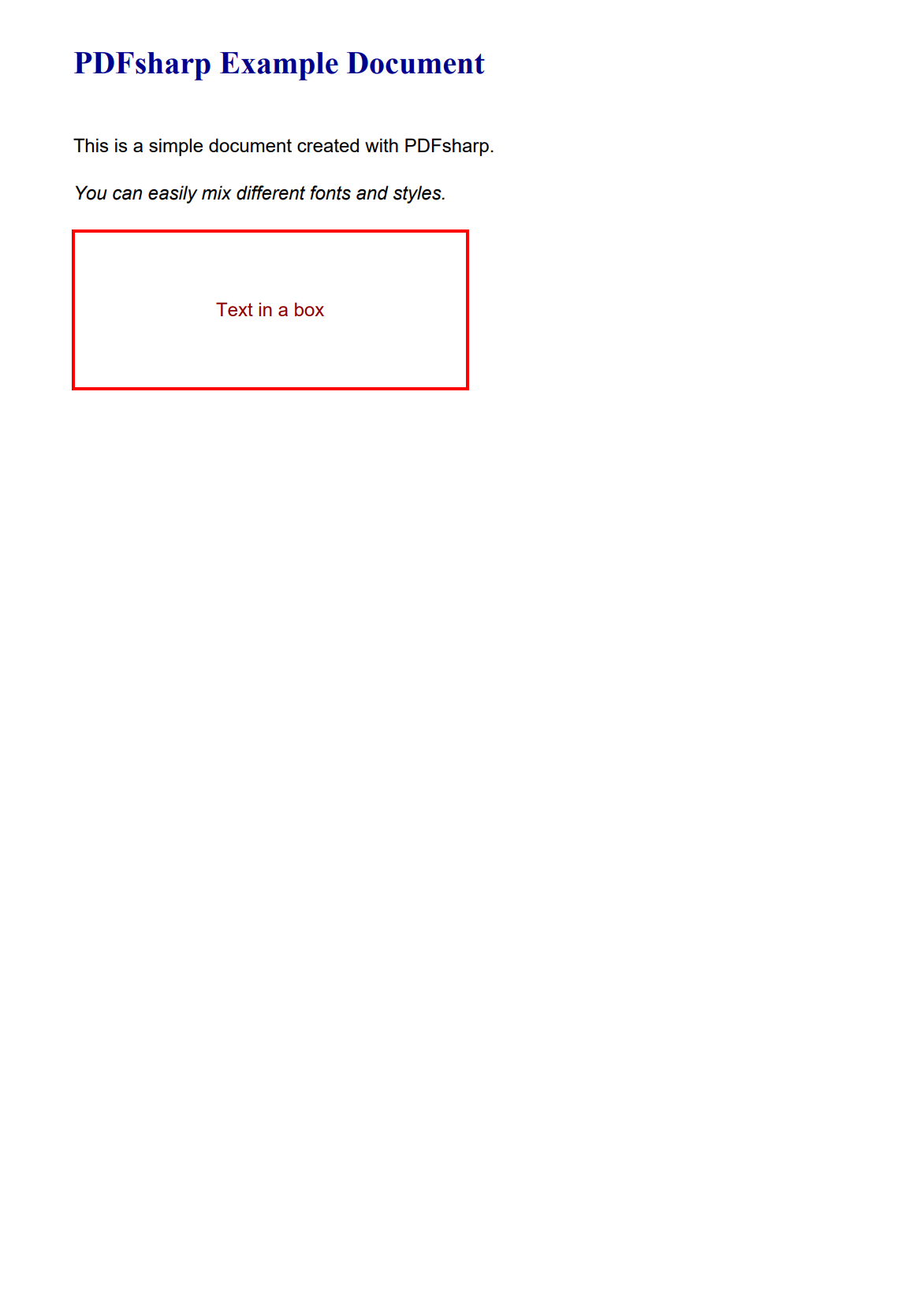
This creates a PDF with mixed elements:
Working with Text in PDFsharp
Text Styling and Fonts
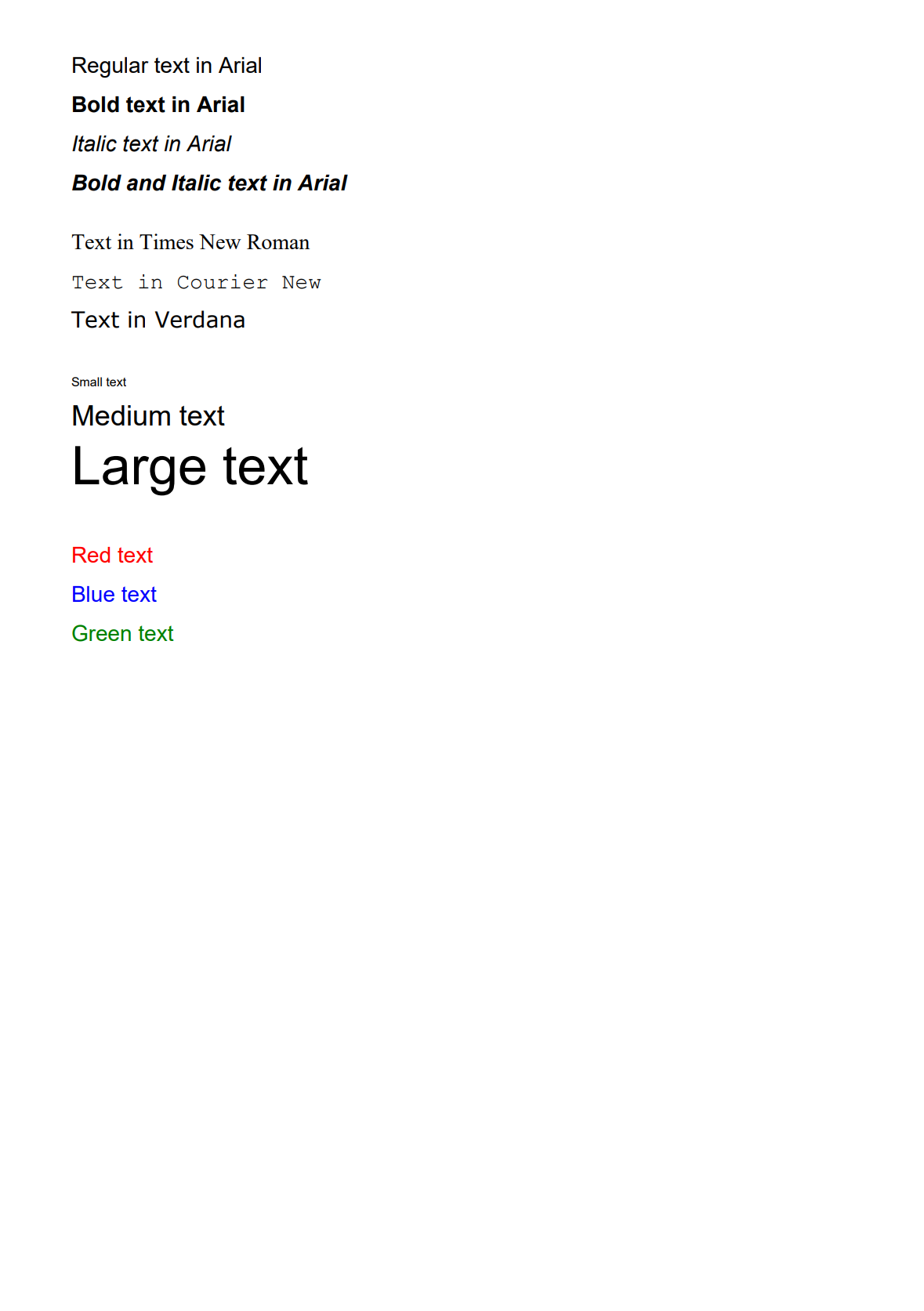
PDFsharp provides many options for working with text, allowing you to control font size, style, alignment, and more.
Click to view the text styling code example
using PdfSharp.Pdf;
using PdfSharp.Drawing;

// Create document
PdfDocument document = new PdfDocument();
PdfPage page = document.AddPage();
XGraphics gfx = XGraphics.FromPdfPage(page);

// Example of different font styles
XFont regularFont = new XFont("Arial", 12, XFontStyleEx.Regular);
XFont boldFont = new XFont("Arial", 12, XFontStyleEx.Bold);
XFont italicFont = new XFont("Arial", 12, XFontStyleEx.Italic);
XFont boldItalicFont = new XFont("Arial", 12, XFontStyleEx.BoldItalic);

// Position for the first text
double y = 50;
double x = 50;
double lineHeight = 20;

// Draw text in different styles
gfx.DrawString("Regular text in Arial", regularFont, XBrushes.Black, x, y);
y += lineHeight;
gfx.DrawString("Bold text in Arial", boldFont, XBrushes.Black, x, y);
y += lineHeight;
gfx.DrawString("Italic text in Arial", italicFont, XBrushes.Black, x, y);
y += lineHeight;
gfx.DrawString("Bold and Italic text in Arial", boldItalicFont, XBrushes.Black, x, y);
y += lineHeight * 1.5;

// Different font families
XFont timesFont = new XFont("Times New Roman", 12, XFontStyleEx.Regular);
XFont courierFont = new XFont("Courier New", 12, XFontStyleEx.Regular);
XFont verdanaFont = new XFont("Verdana", 12, XFontStyleEx.Regular);

gfx.DrawString("Text in Times New Roman", timesFont, XBrushes.Black, x, y);
y += lineHeight;
gfx.DrawString("Text in Courier New", courierFont, XBrushes.Black, x, y);
y += lineHeight;
gfx.DrawString("Text in Verdana", verdanaFont, XBrushes.Black, x, y);
y += lineHeight * 1.5;

// Different font sizes
XFont smallFont = new XFont("Arial", 8, XFontStyleEx.Regular);
XFont mediumFont = new XFont("Arial", 16, XFontStyleEx.Regular);
XFont largeFont = new XFont("Arial", 24, XFontStyleEx.Regular);

gfx.DrawString("Small text (8pt)", smallFont, XBrushes.Black, x, y);
y += lineHeight;
gfx.DrawString("Medium text (16pt)", mediumFont, XBrushes.Black, x, y);
y += lineHeight * 1.5;
gfx.DrawString("Large text (24pt)", largeFont, XBrushes.Black, x, y);
y += lineHeight * 2;

// Text with different colors
gfx.DrawString("Red text", regularFont, XBrushes.Red, x, y);
y += lineHeight;
gfx.DrawString("Blue text", regularFont, XBrushes.Blue, x, y);
y += lineHeight;
gfx.DrawString("Green text", regularFont, XBrushes.Green, x, y);

// Save the document
document.Save("TextStyles.pdf");
Here is the output:
Text Alignment and Formatting
PDFsharp provides multiple ways to align and format text:
Click to view the text alignment code example
using PdfSharp.Pdf;
using PdfSharp.Drawing;
using PdfSharp.Drawing.Layout;

// Create document
PdfDocument document = new PdfDocument();
PdfPage page = document.AddPage();
XGraphics gfx = XGraphics.FromPdfPage(page);

// Create a font
XFont font = new XFont("Arial", 12, XFontStyleEx.Regular);

// Create a rectangle that defines the area for text
XRect rect = new XRect(80, 80, 450, 200);

// Draw left-aligned text
XRect leftRect = new XRect(rect.X, rect.Y, rect.Width, 20);
gfx.DrawString("Left aligned text", font, XBrushes.Black,
    leftRect, XStringFormats.TopLeft);

// Draw center-aligned text
XRect centerRect = new XRect(rect.X, rect.Y + 30, rect.Width, 20);
gfx.DrawString("Center aligned text", font, XBrushes.Black,
    centerRect, XStringFormats.TopCenter);

// Draw right-aligned text
XRect rightRect = new XRect(rect.X, rect.Y + 60, rect.Width, 20);
gfx.DrawString("Right aligned text", font, XBrushes.Black,
    rightRect, XStringFormats.TopRight);

// Save the document
document.Save("TextAlignment.pdf");
Working with Graphics and Images in PDFsharp
Drawing Shapes
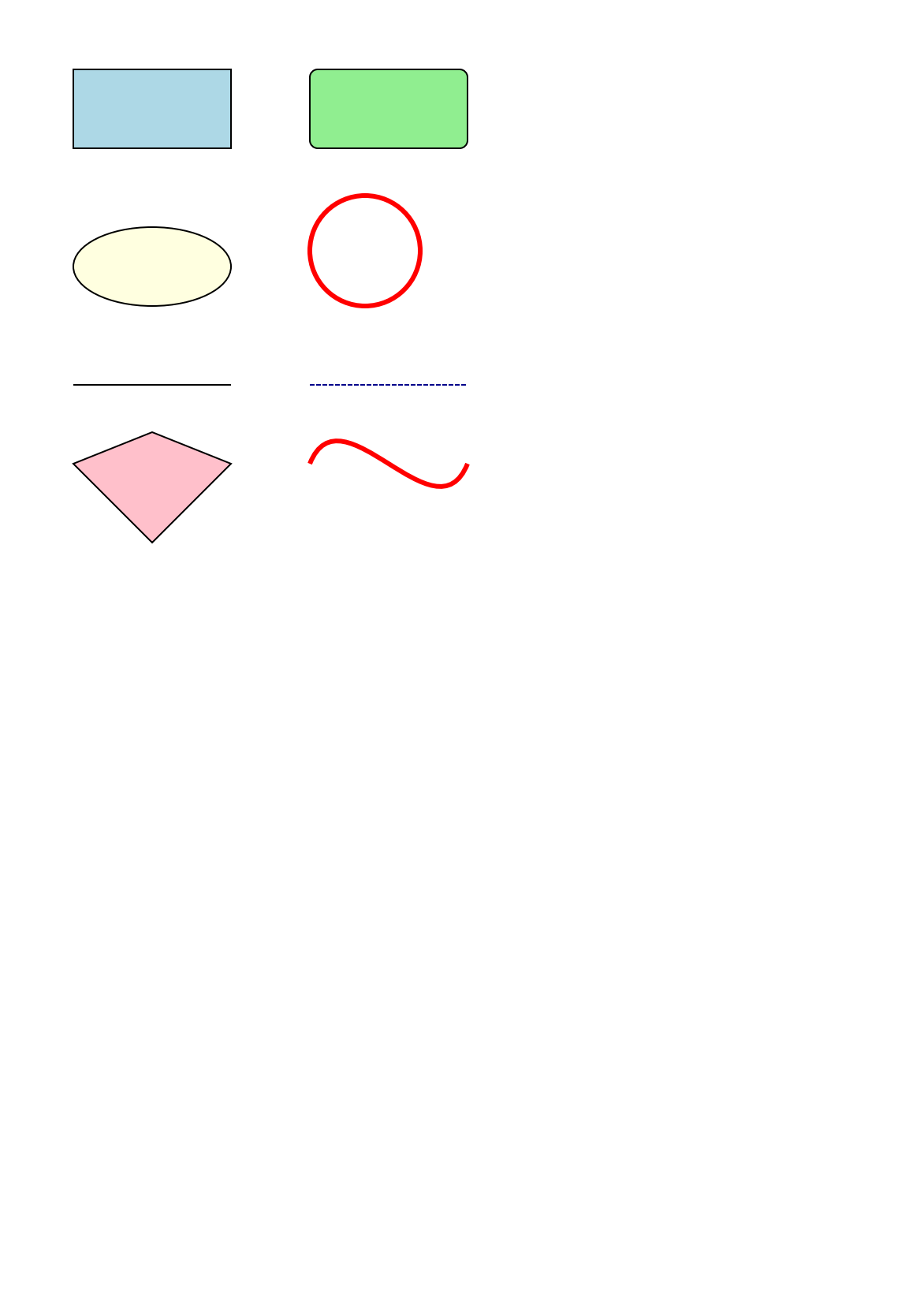
PDFsharp makes it easy to draw various shapes in your PDF documents:
Click to view the shapes drawing code example
using PdfSharp.Pdf;
using PdfSharp.Drawing;

// Create document
PdfDocument document = new PdfDocument();
PdfPage page = document.AddPage();
XGraphics gfx = XGraphics.FromPdfPage(page);

// Create pens and brushes for drawing
XPen blackPen = new XPen(XColors.Black, 1);
XPen thickRedPen = new XPen(XColors.Red, 3);
XPen dashedPen = new XPen(XColors.DarkBlue, 1);
dashedPen.DashStyle = XDashStyle.Dash;

XBrush blueBrush = new XSolidBrush(XColors.LightBlue);
XBrush greenBrush = new XSolidBrush(XColors.LightGreen);
XBrush yellowBrush = new XSolidBrush(XColors.LightYellow);

// Draw a rectangle
XRect rect = new XRect(50, 50, 100, 50);
gfx.DrawRectangle(blackPen, blueBrush, rect);

// Draw a rounded rectangle
XRect roundedRect = new XRect(200, 50, 100, 50);
gfx.DrawRoundedRectangle(blackPen, greenBrush, roundedRect, new XSize(10, 10));

// Draw an ellipse
XRect ellipseRect = new XRect(50, 150, 100, 50);
gfx.DrawEllipse(blackPen, yellowBrush, ellipseRect);

// Draw a circle
XRect circleRect = new XRect(200, 130, 70, 70);
gfx.DrawEllipse(thickRedPen, circleRect);

// Draw lines
gfx.DrawLine(blackPen, 50, 250, 150, 250);
gfx.DrawLine(dashedPen, 200, 250, 300, 250);

// Draw a polygon
XPoint[] points = new XPoint[]
{
    new XPoint(50, 300),
    new XPoint(100, 350),
    new XPoint(150, 300),
    new XPoint(100, 280),
};
gfx.DrawPolygon(blackPen, XBrushes.Pink, points, XFillMode.Alternate);

// Draw a Bézier curve
gfx.DrawBezier(thickRedPen,
    new XPoint(200, 300),
    new XPoint(220, 250),
    new XPoint(280, 350),
    new XPoint(300, 300));

// Save the document
document.Save("Shapes.pdf");
Here is the output:
Working with Colors and Gradients
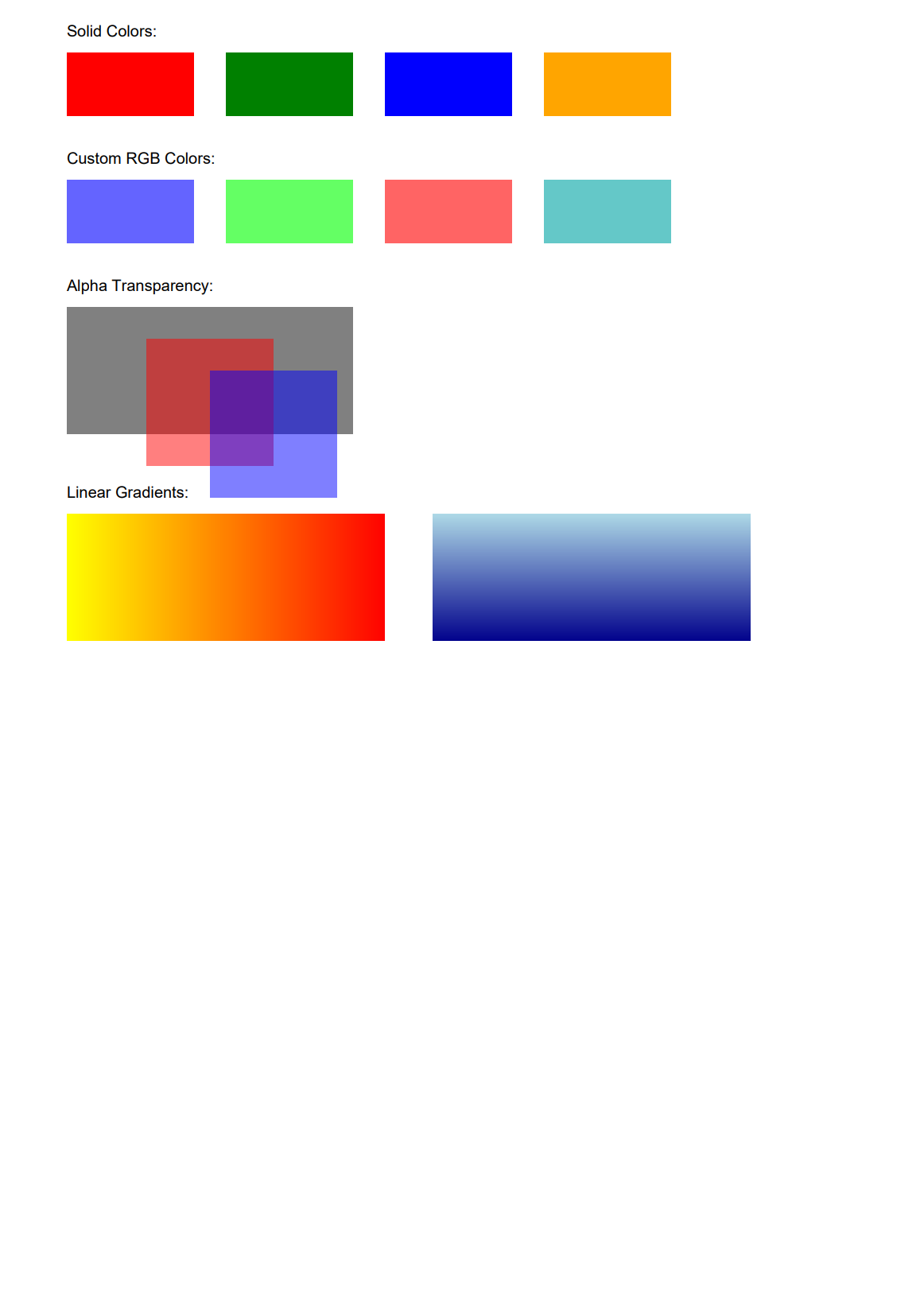
PDFsharp offers solid support for colors:
Click to view the colors and gradients code example
using PdfSharp.Pdf;
using PdfSharp.Drawing;

// Create document
PdfDocument document = new PdfDocument();
PdfPage page = document.AddPage();
XGraphics gfx = XGraphics.FromPdfPage(page);

// Font for labels
XFont labelFont = new XFont("Arial", 10, XFontStyleEx.Regular);

// Create solid color rectangles
gfx.DrawString("Solid Colors:", labelFont, XBrushes.Black, 50, 30);

// Define some rectangles
XRect rect1 = new XRect(50, 40, 80, 40);
XRect rect2 = new XRect(150, 40, 80, 40);
XRect rect3 = new XRect(250, 40, 80, 40);
XRect rect4 = new XRect(350, 40, 80, 40);

// Draw with predefined colors
gfx.DrawRectangle(new XSolidBrush(XColors.Red), rect1);
gfx.DrawRectangle(new XSolidBrush(XColors.Green), rect2);
gfx.DrawRectangle(new XSolidBrush(XColors.Blue), rect3);
gfx.DrawRectangle(new XSolidBrush(XColors.Orange), rect4);

// Custom RGB colors
gfx.DrawString("Custom RGB Colors:", labelFont, XBrushes.Black, 50, 110);

XRect rect5 = new XRect(50, 120, 80, 40);
XRect rect6 = new XRect(150, 120, 80, 40);
XRect rect7 = new XRect(250, 120, 80, 40);
XRect rect8 = new XRect(350, 120, 80, 40);

// Create colors using RGB values
XColor customColor1 = XColor.FromArgb(100, 100, 255);
XColor customColor2 = XColor.FromArgb(100, 255, 100);
XColor customColor3 = XColor.FromArgb(255, 100, 100);
XColor customColor4 = XColor.FromArgb(100, 200, 200);

gfx.DrawRectangle(new XSolidBrush(customColor1), rect5);
gfx.DrawRectangle(new XSolidBrush(customColor2), rect6);
gfx.DrawRectangle(new XSolidBrush(customColor3), rect7);
gfx.DrawRectangle(new XSolidBrush(customColor4), rect8);

// Alpha transparency
gfx.DrawString("Alpha Transparency:", labelFont, XBrushes.Black, 50, 190);

XRect rect9 = new XRect(50, 200, 180, 80);
gfx.DrawRectangle(XBrushes.Gray, rect9);

// Draw overlapping rectangles with transparency
XRect rect10 = new XRect(100, 220, 80, 80);
XRect rect11 = new XRect(140, 240, 80, 80);

// Create semi-transparent colors
XColor transRed = XColor.FromArgb(128, 255, 0, 0);    // 50% transparent red
XColor transBlue = XColor.FromArgb(128, 0, 0, 255);   // 50% transparent blue

gfx.DrawRectangle(new XSolidBrush(transRed), rect10);
gfx.DrawRectangle(new XSolidBrush(transBlue), rect11);

// Linear gradients
gfx.DrawString("Linear Gradients:", labelFont, XBrushes.Black, 50, 320);

XRect gradientRect1 = new XRect(50, 330, 200, 80);
XLinearGradientBrush linearGradient = new XLinearGradientBrush(
    gradientRect1, XColors.Yellow, XColors.Red, XLinearGradientMode.Horizontal);
gfx.DrawRectangle(linearGradient, gradientRect1);

XRect gradientRect2 = new XRect(280, 330, 200, 80);
XLinearGradientBrush linearGradient2 = new XLinearGradientBrush(
    gradientRect2, XColors.LightBlue, XColors.DarkBlue, XLinearGradientMode.Vertical);
gfx.DrawRectangle(linearGradient2, gradientRect2);

// Save the document
document.Save("Colors.pdf");
Here is the output:
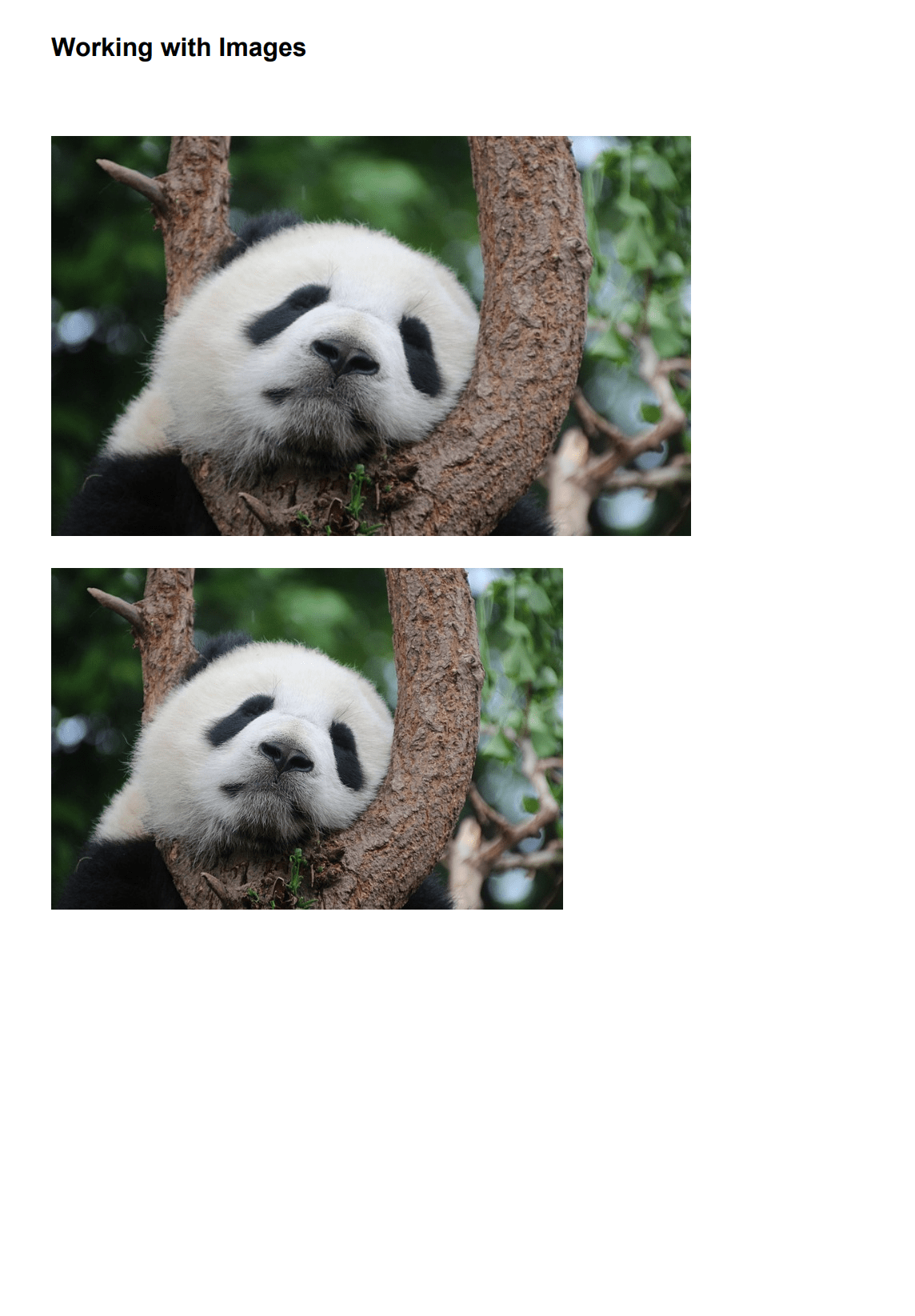
Adding Images
PDFsharp makes it easy to include images in your PDF documents:
Click to view the image handling code example
using PdfSharp.Pdf;
using PdfSharp.Drawing;
using System.Diagnostics;

// For .NET Core/.NET 5+ compatibility
System.Text.Encoding.RegisterProvider(System.Text.CodePagesEncodingProvider.Instance);

// Create document
PdfDocument document = new PdfDocument();
PdfPage page = document.AddPage();
XGraphics gfx = XGraphics.FromPdfPage(page);

// Add a title
XFont titleFont = new XFont("Arial", 16, XFontStyleEx.Bold);
gfx.DrawString("Working with Images", titleFont, XBrushes.Black, 50, 50);

// Load an image from file (ensure the image exists at the specified path)
XImage image = XImage.FromFile("sample-image.jpg");

// Draw image with specified size (positioned below the title)
gfx.DrawImage(image, 50, 100, 400, 250);

// Draw scaled image (positioned below the first image)
double scale = 0.5; // Scale to 50%
double width = image.PixelWidth * scale;
double height = image.PixelHeight * scale;
gfx.DrawImage(image, 50, 370, width, height);

// Save the document
document.Save("Images.pdf");

// Clean up
image.Dispose();
Here is the output:
Setting Document Metadata in PDFsharp
PDFsharp allows you to set various document properties:
using PdfSharp.Pdf;
using PdfSharp.Drawing;

// Create a new PDF document
PdfDocument document = new PdfDocument();

// Set document metadata
document.Info.Title = "Sample Document";
document.Info.Author = "PdfSharp";
document.Info.Subject = "PDFsharp Example";
document.Info.Keywords = "PDFsharp, .NET, PDF, C#";
document.Info.Creator = "My Application";

// Add a page to the document
PdfPage page = document.AddPage();
XGraphics gfx = XGraphics.FromPdfPage(page);

// Add some content to the page
XFont font = new XFont("Arial", 12, XFontStyleEx.Regular);
gfx.DrawString("This document contains metadata information.", font, XBrushes.Black,
    new XPoint(50, 50));

// Save the document
document.Save("DocumentMetadata.pdf");
Practical Example: Creating an Invoice PDF with PDFsharp
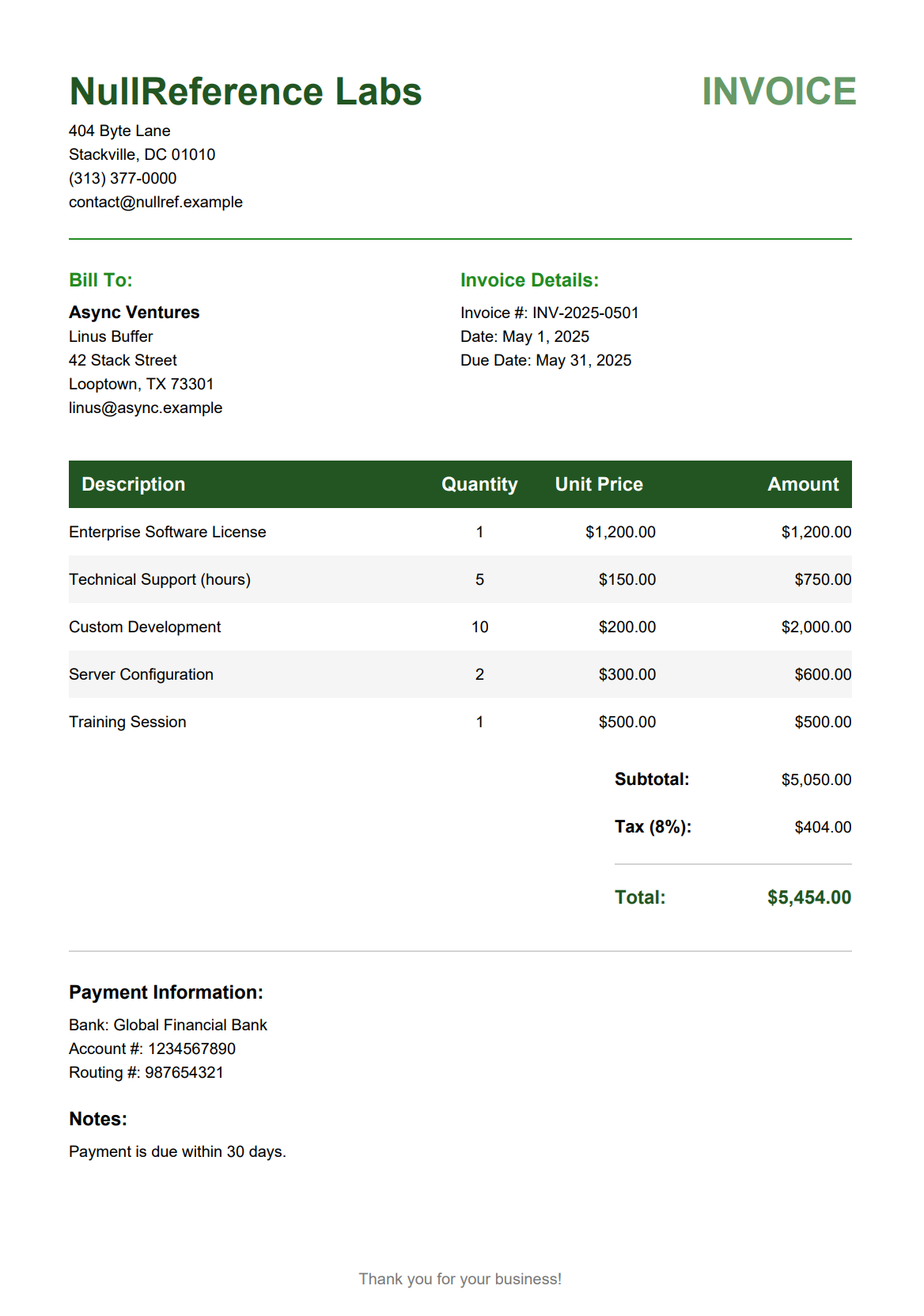
Let's put everything together by creating a complete invoice. For a comparison with other C# PDF libraries that handle invoices, see the top C# PDF generation libraries roundup.
Click to view the complete invoice generator code
using PdfSharp.Pdf;
using PdfSharp.Drawing;
using System.Globalization;

namespace PDFsharpInvoiceGenerator
{
    public class Program
    {
        // Sample data for our invoice
        private static readonly Company CompanyInfo = new Company
        {
            Name = "NullReference Labs",
            Address = "404 Byte Lane",
            City = "Stackville",
            State = "DC",
            PostalCode = "01010",
            Phone = "(313) 377-0000",
            Email = "contact@nullref.example",
            LogoPath = "logo.png" // Path to your logo file
        };

        private static readonly Customer CustomerInfo = new Customer
        {
            Name = "Async Ventures",
            ContactName = "Linus Buffer",
            Address = "42 Stack Street",
            City = "Looptown",
            State = "TX",
            PostalCode = "73301",
            Email = "linus@async.example"
        };

        private static readonly List<InvoiceItem> InvoiceItems = new List<InvoiceItem>
        {
            new InvoiceItem { Description = "Enterprise Software License", Quantity = 1, UnitPrice = 1200.00m },
            new InvoiceItem { Description = "Technical Support (hours)", Quantity = 5, UnitPrice = 150.00m },
            new InvoiceItem { Description = "Custom Development", Quantity = 10, UnitPrice = 200.00m },
            new InvoiceItem { Description = "Server Configuration", Quantity = 2, UnitPrice = 300.00m },
            new InvoiceItem { Description = "Training Session", Quantity = 1, UnitPrice = 500.00m }
        };

        private static readonly Invoice InvoiceData = new Invoice
        {
            InvoiceNumber = "INV-2025-0501",
            InvoiceDate = DateTime.Now,
            DueDate = DateTime.Now.AddDays(30),
            Company = CompanyInfo,
            Customer = CustomerInfo,
            Items = InvoiceItems,
            TaxRate = 0.08m, // 8%
            Notes = "Payment is due within 30 days."
        };

        // Create a CultureInfo for $ sign
        private static readonly CultureInfo EnglishCulture = new CultureInfo("en-US");

        public static void Main()
        {
            // Generate the invoice PDF
            string filename = "Invoice.pdf";
            GenerateInvoice(InvoiceData, filename);
            Console.WriteLine($"Invoice generated: {filename}");
        }

        public static void GenerateInvoice(Invoice invoice, string outputPath)
        {
            // Create a new PDF document
            PdfDocument document = new PdfDocument();
            document.Info.Title = $"Invoice {invoice.InvoiceNumber}";
            document.Info.Author = invoice.Company.Name;
            document.Info.Subject = "Invoice";
            document.Info.Keywords = "invoice, bill, payment";

            // Create a page
            PdfPage page = document.AddPage();
            XGraphics gfx = XGraphics.FromPdfPage(page);

            // Define fonts
            XFont titleFont = new XFont("Arial", 24, XFontStyleEx.Bold);
            XFont headerFont = new XFont("Arial", 12, XFontStyleEx.Bold);
            XFont normalFont = new XFont("Arial", 10, XFontStyleEx.Regular);
            XFont boldFont = new XFont("Arial", 11, XFontStyleEx.Bold);

            // Define colors
            XColor primaryColor = XColor.FromArgb(34, 85, 34);
            XColor accentColor = XColor.FromArgb(102, 153, 102);
            XColor lightGray = XColor.FromArgb(120, 120, 120);

            // Page dimensions
            double pageWidth = page.Width.Point;
            double margin = 50;
            double contentWidth = pageWidth - (2 * margin);

            // Current Y position for drawing
            double currentY = margin + 20;

            // Draw header
            gfx.DrawString(invoice.Company.Name, titleFont, new XSolidBrush(primaryColor), margin, currentY);
            gfx.DrawString("INVOICE", titleFont, new XSolidBrush(accentColor), 450, currentY);
            currentY += 20;
            gfx.DrawString(invoice.Company.Address, normalFont, XBrushes.Black, margin, currentY);
            currentY += 15;
            gfx.DrawString($"{invoice.Company.City}, {invoice.Company.State} {invoice.Company.PostalCode}", normalFont, XBrushes.Black, margin, currentY);
            currentY += 15;
            gfx.DrawString(invoice.Company.Phone, normalFont, XBrushes.Black, margin, currentY);
            currentY += 15;
            gfx.DrawString(invoice.Company.Email, normalFont, XBrushes.Black, margin, currentY);

            // Move down after header
            currentY += 20;
            DrawHorizontalLine(gfx, margin, currentY, contentWidth, XColors.ForestGreen, 1);
            currentY += 30;


            // Draw invoice details
            double leftColumnX = margin;
            double rightColumnX = margin + contentWidth / 2;

            gfx.DrawString("Bill To:", headerFont, XBrushes.ForestGreen, leftColumnX, currentY);
            gfx.DrawString("Invoice Details:", headerFont, XBrushes.ForestGreen, rightColumnX, currentY);
            currentY += 20;

            // Customer Information
            gfx.DrawString(invoice.Customer.Name, boldFont, XBrushes.Black, leftColumnX, currentY);
            gfx.DrawString($"Invoice #: {invoice.InvoiceNumber}", normalFont, XBrushes.Black, rightColumnX, currentY);
            currentY += 15;

            gfx.DrawString(invoice.Customer.ContactName, normalFont, XBrushes.Black, leftColumnX, currentY);
            gfx.DrawString($"Date: {invoice.InvoiceDate.ToString("MMMM d, yyyy", EnglishCulture)}", normalFont, XBrushes.Black, rightColumnX, currentY);
            currentY += 15;

            gfx.DrawString(invoice.Customer.Address, normalFont, XBrushes.Black, leftColumnX, currentY);
            gfx.DrawString($"Due Date: {invoice.DueDate.ToString("MMMM d, yyyy", EnglishCulture)}", normalFont, XBrushes.Black, rightColumnX, currentY);
            currentY += 15;

            gfx.DrawString($"{invoice.Customer.City}, {invoice.Customer.State} {invoice.Customer.PostalCode}", normalFont, XBrushes.Black, leftColumnX, currentY);
            currentY += 15;

            gfx.DrawString(invoice.Customer.Email, normalFont, XBrushes.Black, leftColumnX, currentY);
            currentY += 30;

            // Draw items table
            DrawInvoiceItemsTable(gfx, invoice, margin, currentY, contentWidth);

            // Calculate where the table ends based on number of items
            currentY += (invoice.Items.Count * 25) + 30;

            // Draw totals section
            currentY += 50;

            // Calculate totals
            decimal subtotal = 0;
            foreach (var item in invoice.Items)
            {
                subtotal += item.Quantity * item.UnitPrice;
            }

            decimal tax = subtotal * invoice.TaxRate;
            decimal total = subtotal + tax;

            // Subtotal line
            double totalsWidth = 150;
            double totalsX = pageWidth - margin - totalsWidth;

            gfx.DrawString("Subtotal:", boldFont, XBrushes.Black, totalsX, currentY);
            // Format currency in $
            DrawRightAlignedText(gfx, subtotal.ToString("C", EnglishCulture), normalFont, XBrushes.Black, pageWidth - margin, currentY);
            currentY += 30;

            // Tax line
            gfx.DrawString($"Tax ({invoice.TaxRate.ToString("P0", EnglishCulture)}):", boldFont, XBrushes.Black, totalsX, currentY);
            // Format tax in $
            DrawRightAlignedText(gfx, tax.ToString("C", EnglishCulture), normalFont, XBrushes.Black, pageWidth - margin, currentY);
            currentY += 20;

            // Draw a line before total
            DrawHorizontalLine(gfx, totalsX, currentY, totalsWidth, XColors.LightGray, 1);
            currentY += 25;

            // Total line
            gfx.DrawString("Total:", headerFont, new XSolidBrush(primaryColor), totalsX, currentY);
            // Format total $
            DrawRightAlignedText(gfx, total.ToString("C", EnglishCulture), headerFont, new XSolidBrush(primaryColor), pageWidth - margin, currentY);
            currentY += 30;

            // Payment information and notes
            DrawHorizontalLine(gfx, margin, currentY, contentWidth, XColors.LightGray, 1);
            currentY += 30;

            gfx.DrawString("Payment Information:", headerFont, XBrushes.Black, margin, currentY);
            currentY += 20;

            gfx.DrawString("Bank: Global Financial Bank", normalFont, XBrushes.Black, margin, currentY);
            currentY += 15;
            gfx.DrawString("Account #: 1234567890", normalFont, XBrushes.Black, margin, currentY);
            currentY += 15;
            gfx.DrawString("Routing #: 987654321", normalFont, XBrushes.Black, margin, currentY);
            currentY += 30;

            // Notes
            gfx.DrawString("Notes:", headerFont, XBrushes.Black, margin, currentY);
            currentY += 20;
            gfx.DrawString(invoice.Notes, normalFont, XBrushes.Black, margin, currentY);

            // Footer
            double footerY = page.Height.Point - 40;
            gfx.DrawString("Thank you for your business!", normalFont, new XSolidBrush(lightGray), new XRect(margin, footerY, contentWidth, 20), XStringFormats.Center);

            // Save the document
            document.Save(outputPath);
        }

        private static void DrawInvoiceItemsTable(XGraphics gfx, Invoice invoice, double x, double y, double width)
        {
            // Define columns (proportional widths)
            double[] columnWidths = { 0.45, 0.15, 0.15, 0.25 };
            string[] headers = { "Description", "Quantity", "Unit Price", "Amount" };

            // Calculate absolute column widths
            double[] absWidths = new double[columnWidths.Length];
            for (int i = 0; i < columnWidths.Length; i++)
            {
                absWidths[i] = width * columnWidths[i];
            }

            // Row height
            double rowHeight = 30;

            // Fonts
            XFont headerFont = new XFont("Arial", 12, XFontStyleEx.Bold);
            XFont cellFont = new XFont("Arial", 10, XFontStyleEx.Regular);

            // Colors
            XColor headerBackground = XColor.FromArgb(34, 85, 34);
            XColor headerTextColor = XColors.White;
            XColor alternateRowColor = XColor.FromArgb(245, 245, 245);

            double paddingLeft = 8;
            double paddingRight = 8;
            double paddingTop = 7;
            double paddingBottom = 7;

            // Draw header row
            double currentX = x;
            for (int i = 0; i < headers.Length; i++)
            {
                // Rectangle for background
                XRect rect = new XRect(currentX, y, absWidths[i], rowHeight);

                // Create padded rectangle for text
                XRect textRect = new XRect(
                    currentX + paddingLeft,
                    y + paddingTop,
                    absWidths[i] - paddingLeft - paddingRight,
                    rowHeight - paddingTop - paddingBottom
                );

                // Draw header background
                gfx.DrawRectangle(new XSolidBrush(headerBackground), rect);

                // Draw header text - use textRect instead of rect
                gfx.DrawString(headers[i], headerFont, new XSolidBrush(headerTextColor), textRect, GetTextAlignmentForColumn(i));

                currentX += absWidths[i];
            }

            // Draw data rows
            for (int row = 0; row < invoice.Items.Count; row++)
            {
                InvoiceItem item = invoice.Items[row];
                double rowY = y + rowHeight + (row * rowHeight);
                currentX = x;

                // Draw row background for alternate rows
                if (row % 2 == 1)
                {
                    gfx.DrawRectangle(new XSolidBrush(alternateRowColor),
                        new XRect(x, rowY, width, rowHeight));
                }

                // Draw cells
                // Description
                XRect descRect = new XRect(currentX, rowY, absWidths[0], rowHeight);
                gfx.DrawString(item.Description, cellFont, XBrushes.Black, descRect, XStringFormats.CenterLeft);
                currentX += absWidths[0];

                // Quantity
                XRect qtyRect = new XRect(currentX, rowY, absWidths[1], rowHeight);
                gfx.DrawString(item.Quantity.ToString(), cellFont, XBrushes.Black, qtyRect, XStringFormats.Center);
                currentX += absWidths[1];

                // Unit Price - Format as $
                XRect priceRect = new XRect(currentX, rowY, absWidths[2], rowHeight);
                gfx.DrawString(item.UnitPrice.ToString("C", EnglishCulture), cellFont, XBrushes.Black, priceRect, XStringFormats.CenterRight);
                currentX += absWidths[2];

                // Amount - Format as $
                XRect amountRect = new XRect(currentX, rowY, absWidths[3], rowHeight);
                decimal amount = item.Quantity * item.UnitPrice;
                gfx.DrawString(amount.ToString("C", EnglishCulture), cellFont, XBrushes.Black, amountRect, XStringFormats.CenterRight);
            }
        }

        private static XStringFormat GetTextAlignmentForColumn(int columnIndex)
        {
            // Return appropriate text alignment based on column
            switch (columnIndex)
            {
                case 0: return XStringFormats.CenterLeft;   // Description - left aligned
                case 1: return XStringFormats.Center;       // Quantity - center aligned
                case 2:
                case 3: return XStringFormats.CenterRight;  // Prices - right aligned
                default: return XStringFormats.Center;
            }
        }

        private static void DrawRightAlignedText(XGraphics gfx, string text, XFont font, XBrush brush, double x, double y)
        {
            // First measure text width
            XSize textSize = gfx.MeasureString(text, font);

            // Draw text right-aligned
            gfx.DrawString(text, font, brush, x - textSize.Width, y);
        }

        private static void DrawHorizontalLine(XGraphics gfx, double x, double y, double width, XColor color, double thickness = 1)
        {
            XPen pen = new XPen(color, thickness);
            gfx.DrawLine(pen, x, y, x + width, y);
        }
    }

    // Data structures for the invoice
    public class Company
    {
        public required string Name { get; set; }
        public required string Address { get; set; }
        public required string City { get; set; }
        public required string State { get; set; }
        public required string PostalCode { get; set; }
        public required string Phone { get; set; }
        public required string Email { get; set; }
        public required string LogoPath { get; set; }
    }

    public class Customer
    {
        public required string Name { get; set; }
        public required string ContactName { get; set; }
        public required string Address { get; set; }
        public required string City { get; set; }
        public required string State { get; set; }
        public required string PostalCode { get; set; }
        public required string Email { get; set; }
    }

    public class InvoiceItem
    {
        public required string Description { get; set; }
        public int Quantity { get; set; }
        public decimal UnitPrice { get; set; }
    }

    public class Invoice
    {
        public required string InvoiceNumber { get; set; }
        public DateTime InvoiceDate { get; set; }
        public DateTime DueDate { get; set; }
        public required Company Company { get; set; }
        public required Customer Customer { get; set; }
        public required List<InvoiceItem> Items { get; set; }
        public decimal TaxRate { get; set; }
        public required string Notes { get; set; }
    }
}
This example generates an invoice with these components:
- Company information.
- Customer details.
- Invoice number and dates.
- Item list with prices.
- Subtotal, tax, and total.
- Payment information section.
- Footer with thank you message.
The generated invoice will look like:
Converting HTML to PDF with PDFsharp in C#
While PDFsharp itself doesn't directly support HTML to PDF conversion, you can integrate it with additional libraries to do this. The most common approach is using HtmlRenderer.PdfSharp along with a template engine (such as Handlebars.NET, Razor or Scriban).
Installing Required Packages
To implement HTML to PDF conversion with PDFsharp, add the following package:
dotnet add package HtmlRenderer.PdfSharp
Simple HTML to PDF Conversion
Here's a basic example of converting HTML to PDF:
using TheArtOfDev.HtmlRenderer.PdfSharp;
using PdfSharp.Pdf;

// HTML content to convert
string htmlContent = @"
<html>
<head>
    <style>
        body { font-family: Arial, sans-serif; margin: 20px; }
        h1 { color: #336633; }
        .content { border: 1px solid #ddd; padding: 15px; }
    </style>
</head>
<body>
    <h1>Simple HTML to PDF Example</h1>
    <div class='content'>
        <p>This demonstrates converting HTML content to PDF using PDFsharp with the HTML renderer extension.</p>
    </div>
</body>
</html>";

// Generate the PDF document from HTML
PdfDocument pdf = PdfGenerator.GeneratePdf(htmlContent, PdfSharp.PageSize.A4);

// Save the PDF to a file
pdf.Save("SimpleHtmlExample.pdf");
The HtmlRenderer.PdfSharp package targets .NET Framework 4.6.2. For .NET 8+ projects, use the HtmlRenderer.PdfSharp.NetStandard2 package instead, which targets .NET Standard 2.1 and .NET 8.0.
If you need full CSS3 support or complex layouts, see our guide on optimizing HTML for PDF output and consider one of the alternative approaches mentioned below.
Alternative HTML to PDF Solutions for C# and .NET
For modern .NET applications, especially those targeting .NET 8.0 or later, consider these alternatives:
| Solution | Description | Learn More |
|---|---|---|
| PuppeteerSharp | Using headless Chrome for high-fidelity rendering. | How to Convert HTML to PDF in C# and .NET Using PuppeteerSharp |
| iText 7 | A full-featured PDF library with HTML conversion capabilities. | HTML to PDF in C#/.NET with iText 7 |
| Playwright | Modern browser automation for accurate PDF conversion. | How to Generate PDF from HTML Using Playwright in C# and .NET |
| DinkToPdf | A wkhtmltopdf wrapper for .NET HTML to PDF conversion. | HTML to PDF in C# Using DinkToPdf |
| PDFBolt API | Cloud-based HTML to PDF conversion with high-quality output at any volume. | How to Convert HTML to PDF Using an API |
For a modern code-first approach similar to PDFsharp but with a fluent API, see also QuestPDF.
Each of these alternatives offers better compatibility with modern .NET versions and higher rendering quality for HTML-based content.
API-Based Alternative: HTML Template-Driven PDF Generation
While PDFsharp gives you precise control over PDF layout through code, the trade-off is significant development effort – every text position, table row, and style must be defined manually in C#. For document types like invoices, reports, or certificates, this approach means hundreds of lines of drawing code that are hard to maintain and update.
PDF generation APIs like PDFBolt take a different approach by letting you design templates visually and fill them with data at runtime:
- Design templates visually: Build invoice or report layouts in a template designer, or pick from a template gallery – no manual coordinate math needed.
- No drawing code: Pass your data as JSON and get back a finished PDF. Styling lives in the template, not scattered across your C# code.
- Skip infrastructure setup: No NuGet packages to manage, no font configuration, no cross-platform rendering issues.
- Simple HTTP integration: A single API call from any .NET application replaces hundreds of lines of PDFsharp drawing logic (see also our API integration essentials guide).
C# code example using PDFBolt API
using System;
using System.Net.Http;
using System.IO;
using System.Threading.Tasks;
using System.Text.Json;

public class PdfApiExample {
    public static async Task Main(string[] args) {
        using var client = new HttpClient();

        var requestData = new {
            templateId = "your-template-id",
            templateData = new {
                invoice_number = "INV-2025-0501",
                invoice_date = "May 2, 2025",
                due_date = "June 1, 2025",
                company_name = "NullReference Labs",
                company_address = "404 Byte Lane, Stackville, DC 01010",
                company_email = "contact@nullref.example",
                company_phone = "(313) 377-0000",
                client_name = "Async Ventures",
                client_address = "42 Stack Street, Looptown, TX 73301",
                client_email = "linus@async.example",
                line_items = new object[] {
                    new {
                        description = "Enterprise Software License",
                        quantity = 1,
                        unit_price = 1200.00
                    },
                    new {
                        description = "Technical Support (hours)",
                        quantity = 5,
                        unit_price = 150.00
                    },
                    new {
                        description = "Custom Development",
                        quantity = 10,
                        unit_price = 200.00
                    }
                }
            }
        };

        var request = new HttpRequestMessage {
            Method = HttpMethod.Post,
            RequestUri = new Uri("https://api.pdfbolt.com/v1/direct"),
            Content = new StringContent(
                JsonSerializer.Serialize(requestData),
                System.Text.Encoding.UTF8,
                "application/json"
            )
        };

        request.Headers.Add("API-KEY", "XXXXXXXX-XXXX-XXXX-XXXX-XXXXXXXXXXXX");

        try {
            using var response = await client.SendAsync(request);

            if (!response.IsSuccessStatusCode) {
                var errorContent = await response.Content.ReadAsStringAsync();
                Console.WriteLine($"HTTP {(int)response.StatusCode}");
                Console.WriteLine($"Error Message: {errorContent}");
                return;
            }

            var pdfBytes = await response.Content.ReadAsByteArrayAsync();
            await File.WriteAllBytesAsync("invoice_pdfbolt.pdf", pdfBytes);
            Console.WriteLine("PDF generated successfully");
        } catch (Exception ex) {
            Console.WriteLine($"Error: {ex.Message}");
        }
    }
}
This approach works well when you need consistent document output across your .NET applications. Instead of maintaining hundreds of lines of PDFsharp drawing code for each document type, you maintain a single template and a short API call.
Conclusion
PDFsharp is a reliable and flexible library for generating PDF documents in C# and .NET applications. Its native C# implementation, straightforward object model, and broad feature set make it a good fit for PDF generation across various .NET environments.
By following the examples in this guide, you can create detailed PDF documents with text, graphics, tables, and images that fit your needs. From invoice generators and dynamic reports to form-based documents and document automation, PDFsharp handles a lot of different use cases.
Keep in mind that while PDFsharp is great for programmatic PDF creation with precise control over layout and content, you may want to consider specialized alternatives for HTML to PDF conversion or high-volume document processing workflows. For developers already familiar with the top C# PDF generation libraries, PDFsharp's flexibility and clean API make it worth considering for C# PDF generation.
Code hard, render smart, and stay .NETted! 💻