Ruby on Rails PDF Generation with Prawn: Complete Tutorial


The Prawn gem is one of the most downloaded Ruby on Rails PDF generator libraries, used for creating complex, well-designed PDFs with clean and readable code. Below you'll learn how to set up Prawn, build an invoice PDF with tables and custom fonts, and configure the rendering options.
What is Prawn PDF Library?
Prawn is a pure Ruby library for PDF document generation. Unlike many alternatives that rely on external dependencies or HTML to PDF conversion, Prawn provides a native Ruby API for creating PDFs from scratch. It gives you precise control over layout, typography, and design using standard Ruby syntax.
Key Features and Capabilities
Here's what Prawn supports out of the box:
- Layout system with precise positioning and grid support.
- Rich text formatting with extensive typography control.
- Table generation with advanced styling (via prawn-table gem).
- Vector graphics and shape drawing capabilities.
- Image embedding with PNG and JPEG support.
- Multi-page documents with automatic pagination.
- Custom fonts and full Unicode support.
- Prawn is designed for programmatic PDF creation, not HTML to PDF conversion. It works by building PDF documents through Ruby code rather than rendering HTML content.
- If you need to convert HTML to PDF, consider solutions like PDFBolt HTML to PDF API.
- See also HTML to PDF Conversion Options for recommendations.
Getting Started with Prawn in Ruby on Rails
Let's integrate Prawn into your Rails application. In this section, we'll cover how to install it and create our first PDF document.
Installation
Add Prawn to your Rails application by including it in your Gemfile:
gem 'prawn'
Then run bundle install:
bundle install
For additional functionality, you may also want to add:
gem 'prawn-table' # For table functionality
gem 'prawn-svg'   # For SVG support
Our First PDF Document
Let's create a simple PDF generator in Rails – app/controllers/pdfs_controller.rb:
class PdfsController < ApplicationController
  def generate
    pdf = Prawn::Document.new

    pdf.text "Document Generated Successfully!", size: 30, style: :bold
    pdf.move_down 20
    pdf.text "This document demonstrates basic PDF generation with Prawn.", size: 18

    send_data pdf.render,
              filename: "sample_document.pdf",
              type: "application/pdf",
              disposition: "inline"
  end
end
Add the route:
# config/routes.rb
Rails.application.routes.draw do
  get 'generate_pdf', to: 'pdfs#generate'
end
This basic example creates a PDF with text and serves it directly to the browser:

Working with Text in PDFs Using Prawn
Prawn provides text formatting options for fonts, colors, alignment, and spacing.
Text Styling and Formatting
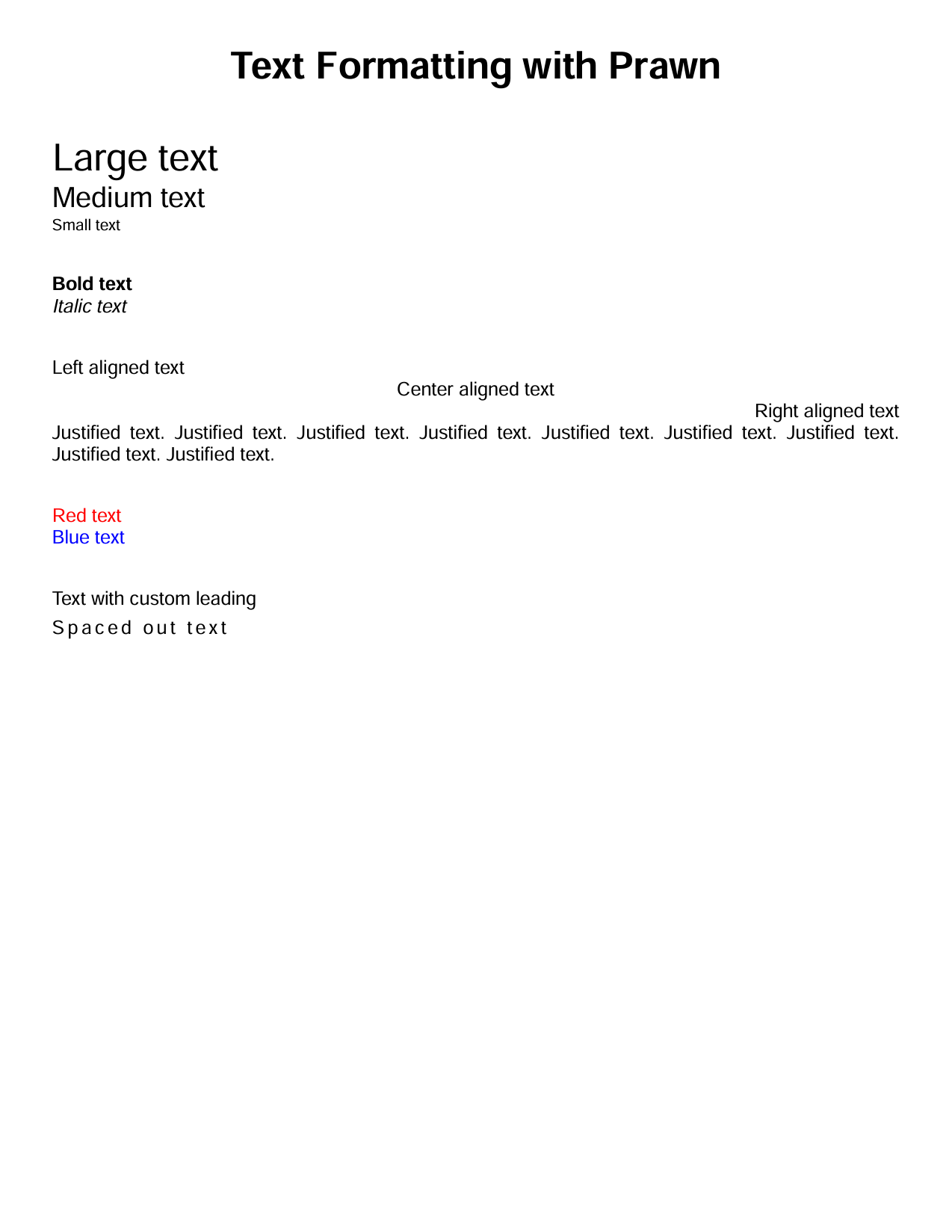
The following example demonstrates text formatting options in Prawn:
# app/controllers/pdfs_controller.rb
class PdfsController < ApplicationController
  def generate
    pdf = Prawn::Document.new do |pdf|
      # Page title
      pdf.text "Text Formatting with Prawn", size: 24, style: :bold, align: :center
      pdf.move_down 30

      # Different font sizes
      pdf.text "Large text", size: 24
      pdf.text "Medium text", size: 18
      pdf.text "Small text", size: 10
      pdf.move_down 25

      # Font styles
      pdf.text "Bold text", style: :bold
      pdf.text "Italic text", style: :italic
      pdf.move_down 25

      # Text alignment
      pdf.text "Left aligned text", align: :left
      pdf.text "Center aligned text", align: :center
      pdf.text "Right aligned text", align: :right
      pdf.text "Justified text. Justified text. Justified text. Justified text. Justified text. Justified text. Justified text. Justified text. Justified text.", align: :justify
      pdf.move_down 25

      # Colors - use hex codes without # symbol
      pdf.fill_color "FF0000"  # Red
      pdf.text "Red text"
      pdf.fill_color "0000FF"  # Blue
      pdf.text "Blue text"
      pdf.fill_color "000000"  # Back to black
      pdf.move_down 25

      # Leading (line spacing)
      pdf.text "Text with custom leading", leading: 5

      # Character spacing
      pdf.text "Spaced out text", character_spacing: 2
    end

    send_data pdf.render,
              filename: "styled_text.pdf",
              type: "application/pdf",
              disposition: "inline"
  end
end
Output:
Working with Different Fonts
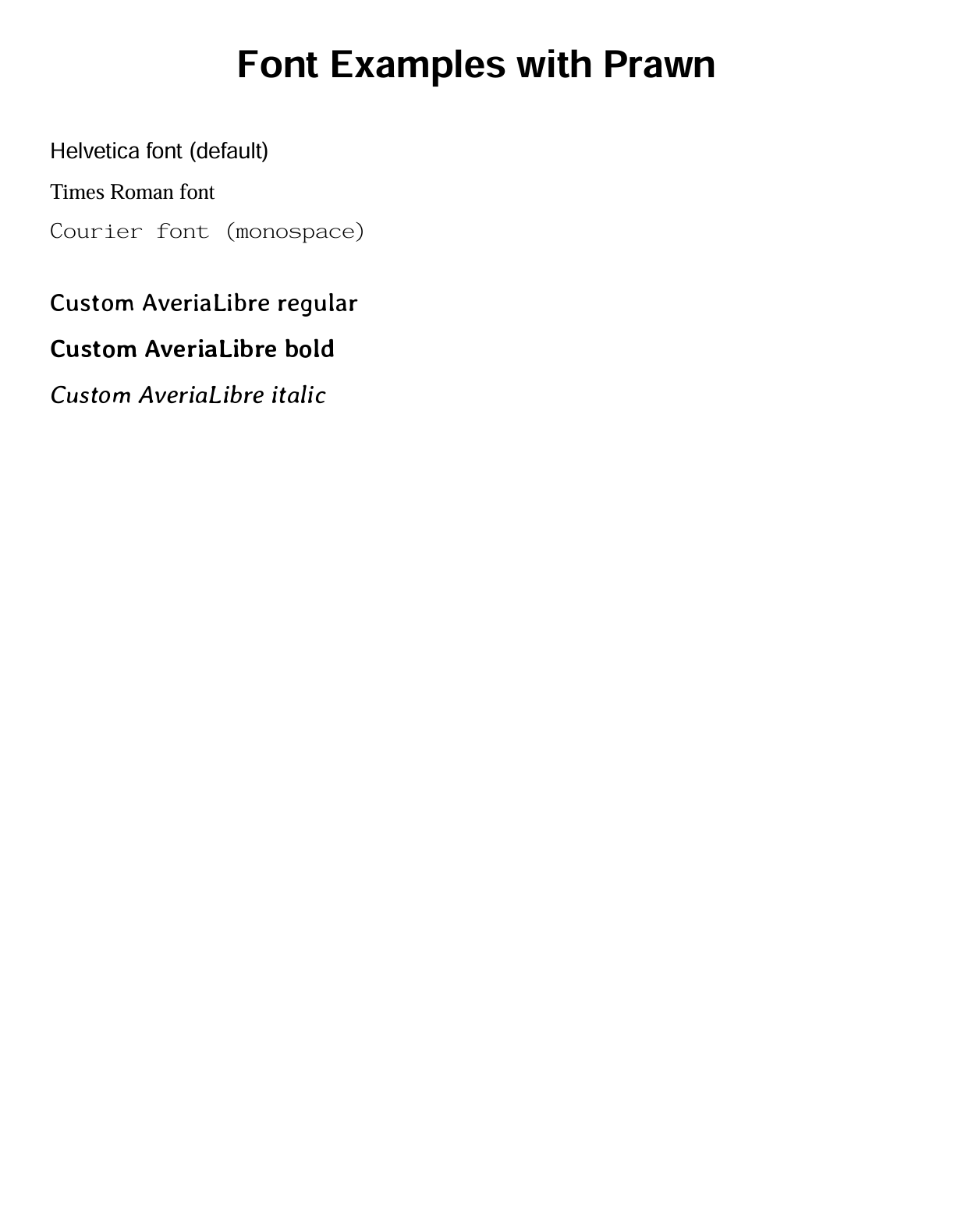
Prawn supports both built-in PDF fonts and custom fonts. This example demonstrates how to use various font families and styles in your documents.
# app/controllers/pdfs_controller.rb
class PdfsController < ApplicationController
  def generate
    pdf = Prawn::Document.new do |pdf|
      # Page title
      pdf.text "Font Examples with Prawn", size: 24, style: :bold, align: :center
      pdf.move_down 30

      # Built-in fonts
      pdf.font "Helvetica"
      pdf.text "Helvetica font (default)", size: 14
      pdf.move_down 10

      pdf.font "Times-Roman"
      pdf.text "Times Roman font", size: 14
      pdf.move_down 10

      pdf.font "Courier"
      pdf.text "Courier font (monospace)", size: 14
      pdf.move_down 25

      # Custom fonts (if available)
      begin
        pdf.font_families.update(
          "AveriaLibre" => {
            normal: Rails.root.join("app/assets/fonts/AveriaLibre-Regular.ttf"),
            bold: Rails.root.join("app/assets/fonts/AveriaLibre-Bold.ttf"),
            italic: Rails.root.join("app/assets/fonts/AveriaLibre-Italic.ttf"),
          }
        )

        pdf.font "AveriaLibre"
        pdf.text "Custom AveriaLibre regular", size: 16
        pdf.move_down 10
        pdf.text "Custom AveriaLibre bold", size: 16, style: :bold
        pdf.move_down 10
        pdf.text "Custom AveriaLibre italic", size: 16, style: :italic
        pdf.move_down 25
      rescue => e
        pdf.font "Helvetica"
        pdf.text "Custom fonts not found.", size: 12
        pdf.move_down 25
      end
    end

    send_data pdf.render,
              filename: "font_examples.pdf",
              type: "application/pdf",
              disposition: "inline"
  end
end
Output:
Adding Custom Fonts
To use custom fonts in your Rails application with Prawn:
-
Create the fonts directory:
app/assets/fonts. -
Download free fonts from Google Fonts and add your
TTFfont files:
app/assets/fonts/
├── OpenSans-Regular.ttf
├── OpenSans-Bold.ttf
├── OpenSans-Italic.ttf
└── OpenSans-BoldItalic.ttf
- Register font families in your PDF code:
pdf.font_families.update(
  "OpenSans" => {
    normal: Rails.root.join("app/assets/fonts/OpenSans-Regular.ttf"),
    bold: Rails.root.join("app/assets/fonts/OpenSans-Bold.ttf"),
    italic: Rails.root.join("app/assets/fonts/OpenSans-Italic.ttf"),
    bold_italic: Rails.root.join("app/assets/fonts/OpenSans-BoldItalic.ttf")
  }
)
Prawn supports TrueType (.ttf) and OpenType (.otf) fonts. Make sure to download the TTF or OTF version when getting fonts from Google Fonts or other sources.
Working with Images in PDFs Using Prawn
Prawn makes it easy to embed images in your PDF documents with flexible positioning and sizing options.
Adding Images to Your PDF
This example demonstrates image positioning and sizing in Prawn:
Click to view the complete image examples code
# app/controllers/pdfs_controller.rb
class PdfsController < ApplicationController
  def generate
    pdf = Prawn::Document.new do |pdf|
      # Page title
      pdf.text "Working with Images in Prawn", size: 24, style: :bold, align: :center
      pdf.move_down 40

      # Basic image insertion
      begin
        # Place image files in app/assets/images/
        if File.exist?(Rails.root.join("app/assets/images/image.jpg"))
          pdf.text "Basic image with fixed width:", size: 14, style: :bold
          pdf.image Rails.root.join("app/assets/images/image.jpg"),
                    at: [50, pdf.cursor - 20],
                    width: 180
          pdf.move_down 200
        end
      rescue => e
        pdf.text "Image not found", size: 12
        pdf.move_down 20
      end

      # Centered image positioning
      begin
        if File.exist?(Rails.root.join("app/assets/images/image.jpg"))
          pdf.text "Centered image:", size: 14, style: :bold

          image_width = 150
          page_width = pdf.bounds.width
          x_position = (page_width - image_width) / 2

          pdf.image Rails.root.join("app/assets/images/image.jpg"),
                    at: [x_position, pdf.cursor - 20],
                    width: image_width
          pdf.move_down 200
        end
      rescue => e
        pdf.text "Image not found", size: 12
        pdf.move_down 20
      end

      # Image scaling example
      begin
        if File.exist?(Rails.root.join("app/assets/images/image.jpg"))
          pdf.text "Scaled image (fit area):", size: 14, style: :bold
          pdf.image Rails.root.join("app/assets/images/image.jpg"),
                    at: [50, pdf.cursor - 20],
                    fit: [300, 150]
          pdf.move_down 120
        end
      rescue => e
        pdf.text "Image not found", size: 12
        pdf.move_down 20
      end
    end

    send_data pdf.render,
              filename: "image_examples.pdf",
              type: "application/pdf",
              disposition: "inline"
  end
end
Output:
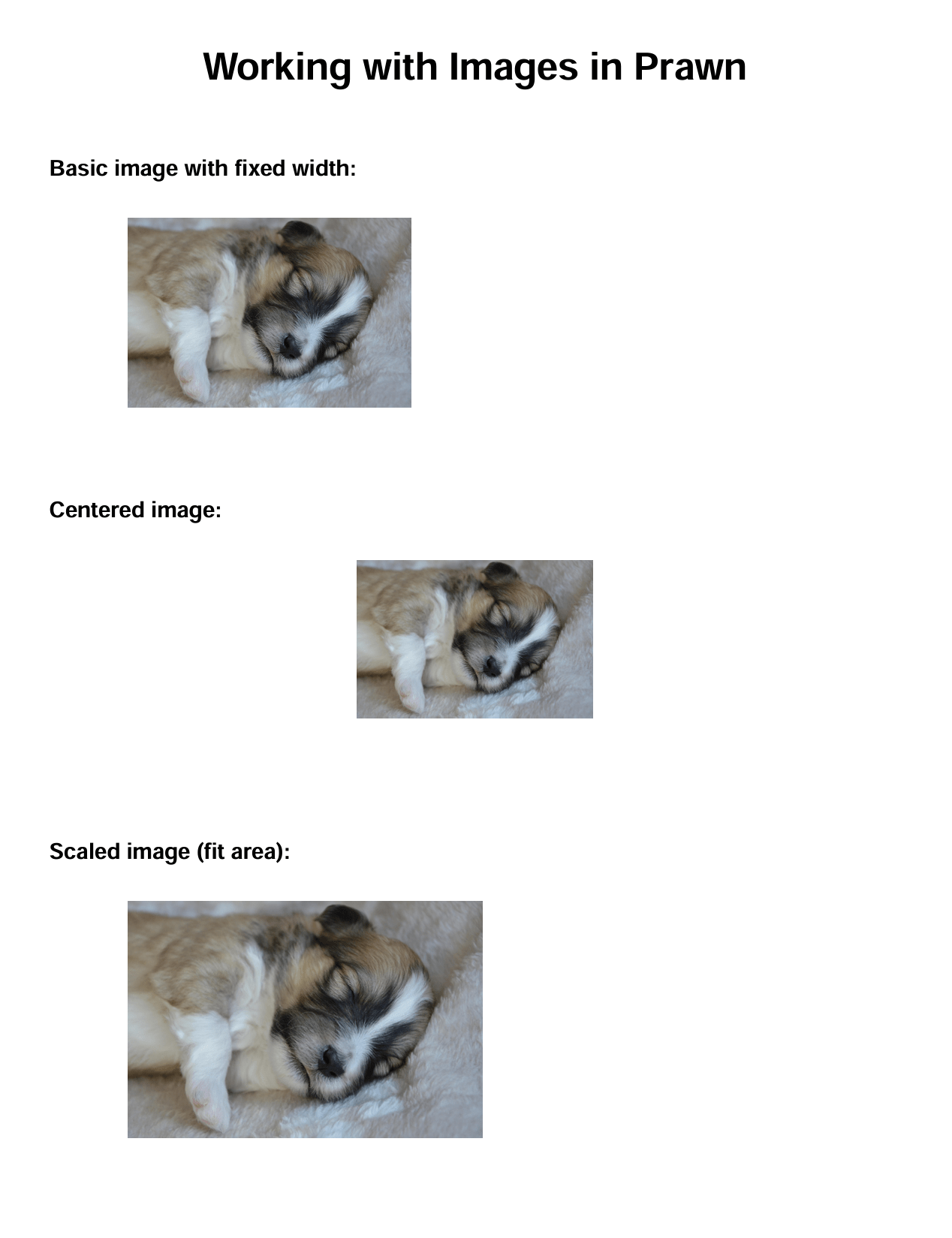
Prawn supports JPEG and PNG images natively. For SVG support, add the prawn-svg gem to your Gemfile.
Image Positioning Options
| Method | Description | Example |
|---|---|---|
at: [x, y] | Position image at specific coordinates | at: [50, 700] |
width: value | Set image width, height scales proportionally | width: 200 |
height: value | Set image height, width scales proportionally | height: 150 |
fit: [w, h] | Scale image to fit within specified area | fit: [300, 200] |
position: :center | Center image horizontally | position: :center |
Working with Tables in PDFs Using Prawn
Prawn's table functionality (via the prawn-table gem) supports headers, alternating row colors, column alignment, and cell-level styling.
Tables in Prawn require the prawn-table gem. Add gem 'prawn-table' to your Gemfile and run bundle install.
Creating Tables
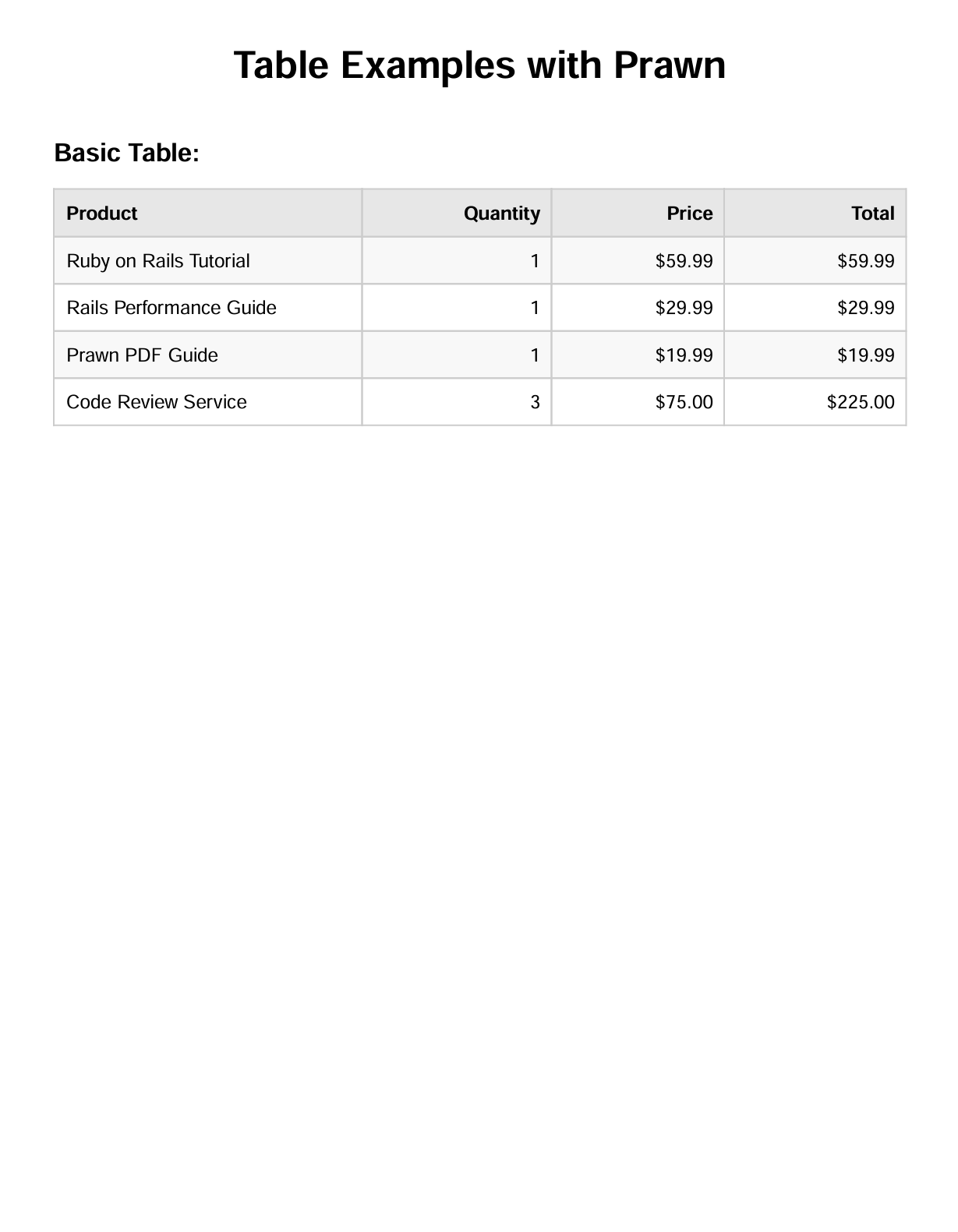
Basic table creation with headers, styling, and data formatting:
Click to view the complete table examples code
# app/controllers/pdfs_controller.rb
class PdfsController < ApplicationController
  def generate
    pdf = Prawn::Document.new do |pdf|
      # Page title
      pdf.text "Table Examples with Prawn", size: 24, style: :bold, align: :center
      pdf.move_down 30

      # Sample data for our table
      table_data = [
        ["Product", "Quantity", "Price", "Total"],
        ["Ruby on Rails Tutorial", "1", "$59.99", "$59.99"],
        ["Rails Performance Guide", "1", "$29.99", "$29.99"],
        ["Prawn PDF Guide", "1", "$19.99", "$19.99"],
        ["Code Review Service", "3", "$75.00", "$225.00"],
      ]

      # Basic table
      pdf.text "Basic Table:", size: 16, style: :bold
      pdf.move_down 10

      pdf.table(table_data, header: true, width: pdf.bounds.width) do
        # Header styling
        row(0).font_style = :bold
        row(0).background_color = "E8E8E8"
        row(0).text_color = "000000"

        # Alternating row colors
        (1..row_length-1).each do |i|
          row(i).background_color = i.odd? ? "F8F8F8" : "FFFFFF"
        end

        # Column alignment
        columns(1..3).align = :right
        columns(0).align = :left

        # Cell styling
        cells.padding = 8
        cells.border_width = 1
        cells.border_color = "CCCCCC"
      end
    end

    send_data pdf.render,
              filename: "table_examples.pdf",
              type: "application/pdf",
              disposition: "inline"
  end
end
Output:
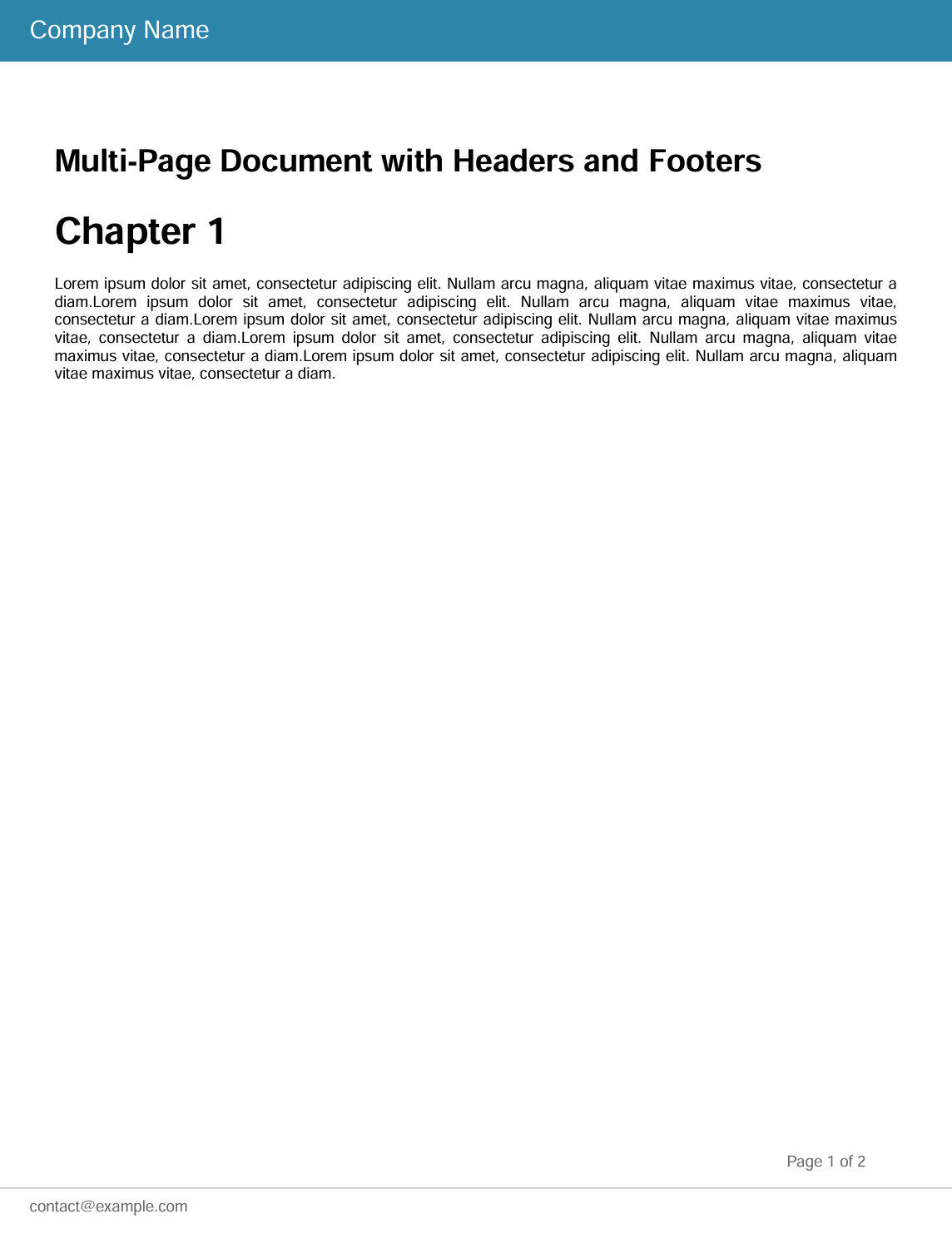
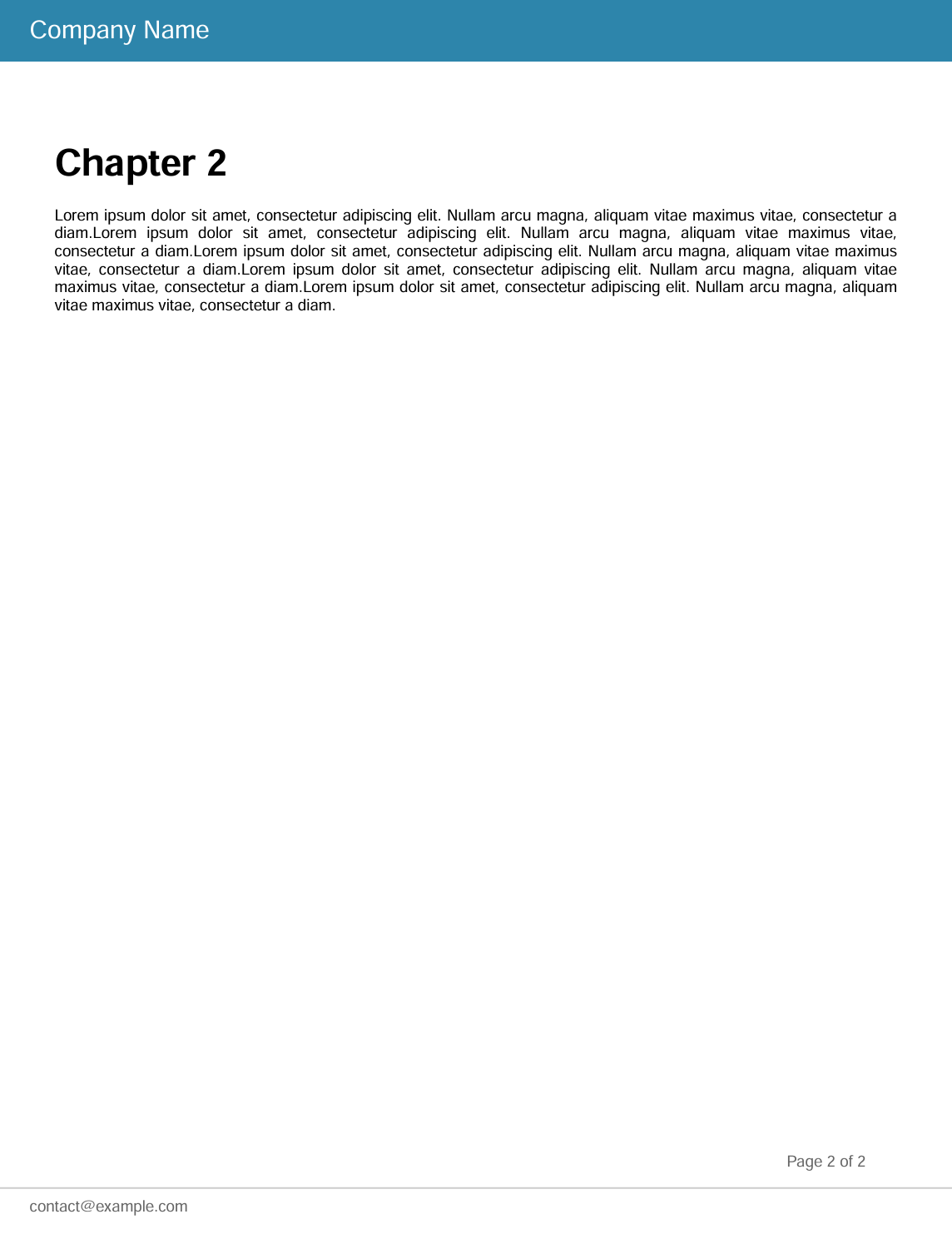
Working with Headers and Footers
Prawn makes it easy to create consistent headers and footers that appear on every page of your document.
Adding Headers and Footers
Repeating headers and footers with page numbering:
Click to view the complete header and footer code
# app/controllers/pdfs_controller.rb
class PdfsController < ApplicationController
  def generate
    pdf = Prawn::Document.new do |pdf|
      # Add header to all pages
      pdf.repeat(:all) do
        pdf.canvas do
          # Header background
          pdf.fill_color "2E86AB"
          pdf.fill_rectangle [0, pdf.bounds.top], pdf.bounds.width, 40

          # Header text
          pdf.fill_color "FFFFFF"
          pdf.font_size 16
          pdf.draw_text "Company Name", at: [20, pdf.bounds.top - 25]

          # Reset color
          pdf.fill_color "000000"
        end
      end

      # Add footer to all pages
      pdf.repeat(:all) do
        pdf.canvas do
          # Footer line
          pdf.stroke_color "CCCCCC"
          pdf.line_width 1
          pdf.stroke_horizontal_line 0, pdf.bounds.width, at: 30

          # Footer text - left side
          pdf.fill_color "666666"
          pdf.font_size 10
          pdf.draw_text "contact@example.com", at: [20, 15]

          # Reset color
          pdf.fill_color "000000"
        end
      end

      # Main content area (with top/bottom margins for header/footer)
      pdf.bounding_box([0, pdf.bounds.top - 60], width: pdf.bounds.width, height: pdf.bounds.height - 120) do
        # Page title
        pdf.text "Multi-Page Document with Headers and Footers", size: 20, style: :bold
        pdf.move_down 20

        # Generate content for 2 pages
        2.times do |i|
          pdf.text "Chapter #{i + 1}", size: 24, style: :bold
          pdf.move_down 10

          # Lorem ipsum content
          content = "Lorem ipsum dolor sit amet, consectetur adipiscing elit. Nullam arcu magna, aliquam vitae maximus vitae, consectetur a diam." * 5
          pdf.text content, align: :justify
          pdf.move_down 20

          # Force new page except for last iteration
          pdf.start_new_page unless i == 1
        end
      end

      # Add page numbers
      pdf.number_pages "Page <page> of <total>",
                       at: [pdf.bounds.right - 100, 10],
                       align: :right,
                       size: 10,
                       color: "666666"
    end

    send_data pdf.render,
              filename: "header_footer_examples.pdf",
              type: "application/pdf",
              disposition: "inline"
  end
end
Output Preview:
Header and Footer Features
| Feature | Description | Example |
|---|---|---|
pdf.repeat(:all) | Add content to all pages | Headers, footers, watermarks |
pdf.canvas | Draw outside main content flow | Fixed positioning elements |
pdf.number_pages | Add page numbering | "Page 1 of 3" format |
pdf.bounding_box | Create content area with margins | Reserve space for headers/footers |
pdf.start_new_page | Force page breaks | Multi-page documents |
Rails Invoice PDF Generator: Complete Prawn Tutorial
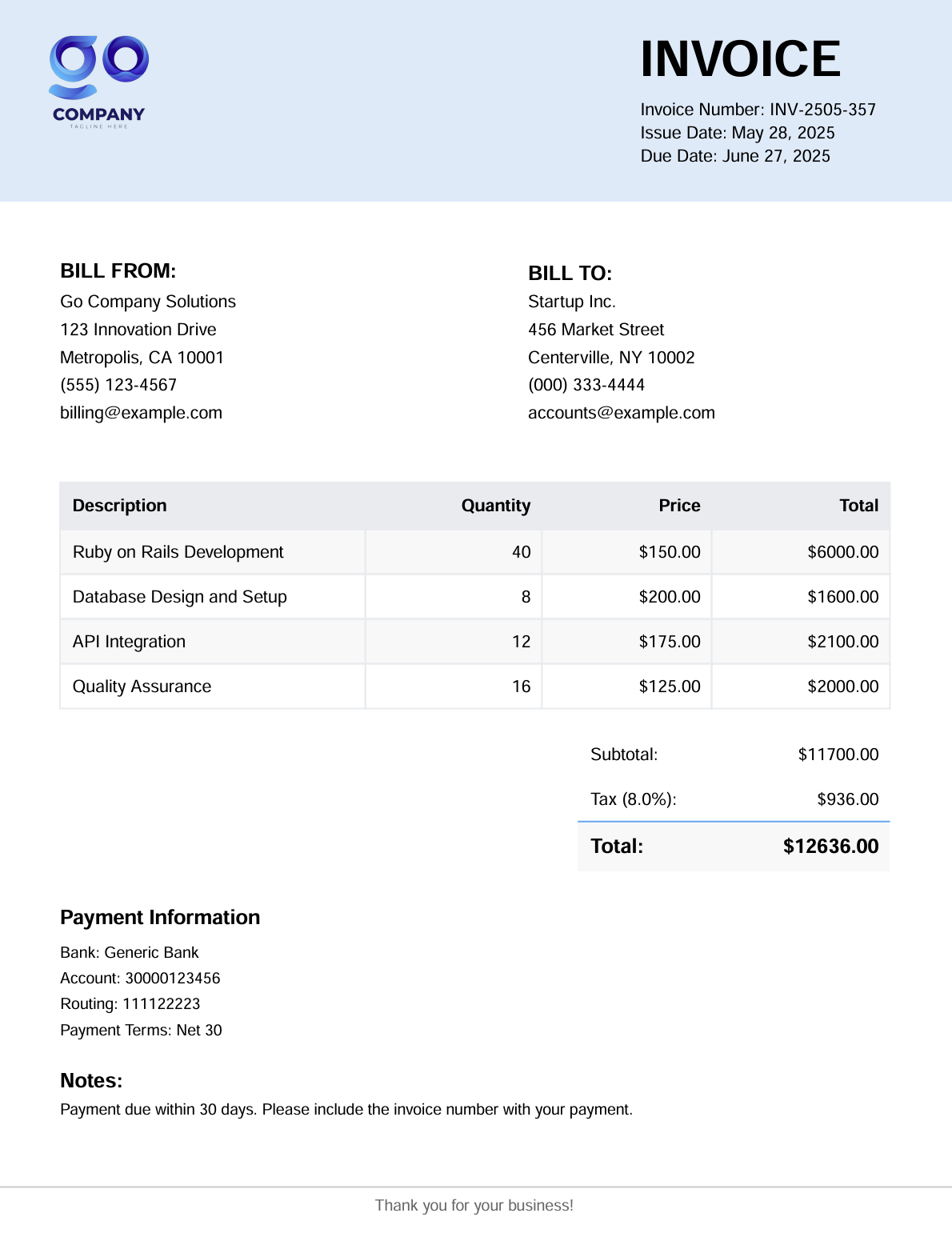
In this example, we'll build a complete invoice generator that showcases Prawn's capabilities in a real business scenario. This example uses sample data without requiring a database.
What we'll build:
- Professional invoice layout with company logo and branding.
- Styled data tables for line items.
- Financial calculations including subtotals, tax, and totals.
- Custom styling with headers, footers, and color schemes.
- Clean Rails architecture using Service Objects for maintainable code.
Before getting started, make sure you have:
prawngemprawn-tablegem for table functionality
Project Structure
Organize your Rails application following conventions with proper separation of concerns.
app/
├── controllers/
│   └── invoices_controller.rb
├── services/
│   └── invoice_pdf_service.rb
└── assets/
    └── images/
        └── company_logo.png
Step 1: Create the Invoice PDF Service
The service class encapsulates all PDF generation logic, keeping controllers clean and code easily testable.
Click to view the complete invoice PDF service
# app/services/invoice_pdf_service.rb
class InvoicePdfService
  def initialize(invoice_data)
    @invoice = invoice_data
    # Auto-generate invoice number if not provided
    @invoice[:number] ||= generate_invoice_number
  end

  def generate
    Prawn::Document.new(margin: 40) do |pdf|
      add_header(pdf)
      add_company_and_client_info(pdf)
      add_line_items_table(pdf)
      add_totals_section(pdf)
      add_payment_info(pdf)
      add_footer(pdf)
    end
  end

  private

  # Generate invoice number based on current year, month and random number
  def generate_invoice_number
    current_time = Time.current
    year = current_time.strftime("%y")
    month = current_time.strftime("%m")
    random_number = rand(100..999)

    "INV-#{year}#{month}-#{random_number}"
  end

  # Add header with company logo, invoice title and details
  def add_header(pdf)
    pdf.repeat(:all) do
      pdf.canvas do
        pdf.fill_color "e0eaf9"
        pdf.fill_rectangle [0, pdf.bounds.top], pdf.bounds.width, 130

        # Company logo placement (optional)
        begin
          if File.exist?(Rails.root.join("app/assets/images/company_logo.png"))
            pdf.image Rails.root.join("app/assets/images/company_logo.png"),
                      at: [30, pdf.bounds.top - 20],
                      width: 70
          end
        rescue
          # Continue without logo if file not found
        end

        # Invoice title
        pdf.fill_color "000000"
        pdf.font_size 32
        pdf.font "Helvetica", style: :bold
        pdf.draw_text "INVOICE", at: [pdf.bounds.width - 200, pdf.bounds.top - 50]

        # Invoice details
        pdf.font "Helvetica", style: :normal
        pdf.font_size 11
        details_y = pdf.bounds.top - 75
        pdf.draw_text "Invoice Number: #{@invoice[:number]}", at: [pdf.bounds.width - 200, details_y]
        pdf.draw_text "Issue Date: #{@invoice[:issue_date]}", at: [pdf.bounds.width - 200, details_y - 15]
        pdf.draw_text "Due Date: #{@invoice[:due_date]}", at: [pdf.bounds.width - 200, details_y - 30]
      end
    end
  end

  # Add company and client billing information
  def add_company_and_client_info(pdf)
    pdf.move_down 130

    # Company information
    pdf.font "Helvetica", style: :bold
    pdf.text "BILL FROM:", size: 13
    pdf.move_down 5

    pdf.font "Helvetica", style: :normal
    pdf.text_box company_info_text,
                 at: [0, pdf.cursor],
                 width: 250,
                 size: 11,
                 leading: 5

    # Client information
    pdf.font "Helvetica", style: :bold
    bill_to_y = pdf.cursor + 10
    pdf.draw_text "BILL TO:", at: [300, bill_to_y], size: 13

    pdf.font "Helvetica", style: :normal
    pdf.text_box client_info_text,
                 at: [300, bill_to_y - 10],
                 width: 250,
                 size: 11,
                 leading: 5

    pdf.move_down 120
  end

  # Create table
  def add_line_items_table(pdf)
    # Build table data with headers
    table_data = [["Description", "Quantity", "Price", "Total"]]

    # Add each line item to table
    @invoice[:line_items].each do |item|
      table_data << [
        item[:description],
        item[:quantity].to_s,
        "$#{sprintf('%.2f', item[:price])}",
        "$#{sprintf('%.2f', item[:quantity] * item[:price])}"
      ]
    end

    # Create table with styling
    pdf.table(table_data,
              header: true,
              width: pdf.bounds.width) do

      # Header row styling
      row(0).background_color = "E9ECEF"
      row(0).font_style = :bold
      row(0).height = 30

      # Alternating row colors for readability
      (1..row_length - 1).each do |i|
        row(i).background_color = i.odd? ? "F8F9FA" : "FFFFFF"
      end

      # General cell styling
      cells.padding = [8, 8]
      cells.border_width = 1
      cells.border_color = "E9ECEF"
      cells.size = 11

      columns(1..3).align = :right
      columns(0).align = :left
    end

    pdf.move_down 15
  end

  # Add totals section with subtotal, tax, and final total
  def add_totals_section(pdf)
    # Calculate financial totals
    subtotal = calculate_subtotal
    tax = subtotal * @invoice[:tax_rate]
    total = subtotal + tax

    # Build totals table data
    totals_data = [
      ["Subtotal:", "$#{sprintf('%.2f', subtotal)}"],
      ["Tax (#{(@invoice[:tax_rate] * 100).round(1)}%):", "$#{sprintf('%.2f', tax)}"],
      ["Total:", "$#{sprintf('%.2f', total)}"]
    ]

    # Totals table
    pdf.table(totals_data,
              position: :right,
              width: 200,
              column_widths: [120, 80]) do

      cells.border_width = 0
      cells.padding = [8, 8]
      cells.size = 11
      columns(1).align = :right

      # Total row
      row(-1).font_style = :bold
      row(-1).size = 13
      row(-1).background_color = "F8F9FA"
      row(-1).border_top_width = 1
      row(-1).border_top_color = "64A7F0"
    end

    pdf.move_down 25
  end

  # Add payment instructions and notes
  def add_payment_info(pdf)
    pdf.text "Payment Information", size: 13, style: :bold
    pdf.move_down 8

    # Extract payment details from invoice data
    bank_name = @invoice[:payment_info]&.[](:bank_name)
    account_number = @invoice[:payment_info]&.[](:account_number)
    routing_number = @invoice[:payment_info]&.[](:routing_number)
    payment_terms = @invoice[:payment_info]&.[](:terms)

    # Format payment information
    payment_text = [
      "Bank: #{bank_name}",
      "Account: #{account_number}",
      "Routing: #{routing_number}",
      "Payment Terms: #{payment_terms}"
    ].join("\n")

    pdf.text payment_text, size: 10, leading: 5

    # Add optional notes section
    if @invoice[:notes]
      pdf.move_down 15
      pdf.text "Notes:", size: 13, style: :bold
      pdf.move_down 4
      pdf.text @invoice[:notes], size: 10, leading: 5
    end
  end

  # Add footer
  def add_footer(pdf)
    pdf.repeat(:all) do
      pdf.canvas do
        # Horizontal separator line
        pdf.stroke_color "CCCCCC"
        pdf.line_width 1
        pdf.stroke_horizontal_line 0, pdf.bounds.width, at: 30

        pdf.fill_color "666666"
        pdf.font_size 10
        footer_text = "Thank you for your business!"
        text_width = pdf.width_of(footer_text, size: 10)
        x_position = (pdf.bounds.width - text_width) / 2
        pdf.draw_text footer_text, at: [x_position, 15]
      end
    end
  end

  # Format company information for display
  def company_info_text
    company = @invoice[:company]
    [
      company[:name],
      company[:address],
      "#{company[:city]}, #{company[:state]} #{company[:zip]}",
      company[:phone],
      company[:email]
    ].join("\n")
  end

  # Format client information for display
  def client_info_text
    client = @invoice[:client]
    [
      client[:name],
      client[:address],
      "#{client[:city]}, #{client[:state]} #{client[:zip]}",
      client[:phone],
      client[:email]
    ].join("\n")
  end

  # Calculate subtotal from all line items
  def calculate_subtotal
    @invoice[:line_items].sum { |item| item[:quantity] * item[:price] }
  end
end
This service handles everything from invoice number generation to professional styling for complete business invoice functionality.
Step 2: Create the Controller with Sample Data
This controller provides a complete working example with sample data.
Click to view the controller implementation
# app/controllers/invoices_controller.rb
class InvoicesController < ApplicationController
  def generate_invoice
    # Sample invoice data - invoice number will be auto-generated
    invoice_data = {
      issue_date: "May 28, 2025",
      due_date: "June 27, 2025",
      tax_rate: 0.08,
      company: {
        name: "Go Company Solutions",
        address: "123 Innovation Drive",
        city: "Metropolis",
        state: "CA",
        zip: "10001",
        phone: "(555) 123-4567",
        email: "billing@example.com"
      },
      client: {
        name: "Startup Inc.",
        address: "456 Market Street",
        city: "Centerville",
        state: "NY",
        zip: "10002",
        phone: "(000) 333-4444",
        email: "accounts@example.com"
      },
      line_items: [
        {
          description: "Ruby on Rails Development",
          quantity: 40,
          price: 150.00
        },
        {
          description: "Database Design and Setup",
          quantity: 8,
          price: 200.00
        },
        {
          description: "API Integration",
          quantity: 12,
          price: 175.00
        },
        {
          description: "Quality Assurance",
          quantity: 16,
          price: 125.00
        }
      ],
      payment_info: {
        bank_name: "Generic Bank",
        account_number: "30000123456",
        routing_number: "111122223",
        terms: "Net 30"
      },
      notes: "Payment due within 30 days. Please include the invoice number with your payment."
    }

    # Generate PDF with auto-generated invoice number
    pdf_service = InvoicePdfService.new(invoice_data)
    pdf_data = pdf_service.generate.render

    # Get the generated invoice number for filename
    generated_number = invoice_data[:number].gsub(/[^0-9A-Za-z]/, '_')

    send_data pdf_data,
              filename: "invoice_#{generated_number}.pdf",
              type: "application/pdf",
              disposition: "inline"
  end
end
Step 3: Configuring Rails Routes for PDF Generation
Adding Invoice PDF Routes:
# config/routes.rb
Rails.application.routes.draw do
  get 'generate_invoice', to: 'invoices#generate_invoice'
end
Step 4: Testing Your Invoice Generator
Test your invoice generator by navigating to:
http://127.0.0.1:3000/generate_invoice
Invoice output:
Key Features Demonstrated
- Service Object Pattern – Clean separation of concerns with dedicated PDF logic.
- Professional Styling – Headers, footers, company branding.
- Complete Invoice Layout – Company info, client details, line items, totals.
- Error Handling – Graceful fallbacks for missing fonts/images.
- Business Calculations – Subtotal, tax, and total calculations.
- Rails Best Practices – Proper MVC organization following Rails conventions.
PDF Generation Best Practices in Rails
When you generate PDFs in Ruby at scale, these practices help keep the code maintainable and reliable.
| Practice | Description |
|---|---|
| Service Object Pattern | Isolate PDF logic in dedicated service classes for better maintainability. |
| Performance Optimization | Use background jobs for heavy generation and batch processing for large datasets. |
| Font Management | Use standard PDF fonts when possible and implement fallback fonts. |
| Error Handling | Gracefully handle missing fonts, images, and invalid data with meaningful fallbacks. |
| Template Reusability | Create modular methods for headers, footers, and common elements. |
| Image Optimization | Resize and compress images before embedding in PDF. |
| Content Validation | Validate/sanitize user data before PDF generation to prevent errors. |
| Security Measures | Sanitize file paths and validate image sources to prevent security vulnerabilities. |
HTML to PDF Conversion Alternatives for Ruby on Rails
While Prawn is a great fit for programmatic PDF generation, you might need HTML to PDF conversion for certain use cases. Here are the recommended approaches for Rails applications:
| Approach | Tools | Best For | Learn More |
|---|---|---|---|
| Headless Chrome | Grover | High-fidelity HTML rendering with modern CSS support. | HTML to PDF with Grover |
| Puppeteer-Ruby | Puppeteer-Ruby | Chrome rendering via a Ruby port of Puppeteer. | HTML to PDF with Puppeteer-Ruby |
| wkhtmltopdf Integration | WickedPDF | Established HTML to PDF solution with Rails integration. | HTML to PDF with WickedPDF |
| HTML to PDF APIs | PDFBolt | Production-ready conversion with complex layouts. | HTML to PDF API Docs |
| HTML Parsing | Nokogiri + Prawn | Converting simple HTML to Prawn elements. | Nokogiri documentation |
Prawn builds PDFs programmatically but does not render HTML or CSS. If you need to convert HTML, web pages, or templates to PDF, the PDFBolt PDF Generation API handles rendering with headless Chrome and returns PDFs via a REST call.
API-Based Alternative: Template-Driven PDF Generation
While Prawn gives you full programmatic control over PDF layout, the approach requires writing Ruby code for every visual element – headers, footers, tables, and styling. For teams that prefer designing templates visually and filling them with dynamic data, PDF generation APIs like PDFBolt offer a different workflow.
- Design templates visually: Create invoice layouts in a template designer or pick from the template gallery.
- No layout code: Skip manual coordinate math, table styling, and font management.
- Simple integration: Just HTTP requests from your Rails application.
- Enterprise features: Async processing, webhook notifications, and direct S3 uploads.
Template-based API call in Ruby
require 'net/http'
require 'json'
require 'uri'

uri = URI("https://api.pdfbolt.com/v1/direct")

request = Net::HTTP::Post.new(uri)
request["Content-Type"] = "application/json"
request["API-KEY"] = "XXXXXXXX-XXXX-XXXX-XXXX-XXXXXXXXXXXX"

request.body = {
  templateId: "your-template-id",
  templateData: {
    client_name: "Startup Inc.",
    invoice_number: "INV-2025-042",
    total_amount: "$10,700.00",
    line_items: [
      { description: "Ruby on Rails Development", quantity: 40, unit_price: "$150.00" },
      { description: "Database Design and Setup", quantity: 8, unit_price: "$200.00" },
      { description: "API Integration", quantity: 12, unit_price: "$175.00" }
    ]
  }
}.to_json

begin
  response = Net::HTTP.start(uri.hostname, uri.port, use_ssl: true) do |http|
    http.request(request)
  end

  if response.is_a?(Net::HTTPSuccess)
    File.open("invoice.pdf", "wb") { |f| f.write(response.body) }
    puts "PDF generated successfully"
  else
    puts "HTTP #{response.code}"
    puts "Error Message: #{response.body}"
  end
rescue StandardError => e
  puts "Error: #{e.message}"
end
This approach works well for applications that need consistent document output without the overhead of building every layout element in code, or when non-developers need to update templates without changing Ruby source files.
Conclusion
Prawn is a well-tested Ruby PDF generator that covers everything from simple text documents to complex business invoices – tables, images, custom fonts, headers/footers, and precise coordinate-based layout. Its pure Ruby implementation means no external binaries or system dependencies to manage.
This tutorial walked through the core Prawn API and built a complete invoice with a service object pattern. If you need to generate PDFs in Ruby on Rails programmatically, Prawn gives you full control over every element on the page.
For another pure-Ruby approach, see HexaPDF. When you need to convert HTML to PDF instead, consider browser-based tools like Grover or WickedPDF, or a cloud-based HTML to PDF API. For a broader overview, see Top Ruby on Rails PDF Generation Gems.
Prawn for PDFs, prawns for dinner. That's real full-stack. 🦐