Python HTML to PDF Libraries (wkhtmltopdf Alternatives)

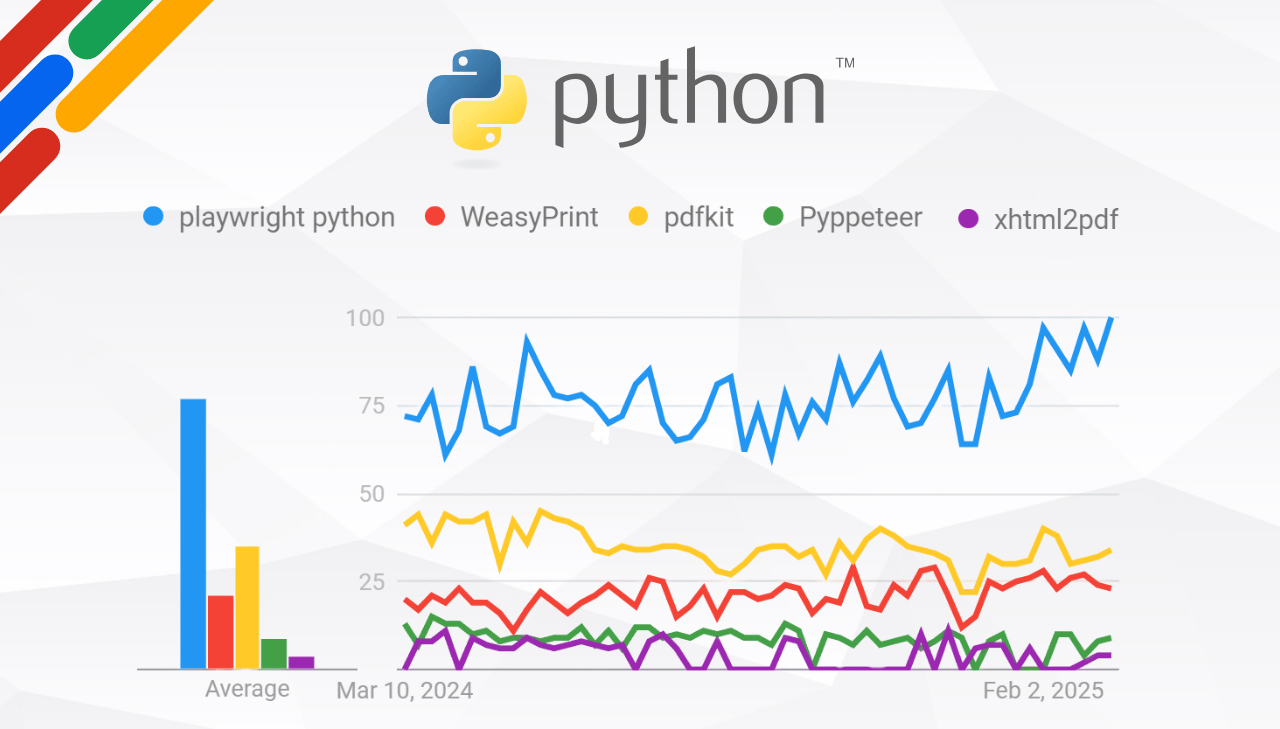
Five Python libraries handle most HTML to PDF conversions today: Playwright, WeasyPrint, pdfkit, Pyppeteer, and xhtml2pdf. Below we compare them by download numbers, features, and code examples so you can pick the one that fits your project.
For production Python workloads, PDFBolt's HTML to PDF API wraps the same Chrome rendering engine behind a REST endpoint – call it with any Python HTTP client like requests in a few lines, no browser binaries to install or maintain. 100 free conversions per month, no credit card required.
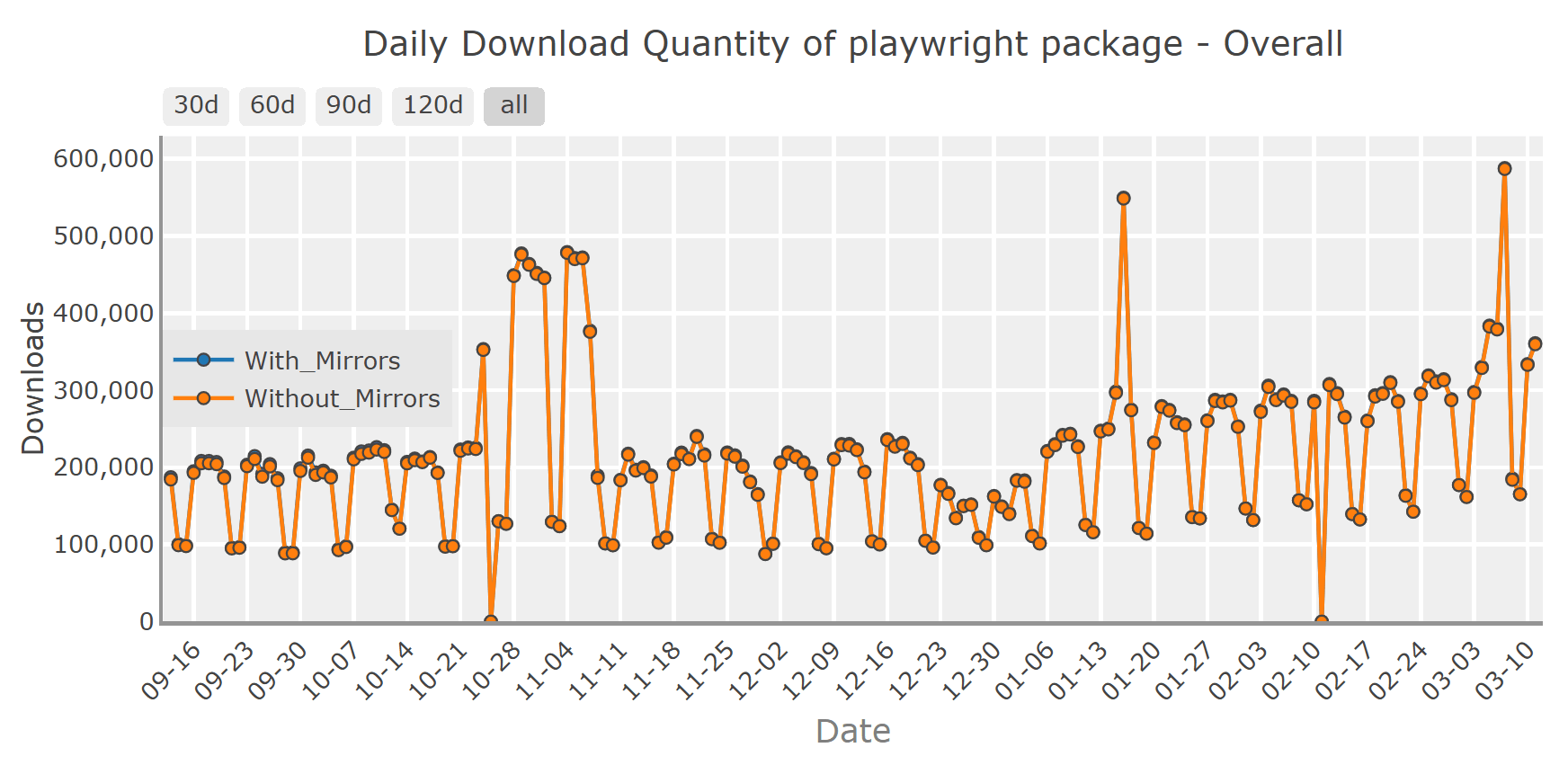
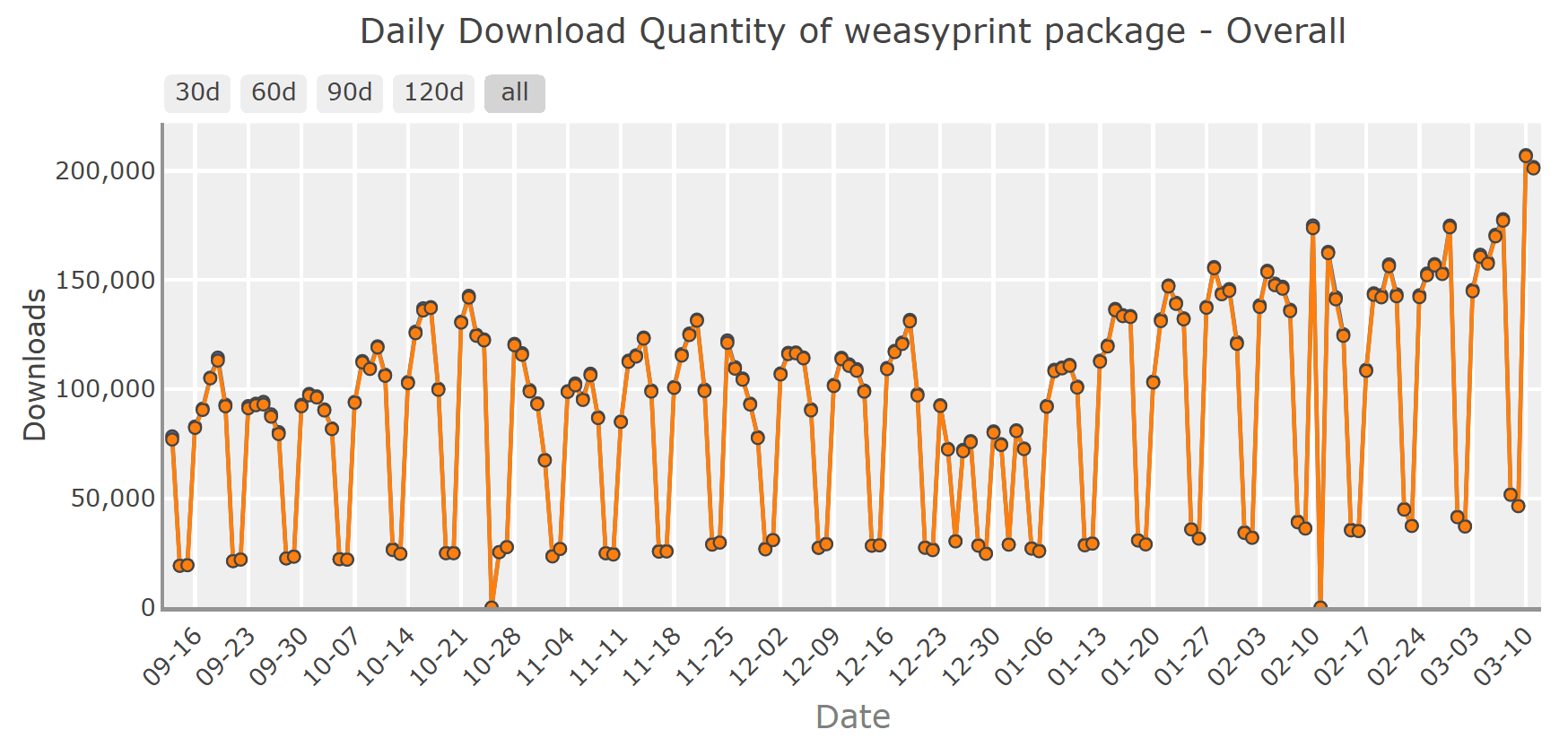
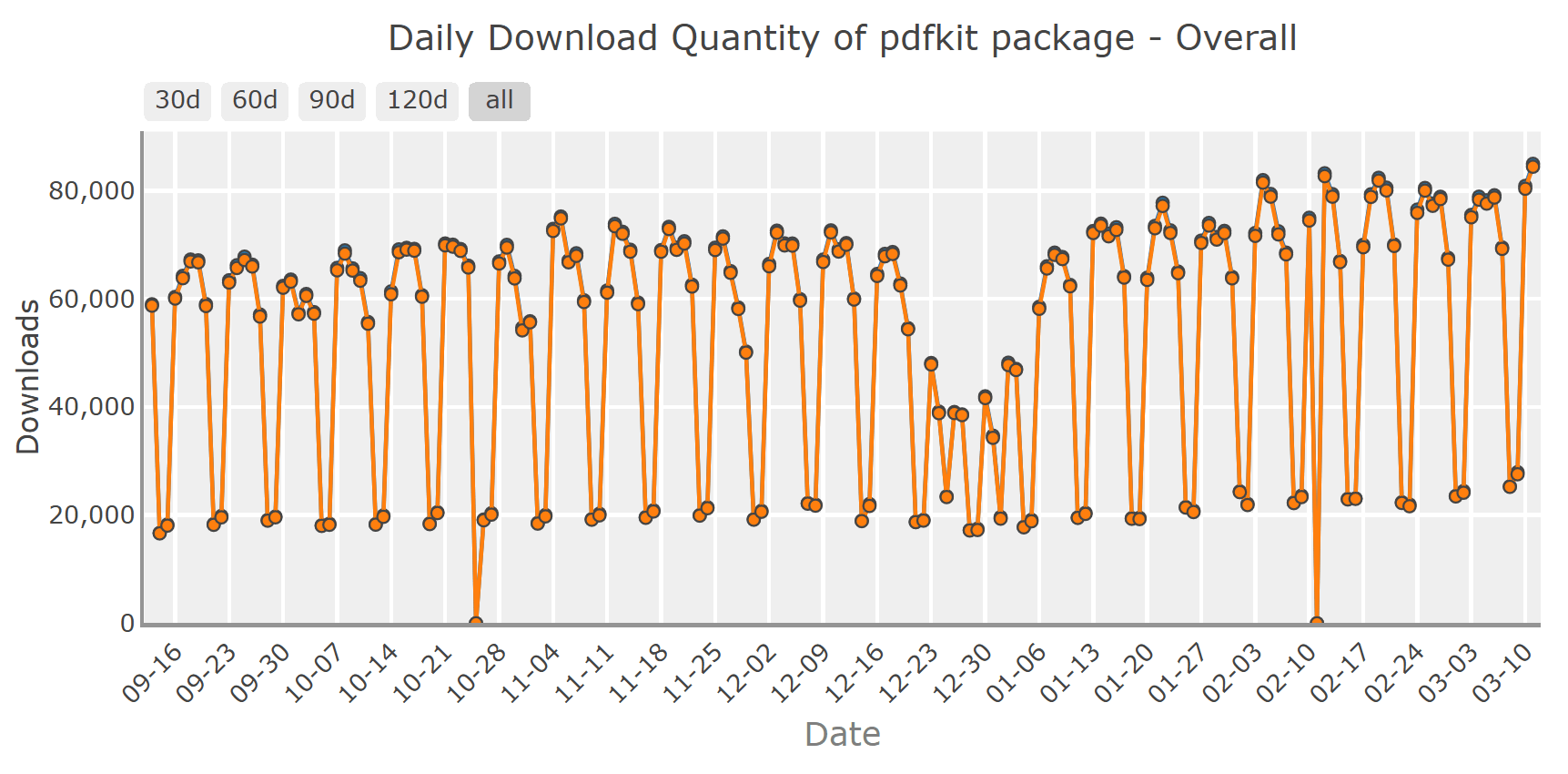
Library Download Statistics Comparison
Below is the comparison table with download statistics:
| Library | Downloads Last Month | Downloads Last Week | Downloads Last Day |
|---|---|---|---|
| Playwright | 7,839,154 | 2,359,162 | 332,932 |
| WeasyPrint | 3,453,558 | 969,938 | 206,713 |
| pdfkit | 1,734,355 | 436,998 | 80,347 |
| Pyppeteer | 1,439,492 | 352,469 | 55,012 |
| xhtml2pdf | 1,387,548 | 364,140 | 62,000 |
Download counts come from PyPI Stats and include all install contexts (CI/CD, Docker builds, local development), so they reflect overall adoption rather than unique users.
Python HTML to PDF libraries compared
Playwright
Playwright is a browser automation library that supports Chromium, Firefox, and WebKit. For PDF generation specifically, it uses headless Chromium (page.pdf() is Chromium-only). It handles JavaScript-heavy pages well because it runs a real browser engine. Playwright also works with Node.js, Java, and .NET, not just Python.
Installation
To install Playwright, run the following command:
pip install playwright
After installing the package, install the necessary browser binaries with:
playwright install
Converting HTML to PDF with Playwright
The following example demonstrates how to use Playwright to convert a simple HTML string into a PDF:
import asyncio
from playwright.async_api import async_playwright

async def generate_pdf():
    async with async_playwright() as p:
        # Launch a headless Chromium browser
        browser = await p.chromium.launch()
        page = await browser.new_page()

        # Define a simple HTML content
        html_content = """
        <html>
          <head>
            <meta charset="utf-8">
            <title>Sample PDF generated using Playwright</title>
          </head>
          <body>
            <h1>Hello!</h1>
            <p>Why do Python developers prefer dark mode?</p>
            <p><strong>Because light attracts bugs!</strong></p>
          </body>
        </html>
        """

        # Set the page content to the HTML
        await page.set_content(html_content)

        # Generate a PDF of the page and save it
        await page.pdf(path="document_playwright.pdf")

        # Close the browser
        await browser.close()

# Execute the asynchronous function
asyncio.run(generate_pdf())
Playwright also appears in our PDF generation in 2025 overview.
WeasyPrint
WeasyPrint converts HTML and CSS to PDF without a headless browser. It has its own rendering engine with good CSS support (including CSS Paged Media for print layouts). Because it does not launch a browser, it uses less memory and has fewer system dependencies than Playwright or Pyppeteer. The tradeoff is that it does not execute JavaScript.
Installation
To install WeasyPrint, run the following command:
pip install weasyprint
For detailed installation steps and troubleshooting on your specific system, refer to the WeasyPrint Documentation.
Converting HTML to PDF with WeasyPrint
The example below shows how to convert a basic HTML string into a PDF with WeasyPrint:
from weasyprint import HTML

# Define a simple HTML content
html_content = """
<html>
  <head>
    <meta charset="utf-8">
    <title>Sample PDF generated using WeasyPrint</title>
  </head>
  <body>
    <h1>Hello!</h1>
    <h3>How many Python developers does it take to screw in a lightbulb?</h3>
    <p><strong>None. It’s a hardware problem.</strong></p>
  </body>
</html>
"""

# Convert the HTML content to PDF and save it
HTML(string=html_content).write_pdf("document_weasyprint.pdf")
Generate PDF from HTML Using WeasyPrint and PyPDF2 – full tutorial with advanced examples.
pdfkit
pdfkit is a Python wrapper for wkhtmltopdf, which uses an older WebKit engine to convert HTML to PDF. It requires a separate wkhtmltopdf binary on your system. Note that wkhtmltopdf is no longer actively maintained (archived January 2023), so CSS support is frozen at what the bundled WebKit version supports. It has basic JavaScript support, but struggles with modern frameworks and complex scripts.
If you are looking for a pure-Python alternative to wkhtmltopdf, WeasyPrint and xhtml2pdf are the closest fits: both render HTML and CSS to PDF without a separate binary or headless browser. WeasyPrint offers the stronger CSS support, while xhtml2pdf is the lighter, dependency-free option for simpler layouts.
Installation
To install pdfkit, run:
pip install pdfkit
Ensure that you have wkhtmltopdf installed on your system. You can download it from wkhtmltopdf.org.
Converting HTML to PDF with pdfkit
Below is an example code snippet using pdfkit to generate a PDF from a simple HTML string:
import pdfkit

# Define a simple HTML content
html_content = """
<html>
  <head>
    <meta charset="utf-8">
    <title>Sample PDF generated using pdfkit</title>
  </head>
  <body>
    <h1>Hello!</h1>
    <p>What happens when Python developers ask a silly question?</p>
    <p><strong>They get a silly ANSI.</strong></p>
  </body>
</html>
"""

# Convert the HTML content to PDF and save it
pdfkit.from_string(html_content, 'document_pdfkit.pdf')
How to Convert HTML to PDF Using pdfkit – full tutorial with configuration options and advanced usage.
Pyppeteer
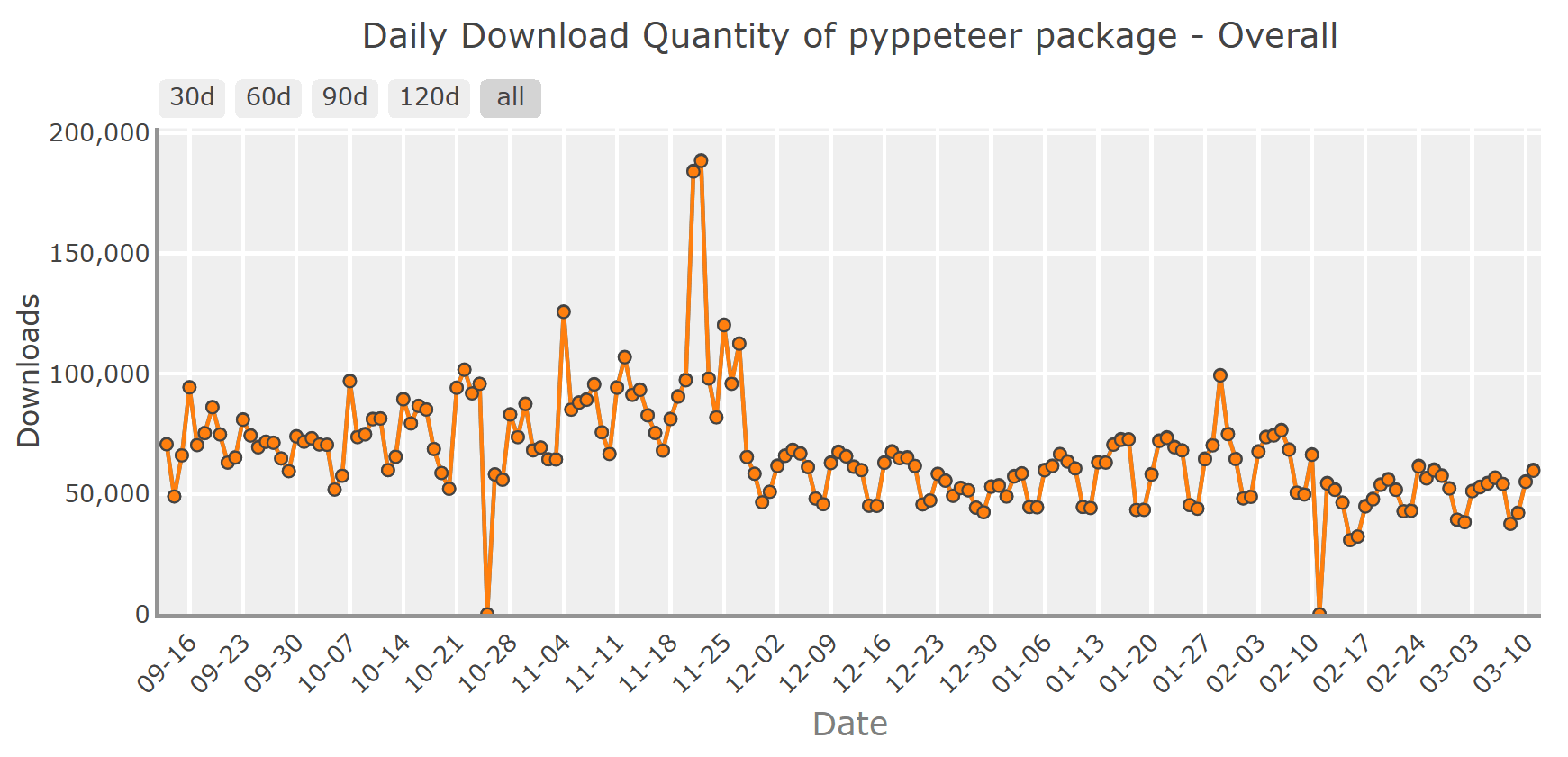
Pyppeteer is an unofficial Python port of Puppeteer. It controls headless Chrome to render HTML and export PDFs, similar to Playwright but with an older API. Pyppeteer has not seen active development recently – if you are starting a new project, Playwright is generally the better choice for browser-based PDF generation in Python.
Installation
To install Pyppeteer, run the following command:
pip install pyppeteer
Converting HTML to PDF with Pyppeteer
Below is an example of generating a PDF from a simple HTML string with Pyppeteer:
import asyncio
from pyppeteer import launch

async def generate_pdf():
    # Launch a headless Chrome browser
    browser = await launch(headless=True)
    page = await browser.newPage()

    # Define a simple HTML content
    html_content = """
    <html>
      <head>
        <meta charset="utf-8">
        <title>Sample PDF generated using Pyppeteer</title>
      </head>
      <body>
        <h1>Hello!</h1>
        <p>Why did the Python developer get kicked out of school?</p>
        <p><strong>Because he kept breaking the class rules!</strong></p>
      </body>
    </html>
    """

    # Set the page content to the HTML
    await page.setContent(html_content)

    # Generate a PDF of the page and save it
    await page.pdf({'path': 'document_pyppeteer.pdf'})

    # Close the browser
    await browser.close()

# Execute the asynchronous function
asyncio.get_event_loop().run_until_complete(generate_pdf())
See our Pyppeteer certificate generation tutorial for a step-by-step guide.
xhtml2pdf
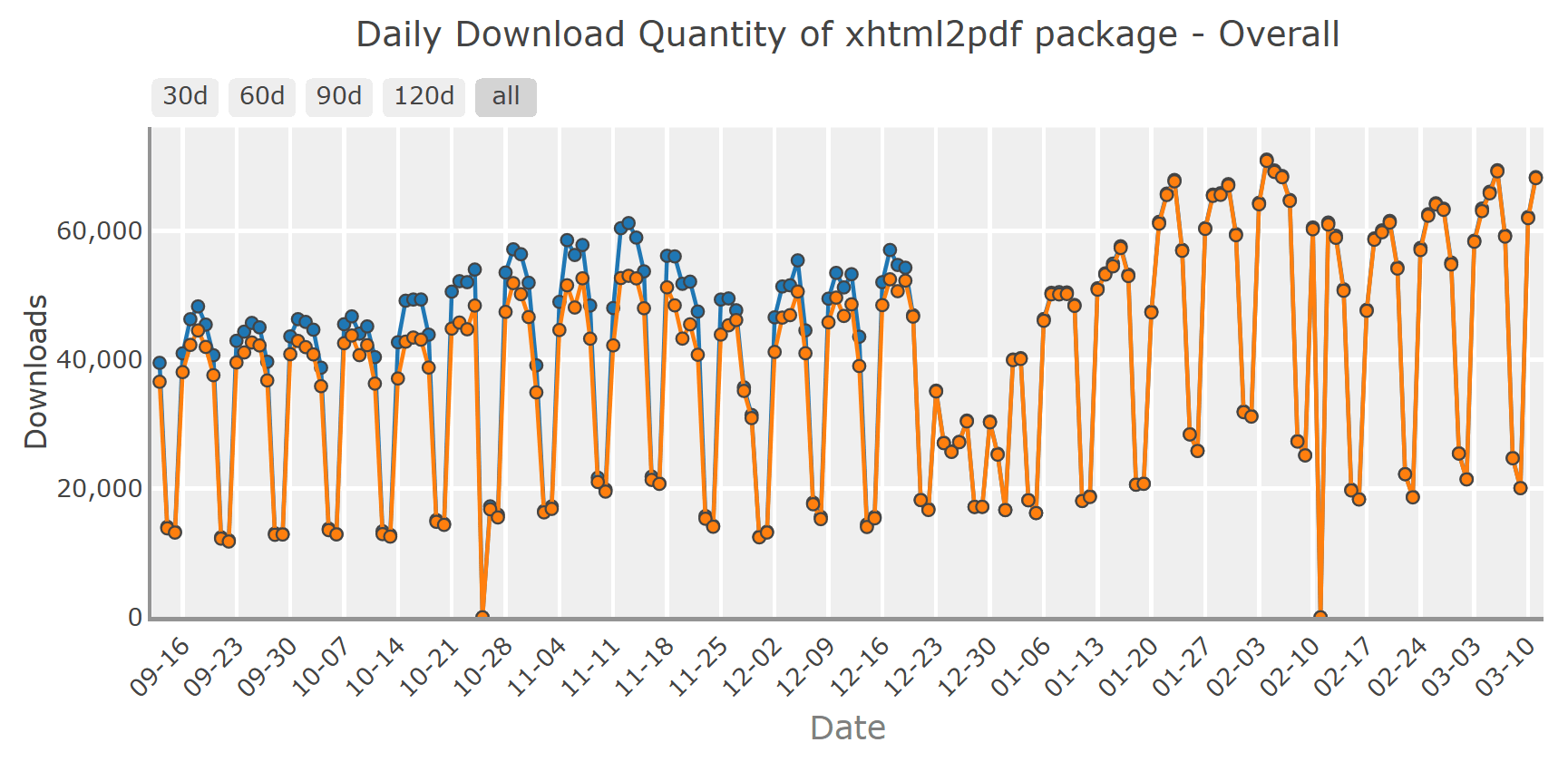
xhtml2pdf converts HTML and CSS to PDF using the ReportLab Toolkit. It installs with pip without requiring system-level libraries. It supports HTML5 and CSS 2.1 (with partial CSS3). For straightforward layouts – invoices, reports, letters – it works well. Complex CSS (flexbox, grid) and JavaScript are not supported.
Installation
To install xhtml2pdf, run:
pip install xhtml2pdf
Converting HTML to PDF with xhtml2pdf
Here's an example using xhtml2pdf to convert a simple HTML string into a PDF:
from xhtml2pdf import pisa

# Define a simple HTML content
html_content = """
<html>
  <head>
    <meta charset="utf-8">
    <title>Sample PDF generated using xhtml2pdf</title>
  </head>
  <body>
    <h1>Hello!</h1>
    <h2>Why did the Python developer get stuck in traffic?</h2>
    <h3>Because he couldn't find a free route!</h3>
  </body>
</html>
"""

# Convert the HTML content to PDF and save it
with open("document_xhtml2pdf.pdf", "wb") as output_file:
    pisa.CreatePDF(html_content, dest=output_file)
Convert HTML to PDF in Python Using xhtml2pdf – full tutorial with more examples and advanced usage.
HTML to PDF API Alternative
Want to see it in action first? Paste your HTML in the free converter – no signup needed.
All five libraries above run locally – you install them, manage their dependencies, and allocate server resources for the rendering process. An alternative is to offload PDF generation to an API.
PDFBolt's HTML to PDF API accepts HTML over a REST endpoint and returns a PDF. No browser binaries on your server, no version management, no memory overhead from headless Chrome. It also supports reusable templates that separate layout from data.
PDF generation via API
Here is a Python example using PDFBolt's /v1/direct endpoint:
import requests
import json
import base64

# Define HTML content
html_content = """
<html>
  <head>
    <meta charset="utf-8">
    <title>Sample PDF generated using PDFBolt API</title>
  </head>
  <body>
    <h1>Hello!</h1>
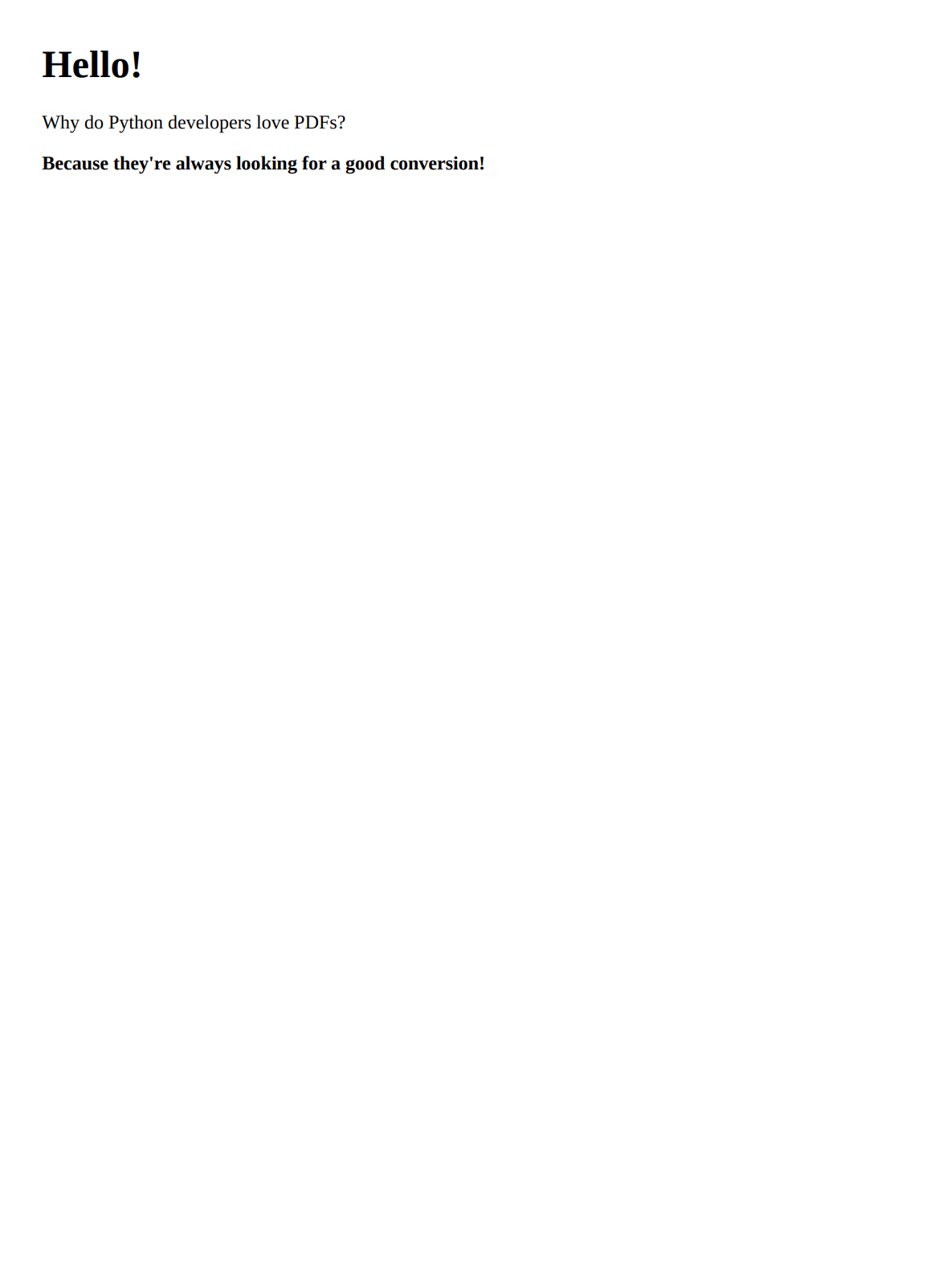
    <p>Why do Python developers love PDFs?</p>
    <p><strong>Because they're always looking for a good conversion!</strong></p>
  </body>
</html>
"""

# Encode HTML as base64
base64_html = base64.b64encode(html_content.encode()).decode()

url = "https://api.pdfbolt.com/v1/direct"
headers = {
    "API-KEY": "XXXXXXXX-XXXX-XXXX-XXXX-XXXXXXXXXXXX",
    "Content-Type": "application/json"
}

data = {
    "html": base64_html,
    "format": "A4",
    "margin": {
        "top": "30px",
        "left": "30px"
    }
}

try:
    response = requests.post(url, headers=headers, json=data)
    response.raise_for_status()

    with open('document_pdfbolt.pdf', 'wb') as f:
        f.write(response.content)
    print("PDF generated successfully")

except requests.exceptions.HTTPError as e:
    print(f"HTTP {response.status_code}")
    print(f"Error Message: {response.text}")
except requests.exceptions.RequestException as e:
    print(f"Error: {e}")
After running the script, take a look at the result:
Template-based PDF generation
PDFBolt supports dynamic templates. Instead of sending raw HTML, you create a template once and pass JSON data for each document:
data = {
    "templateId": "your-template-id",
    "templateData": {
        "recipient_name": "Jane Doe",
        "course_name": "Advanced Python Programming",
        "completion_date": "2025-03-12"
    }
}
See the Python quick start guide for integration examples, or browse the template gallery for ready-made layouts.
Conclusion
Which library to pick depends on what your HTML looks like:
- JavaScript-heavy pages – Playwright (actively maintained, multi-browser) or Pyppeteer (Puppeteer port, less active).
- Static HTML with CSS – WeasyPrint (no browser needed, good CSS support) or xhtml2pdf (pure Python, simpler CSS).
- Legacy projects using wkhtmltopdf – pdfkit wraps it, but note that wkhtmltopdf is no longer maintained.
If you do not want to manage browser binaries or rendering infrastructure on your servers, PDFBolt's API handles the conversion over REST. Paste your HTML in the free converter to see what it returns – no account needed.
For in-depth tutorials on individual libraries, see:
Keep coding and remember, a positive mindset is sometimes the best debugging tool! 😎