Grover Gem: HTML to PDF in Ruby on Rails (Invoice Tutorial)

Modern web applications frequently need to generate professional PDF documents for invoices, reports, contracts, and other business materials. The Grover gem is a widely used Ruby on Rails PDF generator that relies on Google Chrome's headless browser for accurate rendering with full CSS3, Flexbox, and Grid support. This tutorial walks you through Ruby HTML to PDF conversion using Grover's Chrome-based engine integrated with Rails' ERB templating system.
What is Grover?
Grover is a modern Ruby gem that provides HTML to PDF conversion using Google Puppeteer and Chromium. Unlike traditional PDF libraries that rely on outdated rendering engines, Grover uses Chromium's Blink engine to deliver accurate PDF generation with complete support for modern web standards including CSS Grid, Flexbox, JavaScript, and web fonts.
Why Choose Grover for Rails PDF Generation?
When implementing HTML to PDF conversion in Ruby on Rails, Grover has several practical benefits over older solutions:
- Modern CSS Support: Full compatibility with CSS3, Flexbox, Grid, and web standards.
- JavaScript Execution: Renders dynamic content and interactive elements requiring JavaScript.
- Chromium Rendering Engine: Uses Chromium engine for consistent, high-quality output.
- Rails Integration: Works directly with Rails controllers, views, and asset pipeline.
- Font Support: Handles web fonts and custom typography without additional configuration.
- Responsive Design: Supports media queries and responsive layouts for various document formats.
Step-by-Step Implementation: Professional Invoice Generator
In this section, we'll build an invoice generator that converts HTML templates into PDF documents using Grover and ERB templates in Rails.
Step 1: Development Environment Setup
Before beginning implementation, ensure your development environment includes the necessary components:
| Component | Version | Purpose | Installation Guide |
|---|---|---|---|
| Ruby | 3.0+ | Programming language runtime (3.3+ recommended) | Ruby Downloads |
| Rails | 7.0+ | Web application framework (8.0+ available) | Rails Installation |
| Node.js | 18+ | Required for Puppeteer (recent Puppeteer needs 22.12+) | Node.js Download |
- Grover requires Ruby 3.0.0 or newer.
- Puppeteer requires Node.js (recent versions need 22.12+) and automatically installs Chromium.
- Verify installations:
ruby -v,rails -v,node -v.
Step 2: Rails Application Creation and Gem Installation
1. Initialize a new Rails application:
rails new pdf_invoice_app
cd pdf_invoice_app
2. Add Grover to your Gemfile:
gem 'grover'
3. Install dependencies:
bundle install
Step 3: Puppeteer Installation
1. Create package.json in your Rails root directory:
npm init -y
2. Add Puppeteer to your dependencies:
npm install puppeteer
Step 4: Grover Configuration Setup
Configure Grover with optimal settings for PDF generation in your Rails application:
Create config/initializers/grover.rb:
Grover.configure do |config|
  config.options = {
    # Page format
    format: 'A4',
    margin: {
        top: '1cm',
        bottom: '0.5cm',
        left: '1cm',
        right: '1cm'
    },
    # Visual settings
    print_background: true,

     # Base URL for resolving relative paths to CSS, images, and fonts
     display_url: Rails.env.production? ? 'https://yourdomain.com' : 'http://localhost:3000'
  }
end
Step 5: Application Structure Organization
After configuration, your Rails application structure should include:
pdf_invoice_app/
├── app/
│   ├── assets/
│   │   └── stylesheets/
│   │       ├── application.css
│   │       └── pdf_styles.css          # PDF-specific styles
│   ├── controllers/
│   │   ├── application_controller.rb
│   │   └── documents_controller.rb     # PDF generation controller
│   ├── views/
│   │   ├── documents/
│   │   │   └── invoice.html.erb        # HTML template for PDF generation
│   │   └── layouts/
│   │       └── pdf_layout.html.erb     # PDF-specific layout
├── config/
│   ├── initializers/
│   │   └── grover.rb                   # Grover configuration
│   └── routes.rb
├── Gemfile
└── Gemfile.lock
Step 6: PDF Layout and ERB Template Creation
Create the layout and template files that define your PDF document structure and appearance. This step organizes styles, layout, and content for professional PDF generation.
1. Create PDF styles – app/assets/stylesheets/pdf_styles.css:
PDF Stylesheet
/* Import Google Fonts */
@import url('https://fonts.googleapis.com/css2?family=Inter:wght@300;400;500;600;700&family=Dancing+Script:wght@700&display=swap');

:root {
    --color-text: #333;
    --color-muted-text: #555;
    --color-accent: #b8577e;
    --color-border: #f0f0f0;
    --color-footer-text: #888;
    --color-text-light: #fff;
}

* {
    margin: 0;
    padding: 0;
    box-sizing: border-box;
}

body {
    color: var(--color-text);
    font-family: 'Inter', sans-serif;
    line-height: 1.7;
    padding: 10px 30px;
}

/* Main container */
.invoice-container {
    max-width: 800px;
    margin: 0 auto;
    display: flex;
    flex-direction: column;
}

/* Header section */
.header {
    display: flex;
    justify-content: space-between;
    align-items: flex-start;
    margin-bottom: 20px;
}

.company-logo {
    max-width: 100px;
    height: 50px;
}

.company-name {
    margin-top: 5px;
    font-size: 20px;
    font-weight: 600;
    text-transform: uppercase;
    letter-spacing: 2px;
}

.invoice-title {
    font-family: 'Dancing Script', cursive;
    font-size: 72px;
    color: var(--color-accent);
    font-weight: 700;
    line-height: 1;
    margin-bottom: 5px;
}

/* Metadata */
.invoice-meta {
    text-align: right;
    font-size: 14px;
    margin-bottom: 20px;
}

.invoice-meta strong {
    font-weight: 600;
}

/* Company and customer information */
.info-section {
    display: flex;
    justify-content: space-between;
    margin-bottom: 30px;
}

.client-info {
    flex: 1;
    color: var(--color-muted-text);
}

.client-info h3 {
    color: var(--color-text);
    font-size: 16px;
    font-weight: 500;
    margin-bottom: 8px;
}

.client-details {
    font-size: 14px;
}

.client-details .name {
    font-weight: 600;
    color: var(--color-text);
}

/* Items Table */
.items-table {
    width: 100%;
    border-collapse: collapse;
    margin-bottom: 15px;
    color: var(--color-muted-text);
}

.items-table thead {
    background: var(--color-accent);
    color: var(--color-text-light);
}

.items-table th,
.items-table td {
    padding: 12px 16px;
    font-size: 14px;
    border-bottom: 1px solid var(--color-border);
}

.items-table th {
    text-align: left;
    font-weight: 600;
    text-transform: uppercase;
    letter-spacing: 0.5px;
}

.items-table th:last-child,
.items-table td:last-child {
    text-align: right;
}

.items-table tbody tr:last-child td {
    border-bottom: none;
}

/* Payment information and totals */
.totals-section {
    display: flex;
    justify-content: space-between;
    align-items: flex-start;
    border-top: 1px solid var(--color-border);
    margin-bottom: 20px;
    padding-top: 10px;
}

.payment-info {
    margin-top: 10px;
    flex: 1;
    padding-right: 40px;
}

.payment-info h3 {
    font-size: 16px;
    font-weight: 600;
    color: var(--color-accent);
    margin-bottom: 12px;
}

.payment-info p {
    font-size: 14px;
    color: var(--color-muted-text);
    margin-bottom: 4px;
}

.totals {
    min-width: 300px;
}

.total-row {
    display: flex;
    justify-content: space-between;
    padding: 8px 0;
    font-size: 15px;
}

.total-row.part {
    border-bottom: 1px solid var(--color-border);
}

.total-row.final {
    font-weight: 700;
    color: var(--color-accent);
    padding-top: 12px;
    border-top: 1.5px solid var(--color-accent);
}

.total-row .label {
    color: var(--color-muted-text);
}

.total-row .amount {
    font-weight: 600;
}

/* Thank you message */
.thank-you {
    text-align: center;
    margin: 30px 0 20px;
}

.thank-you h2 {
    font-family: 'Dancing Script', cursive;
    font-size: 54px;
    color: var(--color-accent);
    font-weight: 700;
}

/* Footer */
.footer {
    margin-top: 15px;
    text-align: center;
    font-size: 12px;
    color: var(--color-footer-text);
    border-top: 1px solid var(--color-border);
    padding-top: 10px;
}
2. Create PDF-specific layout – app/views/layouts/pdf_layout.html.erb:
PDF Layout Template – HTML structure with CSS integration
<!DOCTYPE html>
<html lang="en">
<head>
  <meta charset="UTF-8">
  <meta name="viewport" content="width=device-width, initial-scale=1.0">
  <title>Professional Invoice</title>
  <%= stylesheet_link_tag 'pdf_styles', media: 'all' %>
</head>
<body>
  <%= yield %>
</body>
</html>
3. Create the main invoice template – app/views/documents/invoice.html.erb:
Complete Invoice Template – ERB template
<div class="invoice-container">
  <!-- Header -->
  <div class="header">
    <div class="company-section">
      <img src="<%= @invoice_data[:business][:logo_url] %>" alt="Company Logo" class="company-logo">
      <div class="company-name"><%= @invoice_data[:business][:name] %></div>
    </div>
    <div>
    <h1 class="invoice-title">Invoice</h1>
    <!-- Invoice Metadata -->
    <div class="invoice-meta">
      <p><strong>Number:</strong> <%= @invoice_data[:number] %></p>
      <p><strong>Date:</strong> <%= @invoice_data[:issue_date].strftime('%B %d, %Y') %></p>
    </div>
    </div>
  </div>

  <!-- Company and customer information -->
  <div class="info-section">
    <!-- Billed From -->
    <div class="client-info">
      <h3>Billed from:</h3>
      <div class="client-details">
        <p class="name"><%= @invoice_data[:business][:name] %></p>
        <p><%= @invoice_data[:business][:address] %></p>
        <p><%= @invoice_data[:business][:city] %></p>
        <p><%= @invoice_data[:business][:email] %></p>
      </div>
    </div>

    <!-- Billed To -->
    <div class="client-info">
      <h3>Billed to:</h3>
      <div class="client-details">
        <p class="name"><%= @invoice_data[:customer][:name] %></p>
        <p><%= @invoice_data[:customer][:address] %></p>
        <p><%= @invoice_data[:customer][:city] %></p>
        <p><%= @invoice_data[:customer][:email] %></p>
      </div>
    </div>
  </div>

  <!-- Items -->
  <table class="items-table">
    <thead>
    <tr>
      <th>Description</th>
      <th>Quantity</th>
      <th>Price</th>
      <th>Total</th>
    </tr>
    </thead>
    <tbody>
    <% @invoice_data[:line_items].each do |item| %>
      <tr>
        <td><%= item[:description] %></td>
        <td><%= item[:quantity] %></td>
        <td>$<%= sprintf('%.2f', item[:rate]) %></td>
        <td>$<%= sprintf('%.2f', item[:total]) %></td>
      </tr>
    <% end %>
    </tbody>
  </table>

  <!-- Totals -->
  <div class="totals-section">
    <div class="payment-info">
      <h3>Payment Information</h3>
      <p><strong>Bank Name:</strong> <%= @invoice_data[:business][:bank_name] %></p>
      <p><strong>Account No:</strong> <%= @invoice_data[:business][:account_no] %></p>
      <p><strong>Due Date:</strong> <%= @invoice_data[:due_date].strftime('%B %d, %Y') %></p>
    </div>
    <div class="totals">
      <div class="total-row part">
        <span class="label">Subtotal</span>
        <span class="amount">$<%= sprintf('%.2f', @invoice_data[:subtotal]) %></span>
      </div>
      <% if @invoice_data[:discount_amount] > 0 %>
        <div class="total-row part">
          <span class="label">Discount</span>
          <span class="amount">-$<%= sprintf('%.2f', @invoice_data[:discount_amount]) %></span>
        </div>
      <% end %>
      <div class="total-row">
        <span class="label">Taxes</span>
        <span class="amount">$<%= sprintf('%.2f', @invoice_data[:tax_amount]) %></span>
      </div>
      <div class="total-row final">
        <span class="label">Total Amount</span>
        <span class="amount">$<%= sprintf('%.2f', @invoice_data[:total_amount]) %></span>
      </div>
    </div>
  </div>

  <!-- Thank you message  -->
  <div class="thank-you">
    <h2>Thank you!</h2>
  </div>

  <!-- Footer -->
  <div class="footer">
    <p>Questions? Contact us at <%= @invoice_data[:business][:email] %></p>
    <p><%= @invoice_data[:business][:website] %></p>
  </div>
</div>
This template demonstrates Grover's capabilities:
- Modern CSS Features: Flexbox, CSS custom properties.
- Google Fonts Integration: Loads and renders custom web fonts.
- Professional Design: Clean layout with proper typography and spacing.
- Dynamic Content: ERB syntax for data binding and conditional rendering.
- Responsive Elements: Proper scaling and layout for PDF format.
Step 7: Invoice Controller with Sample Data
Implement the controller – app/controllers/documents_controller.rb:
DocumentsController – Complete Implementation
class DocumentsController < ApplicationController
  def invoice
    @invoice_data = build_sample_invoice
    calculate_invoice_totals

    html = render_to_string(
      template: 'documents/invoice',
      layout: 'pdf_layout')
    pdf = Grover.new(html).to_pdf

    send_data pdf,
              filename: generate_filename,
              type: 'application/pdf',
              disposition: 'inline'
  end

  private

  def generate_filename
    timestamp = Time.current.strftime('%Y%m%d_%H%M%S')
    "invoice_#{@invoice_data[:number]}_#{timestamp}.pdf"
  end

  def build_sample_invoice
    {
      # Invoice metadata
      number: "INV-#{Date.current.strftime('%Y%m')}-#{rand(1000..9999)}",
      issue_date: Date.current,
      due_date: 30.days.from_now,

      # Company information
      business: {
        name: "Example Tech Group",
        logo_url: "https://img.pdfbolt.com/business-logo-template.png",
        address: "456 Innovation Drive",
        city: "Tech Valley, CA 94025",
        email: "billing@example.com",
        website: "https://www.techexample.com",
        bank_name: "Global Commerce Bank",
        account_no: "0011 1234 5678 9012 00"
      },

      # Customer information
      customer: {
        name: "Awesome Startup Inc.",
        email: "awesome@example.com",
        address: "123 Entrepreneur Street",
        city: "Innovation Town, IL 60606"
      },

      # Financial settings
      currency: "USD",
      tax_rate: 7.25,
      discount_rate: 5.0,

      # Service items
      line_items: [
        {
          description: "Rails App Development",
          quantity: 8,
          rate: 95.00
        },
        {
          description: "Mobile App UI/UX Design",
          quantity: 3,
          rate: 85.00
        },
        {
          description: "API Integration and Testing",
          quantity: 10,
          rate: 90.00
        },
        {
          description: "Performance Optimization",
          quantity: 16,
          rate: 110.00
        },
        {
          description: "Technical Documentation",
          quantity: 12,
          rate: 70.00
        }
      ],
    }
  end

  def calculate_invoice_totals
    # Calculate line item totals
    @invoice_data[:line_items].each do |item|
      item[:total] = item[:quantity] * item[:rate]
    end

    # Calculate financial summary
    @invoice_data[:subtotal] = @invoice_data[:line_items].sum { |item| item[:total] }
    @invoice_data[:discount_amount] = (@invoice_data[:subtotal] * @invoice_data[:discount_rate] / 100).round(2)
    @invoice_data[:taxable_amount] = @invoice_data[:subtotal] - @invoice_data[:discount_amount]
    @invoice_data[:tax_amount] = (@invoice_data[:taxable_amount] * @invoice_data[:tax_rate] / 100).round(2)
    @invoice_data[:total_amount] = @invoice_data[:taxable_amount] + @invoice_data[:tax_amount]
  end
end
This controller implementation:
- Generates sample data without requiring database setup.
- Calculates totals dynamically including discounts and taxes.
- Uses the PDF-specific layout for clean HTML output without application chrome.
- Uses inline disposition to display PDF in browser.
- Includes timestamp in filename for unique identification.
Update routes – config/routes.rb:
Rails.application.routes.draw do
  get 'documents/invoice', to: 'documents#invoice'
  root 'documents#invoice'
end
Step 8: Testing and PDF Generation
Time to test the PDF generation and verify the output. If something doesn't look right, check the troubleshooting table below.
1. Start the Rails development server:
rails server -p 3000
We're using port 3000 to match our Grover display_url configuration. Make sure the port matches the one specified in config/initializers/grover.rb.
2. Access your invoice generator:
Navigate to one of these URLs to generate and view the PDF:
- Root URL:
http://localhost:3000
- Controller URL:
http://localhost:3000/documents/invoice
Both URLs generate the same PDF invoice displayed directly in your browser.
3. Preview the generated invoice:
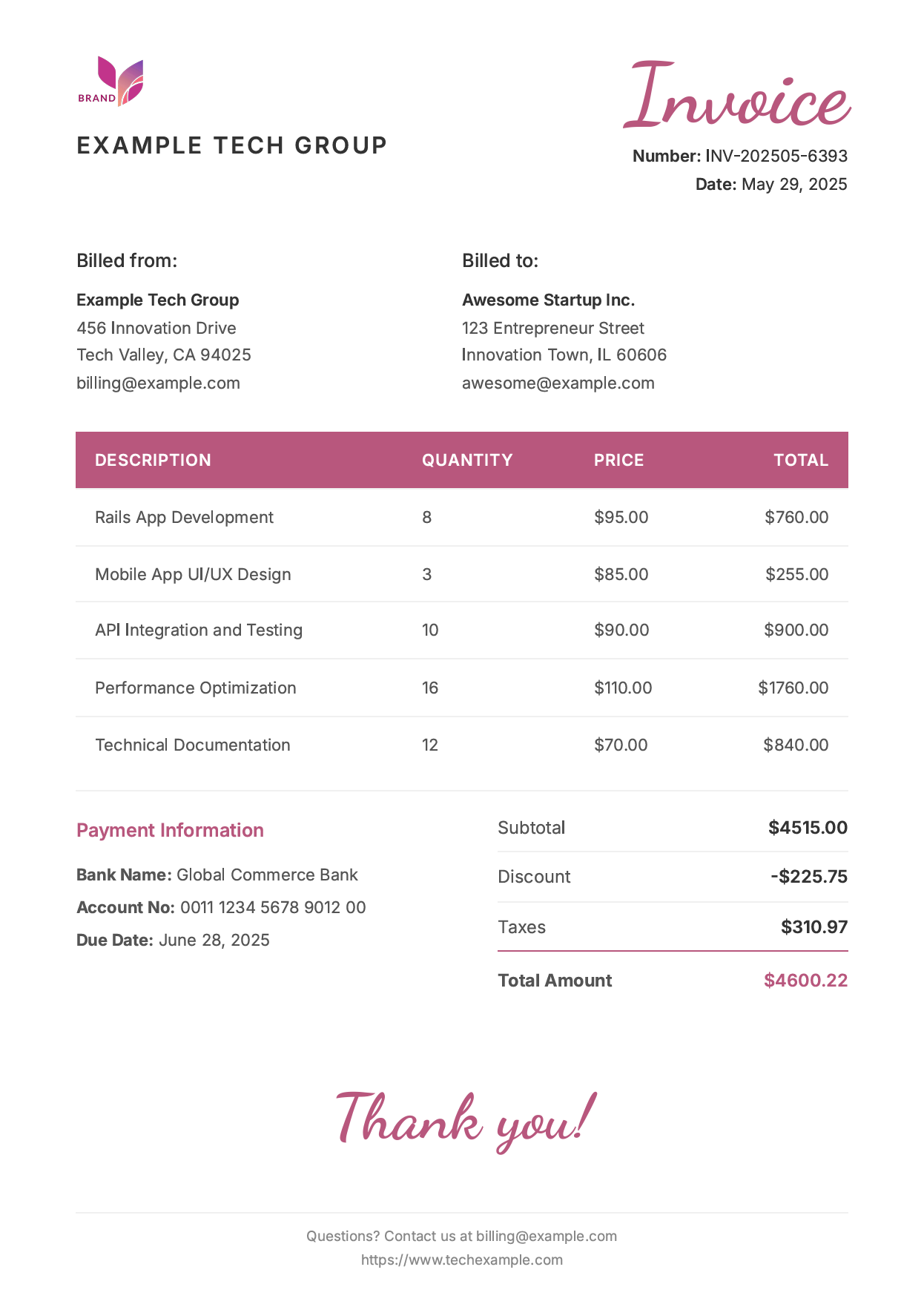
Sample invoice features:
- Header: Company logo and stylized "Invoice" title.
- Metadata: Invoice number with timestamp and issue date.
- Billing Information: "Billed from" and "Billed to" sections.
- Line Items: Professional service descriptions with calculations.
- Totals: Subtotal, discount, taxes, and final amount.
- Footer: Contact information and thank you message.
Advanced Grover Configuration and Options
Grover supports a range of Puppeteer PDF options for controlling page layout, margins, headers, and rendering behavior.
Most commonly used options:
| Option | Description | Example Values | Default |
|---|---|---|---|
| format | Page dimensions | 'A3', 'A4', 'A5', 'A6', 'Letter', 'Legal', 'Tabloid' | 'Letter' |
| margin | Page margins | { top: '1cm', bottom: '1cm', left: '1cm', right: '1cm' } | No margins |
| landscape | Page orientation | true, false | false |
| print_background | Background colors/images | true, false | false |
| scale | Content scaling | 0.1 to 2.0 | 1.0 |
| wait_until | Loading completion | 'load', 'domcontentloaded', 'networkidle0', 'networkidle2' | networkidle0 |
| timeout | Max wait time (milliseconds) | 40000, 0 (no timeout) | 30000 |
| display_header_footer | Header/footer visibility | true, false | false |
| header_template | Custom header HTML | '<div>Page <span class="pageNumber"></span></div>' | |
| footer_template | Custom footer HTML | '<div><span class="date"></span></div>' |
Example configuration with common options:
Grover.configure do |config|
  config.options = {
    format: 'A4',
    landscape: false,
    margin: {
        top: '25mm',
        right: '20mm',
        bottom: '25mm',
        left: '20mm'
    },
    print_background: true,
    display_header_footer: true,
    header_template: '<div style="font-size: 10px; text-align: center; width: 100%;">CONFIDENTIAL</div>',
    footer_template: '<div style="font-size: 10px; text-align: center; width: 100%;">Page <span class="pageNumber"></span> of <span class="totalPages"></span></div>',
    scale: 0.9,
    wait_until: 'networkidle0',
    display_url: 'http://localhost:3000',
}
end
- For the full list of available PDF options, see the Puppeteer PDFOptions documentation.
- Grover passes these options directly to Puppeteer's PDF engine, so all Puppeteer PDF options are supported.
Troubleshooting Common Grover Issues
| Problem | Cause | Solution |
|---|---|---|
| Docker/Production crashes | Chrome sandbox security restrictions | 1. Add launch_args: ['--no-sandbox', '--disable-setuid-sandbox'].2. Use '--disable-dev-shm-usage' for containers.3. Set GROVER_NO_SANDBOX=true environment variable. |
| Chrome path errors | Production deployment issues | 1. Set root_path in Grover config for production.2. Add nodejs buildpack on Heroku.3. Use executable_path for custom Chrome location. |
| Missing styles/CSS | Assets not loading properly | 1. Set display_url correctly.2. Add print_background: true.3. Use absolute URLs for assets. |
| Fonts not loading | Web font download issues | 1. Use wait_until: 'networkidle0'.2. Increase timeout value.3. Use local fonts as fallback. |
| Layout broken | CSS compatibility issues | 1. Test HTML/CSS in Chrome DevTools. 2. Use modern CSS features. 3. Avoid print-specific CSS conflicts. |
| Slow generation | Complex content or large files | 1. Optimize images and CSS. 2. Use background jobs for large PDFs. 3. Implement caching strategies. |
| JavaScript errors | Script execution issues | 1. Check browser console for errors. 2. Use wait_until for async content.3. Test in headless Chrome directly. |
| Blank PDF output | Page not fully loaded | 1. Use wait_until: 'networkidle0'.2. Increase timeout.3. Check for JavaScript errors. |
For general tips on writing HTML that renders well as PDF, see Optimizing HTML for PDF Output.
Alternative Solutions for Rails PDF Generation
While Grover is a strong choice for modern PDF generation, consider these alternatives based on your specific requirements:
- HTML to PDF APIs like PDFBolt deliver cloud-based Chrome rendering without infrastructure management. A good fit for applications requiring scalability and reliability without server maintenance overhead, with features like async processing, direct S3 uploads, webhook notifications, and team collaboration.
Discover scalable PDF generation with PDFBolt HTML to PDF API Documentation.
- WickedPDF uses wkhtmltopdf for simple HTML to PDF conversion with limited CSS support. Suitable for basic invoices and reports where modern CSS features aren't needed, but has no CSS Grid support and only partial, legacy Flexbox support, unlike Grover.
For a detailed WickedPDF implementation guide, see HTML to PDF with WickedPDF.
- Prawn offers programmatic PDF creation directly in Ruby without HTML templates. Ideal for layouts requiring precise control over positioning and formatting, but requires maintaining separate PDF code instead of reusing HTML templates.
Explore PDF creation with our tutorial PDF Generation with Prawn.
- Puppeteer-Ruby is a Ruby port of the Puppeteer API that communicates directly with Chrome via the DevTools Protocol, without requiring Node.js.
See our guide on HTML to PDF in Rails with Puppeteer-Ruby.
- HexaPDF is a modern pure-Ruby PDF library with features like PDF forms, digital signatures, and document manipulation – all without external dependencies.
For a side-by-side comparison of all major Ruby PDF libraries, see Top Ruby on Rails PDF Generation Gems.
API-Based Alternative: Template-Driven PDF Generation
While Grover gives you full control over PDF generation, the setup requires Node.js, Puppeteer, and Chromium on every server that generates PDFs. For teams that want to skip that infrastructure, PDF generation APIs like PDFBolt offer a different approach.
- Design templates visually: Create invoice layouts in a template designer or choose from the template gallery.
- Eliminate infrastructure: No Node.js, Puppeteer, or Chromium dependencies to manage.
- Centralize template logic: Handle styling and version control in one place.
- Simple integration: Just HTTP requests from your Ruby application.
Simple API call
require 'net/http'
require 'uri'
require 'json'

uri = URI("https://api.pdfbolt.com/v1/direct")

request = Net::HTTP::Post.new(uri)
request["API-KEY"] = "XXXXXXXX-XXXX-XXXX-XXXX-XXXXXXXXXXXX"
request["Content-Type"] = "application/json"

request.body = {
  templateId: "your-template-id",
  templateData: {
    invoice_number: "INV-2025-886",
    invoice_date: "May 28, 2025",
    due_date: "June 27, 2025",
    company_name: "PDFBolt",
    company_address: "123 Tech Street, Anytown, EX 12345",
    company_email: "contact@pdfbolt.com",
    company_phone: "+1 (555) 123-4567",
    company_logo: "https://img.pdfbolt.com/logo.png",
    client_name: "Exampletron LLC",
    client_address: "404 Infinite Loop, Nulltown, ZZ 00000",
    client_email: "account@example.test",
    line_items: [
      { description: "Null Handler Module", quantity: 1, unit_price: 149.00 },
      { description: "Loop Guard Service", quantity: 1, unit_price: 89.00 }
    ]
  }
}.to_json

begin
  response = Net::HTTP.start(uri.hostname, uri.port, use_ssl: true) do |http|
    http.request(request)
  end

  if response.is_a?(Net::HTTPSuccess)
    File.open("invoice_pdfbolt.pdf", "wb") { |f| f.write(response.body) }
    puts "PDF generated successfully"
  else
    puts "HTTP #{response.code}"
    puts "Error Message: #{response.body}"
  end
rescue StandardError => e
  puts "Error: #{e.message}"
end
This approach works well for applications that need consistent document output without the overhead of managing Node.js and Chromium on every server, or in containerized environments where installing browser dependencies adds complexity.
Frequently Asked Questions About the Grover Gem
What is the Grover gem?
Grover is a Ruby gem that converts HTML to PDF using Google Puppeteer and Chromium. Instead of relying on an older rendering engine, it drives Chromium's Blink engine, so the PDF output matches what Chrome shows in the browser, including modern CSS, web fonts, and JavaScript-rendered content. It integrates directly with Rails controllers and views, making it a popular choice for generating invoices, reports, and other documents from ERB templates.
Does the Grover gem require Node.js and Chrome?
Yes. Grover wraps Puppeteer, which is a Node.js library, so you need both the gem and a Node.js runtime installed. Grover itself does not pin a Node version – the minimum is set by the Puppeteer release you install (recent Puppeteer requires Node.js 22.12+, while this tutorial was built on Node 18+). Installing Puppeteer also downloads the Chromium browser it controls. In practice that means adding gem 'grover' to your Gemfile and running npm install puppeteer in your Rails root so the gem has a browser to render with.
How do you use Grover in Rails to convert HTML to PDF?
Render your ERB view to an HTML string, then pass it to Grover and call to_pdf. In a controller it looks like this:
html = render_to_string(template: 'documents/invoice', layout: 'pdf_layout')
pdf = Grover.new(html).to_pdf
send_data pdf, filename: 'invoice.pdf', type: 'application/pdf', disposition: 'inline'
You can set defaults like page format and margins globally in config/initializers/grover.rb.
Does Grover support modern CSS like Flexbox and Grid?
Yes. Because Grover renders through Chromium, it supports CSS3, Flexbox, Grid, web fonts, and JavaScript execution out of the box, with no extra configuration. This is the main advantage over older Ruby PDF tools like WickedPDF, which uses wkhtmltopdf – an engine with no CSS Grid support and only partial, legacy Flexbox support. If your invoice or report depends on a modern layout, Grover renders it the same way a current version of Chrome would.
What PDF options can you configure in Grover?
Grover passes its options directly to Puppeteer's PDF engine, so every Puppeteer PDF option is available. Common ones covered in this tutorial include format (such as 'A4'), margin, landscape, print_background, scale, wait_until, timeout, and display_header_footer with header_template / footer_template. You set them in a Grover.configure block or per call. If you would rather skip running Node.js and Chromium on every server, a cloud HTML to PDF API gives you the same Chrome rendering without the infrastructure.
Conclusion
The Grover gem handles Ruby HTML to PDF conversion well – it plugs into Rails' MVC architecture, uses ERB templates you already know, and renders through Chrome so your PDFs match what you see in the browser. CSS Grid, Flexbox, web fonts, and JavaScript all work out of the box.
This guide covered the full setup: installation, Puppeteer configuration, an ERB invoice template with Flexbox layout, and advanced PDF options. If you need to generate PDFs in Ruby on Rails from existing HTML, Grover is a solid Ruby on Rails PDF generator that avoids the CSS limitations of older tools like wkhtmltopdf.
For Rails applications where you'd rather skip managing Node.js and Chromium on every server, cloud-based PDF API services like PDFBolt offer the same Chrome rendering with async processing, webhooks, and direct S3 uploads. Convert HTML content or webpages to PDF with a single API call.
Now go forth and generate some groovy PDFs! 🎸