WickedPDF Tutorial: HTML to PDF in Ruby on Rails

WickedPDF is the most popular HTML to PDF gem for Ruby on Rails, providing tight integration with Rails' built-in ERB templating system. Below you'll learn how to set up WickedPDF, build an invoice PDF with ERB templates, and configure the rendering options.
What is WickedPDF?
WickedPDF is a Ruby gem that serves as a Rails-friendly wrapper around wkhtmltopdf, a command-line utility for converting HTML to PDF. This combination gives Rails developers a practical way to generate PDF documents using familiar Rails conventions and ERB templating.
WickedPDF integrates directly with Rails' MVC architecture, allowing you to create PDF views just like regular HTML views. If you already know how to build Rails views, you already know most of what WickedPDF expects.
wkhtmltopdf was archived, meaning no new updates are planned. However, it remains fully functional and widely used in production. For existing Rails applications, WickedPDF still works well in production.
Why Use WickedPDF for HTML to PDF Conversion in Rails
When implementing HTML to PDF conversion in Ruby on Rails, WickedPDF offers several benefits:
- Native Rails Integration: Works directly with controllers, views, ERB templates, and asset pipeline using familiar Rails syntax and helpers.
- HTML-Based Approach: Convert existing HTML layouts directly without using programmatic PDF drawing commands.
- Rich Formatting Support: Handles complex layouts, embedded images, custom fonts, and traditional CSS styling.
- Flexible Configuration: Extensive options for page layout, margins, headers, footers, and rendering quality.
- CSS support is limited to older standards due to the underlying QtWebKit engine.
- For modern CSS features like Flexbox or Grid, consider browser-based alternatives such as Grover, Puppeteer-Ruby, or a cloud-based HTML to PDF API.
Step-by-Step Implementation: Rails PDF Invoice Generator
Let's build a simple PDF invoice generator that converts HTML to professional PDF documents using WickedPDF and ERB templates in Rails.
Step 1: Environment Setup and Prerequisites
Before starting, make sure your development environment meets the following requirements:
| Requirement | Version | Description | Download Link |
|---|---|---|---|
| Ruby | 2.2+ | Programming language runtime. | Download Ruby |
| Rails | 4.0+ | Web application framework (Rails 7+ recommended). | Rails Getting Started |
| wkhtmltopdf | 0.12.6 | PDF rendering engine (required dependency). | Download wkhtmltopdf |
| IDE | Latest | Development environment. | RubyMine / VS Code |
- Install Ruby and Rails first using your preferred method (RubyInstaller for Windows, rbenv/RVM for macOS/Linux).
- wkhtmltopdf must be installed separately as it's the core rendering engine.
- Verify installations by running
ruby -v,rails -v, andwkhtmltopdf --version.
Step 2: Rails Application Setup and Gem Installation
Create a new Rails application:
rails new invoice_generator
cd invoice_generator
Add WickedPDF to your Gemfile:
gem "wicked_pdf"
Install the gem:
bundle install
Step 3: WickedPDF Configuration
Create a WickedPDF initializer to configure global settings for your application:
Create config/initializers/wicked_pdf.rb:
# Configure WickedPDF global settings
WickedPdf.configure do |config|
  # Enable local file access for assets (CSS, images, fonts)
  config.enable_local_file_access = true

  # Default page options
  config.page_size = 'A4'
  config.margin = {
    top: '20mm',
    bottom: '20mm',
    left: '15mm',
    right: '15mm'
  }

  # Rendering options
  config.print_media_type = true
  config.disable_smart_shrinking = true
  config.background = true
end
This configuration assumes wkhtmltopdf is properly installed and available in your system PATH.
If wkhtmltopdf is not found, add the exe_path key for your system:
# Example paths (add inside the configure block):
config.exe_path = 'C:/Program Files/wkhtmltopdf/bin/wkhtmltopdf.exe' # Windows
config.exe_path = '/usr/local/bin/wkhtmltopdf'                       # macOS
config.exe_path = '/usr/bin/wkhtmltopdf'                             # Linux
Step 4: Project Structure Overview
After setup, your project structure should look like this:
invoice_generator/
├── app/
│   ├── controllers/
│   │   ├── application_controller.rb  # Base controller
│   │   └── invoices_controller.rb     # Main controller (we'll create this)
│   ├── views/
│   │   ├── invoices/
│   │   │   └── show.pdf.erb           # PDF template (main template)
│   │   └── layouts/
│   │       └── pdf.html.erb           # PDF-specific layout
├── config/
│   ├── initializers/
│   │   └── wicked_pdf.rb              # WickedPDF configuration
│   └── routes.rb
├── Gemfile
└── Gemfile.lock
Step 5: Create the Invoice Controller with Sample Data
1. Generate a simple controller:
rails generate controller Invoices show
2. Update the controller - app/controllers/invoices_controller.rb:
InvoicesController.rb - Complete Implementation
class InvoicesController < ApplicationController
  def show
    # Sample invoice data (no database required)
    @invoice = {
      invoice_number: "INV-2025-001",
      issue_date: Date.current,
      due_date: 30.days.from_now,

      # Company information
      company_name: "Example Solutions",
      company_address: "100 Placeholder Lane",
      company_city: "Demo City, ZZ 12345",
      company_phone: "(000) 111-2222",
      company_email: "billing@example.com",

      # Client information
      client_name: "Client Company Ltd.",
      client_email: "account@clientco.test",
      client_address: "789 Generic Avenue, Somewhere, ST 00000",
      tax_rate: 8.5,
      notes: "Please make payment by the due date listed above. Let us know if you have any questions.",
      items: [
        {
          description: "Web Development Services",
          quantity: 40,
          unit_price: 125.00
        },
        {
          description: "UI/UX Design",
          quantity: 20,
          unit_price: 95.00
        },
        {
          description: "Project Management",
          quantity: 10,
          unit_price: 150.00
        },
        {
          description: "Quality Assurance Testing",
          quantity: 15,
          unit_price: 85.00
        }
      ]
    }

    # Calculate totals
    calculate_totals

    respond_to do |format|
      format.html
      format.pdf do
        render pdf: "invoice_#{@invoice[:invoice_number]}",
               layout: 'pdf',
               # Display in browser
               disposition: 'inline'
      end
    end
  end

  private

  def calculate_totals
    @invoice[:subtotal] = @invoice[:items].sum { |item| item[:quantity] * item[:unit_price] }
    @invoice[:tax_amount] = (@invoice[:subtotal] * @invoice[:tax_rate] / 100).round(2)
    @invoice[:total] = @invoice[:subtotal] + @invoice[:tax_amount]
  end
end
3. Add route - config/routes.rb:
Rails.application.routes.draw do
  resources :invoices, only: [ :show ]
end
This controller demonstrates PDF generation:
- Uses static sample data with company and client information instead of a database.
- The
respond_toblock handles both HTML and PDF requests. - PDF opens directly in browser using
disposition: 'inline'. - All calculations are performed dynamically without requiring a database.
Step 6: Create ERB Templates and PDF Layout
Now we'll create the templates that transform our invoice data into a professional PDF document.
1. Create the minimal PDF layout - app/views/layouts/pdf.html.erb:
PDF Layout Template
<!DOCTYPE html>
<html>
<head>
    <meta charset="utf-8">
    <title>Invoice PDF</title>
</head>
<body>
    <%= yield %>
</body>
</html>
This minimal layout provides the basic HTML structure. The <%= yield %> tag is where the actual invoice content will be inserted.
2. Create the complete invoice template - app/views/invoices/show.pdf.erb:
Complete Invoice Template with Embedded Styles
<style>
    body {
        font-family: Helvetica, Arial, sans-serif;
        font-size: 13px;
        color: #333;
        margin: 20px;
    }

    .invoice-container {
        max-width: 800px;
        margin: 0 auto;
    }

    .invoice-header {
        display: table;
        width: 100%;
        margin-bottom: 30px;
        border-bottom: 2px solid #2c5aa0;
        padding-bottom: 20px;
    }

    .company-info {
        display: table-cell;
        width: 50%;
    }

    .invoice-title {
        display: table-cell;
        width: 50%;
        text-align: right;
    }

    .invoice-title h1 {
        color: #2c5aa0;
        font-size: 36px;
        margin: 0;
    }

    .client-info {
        margin-bottom: 30px;
    }

    .items-table {
        width: 100%;
        border-collapse: collapse;
        margin: 20px 0;
    }

    .items-table th {
        background-color: #f8f9fa;
        padding: 12px;
        border-bottom: 2px solid #2c5aa0;
        text-align: left;
    }

    .items-table td {
        padding: 12px;
        border-bottom: 1px solid #ddd;
        font-size: 13px;
    }

    .invoice-totals {
        text-align: right;
        margin-top: 20px;
    }

    .total-row {
        padding: 12px 0;
        border-bottom: 1px solid #ddd;
        font-size: 15px;
    }

    .final-total {
        background-color: #2c5aa0;
        color: white;
        padding: 10px;
        font-weight: bold;
        margin-top: 10px;
    }

    .notes {
        background-color: #f8f9fa;
        padding: 15px;
        margin: 20px 0;
    }

    .invoice-footer {
        text-align: center;
    }
</style>

<div class="invoice-container">
  <!-- Header Section -->
  <header class="invoice-header">
    <div class="company-info">
      <h1><%= @invoice[:company_name] %></h1>
      <p><%= @invoice[:company_address] %></p>
      <p><%= @invoice[:company_city] %></p>
      <p>Phone: <%= @invoice[:company_phone] %></p>
      <p>Email: <%= @invoice[:company_email] %></p>
    </div>

    <div class="invoice-title">
      <h1>INVOICE</h1>
      <div class="invoice-details">
        <p><strong>Invoice #:</strong> <%= @invoice[:invoice_number] %></p>
        <p><strong>Issue Date:</strong> <%= @invoice[:issue_date].strftime('%B %d, %Y') %></p>
        <p><strong>Due Date:</strong> <%= @invoice[:due_date].strftime('%B %d, %Y') %></p>
      </div>
    </div>
  </header>

  <!-- Client Information -->
  <section class="client-info">
    <h2>Bill To:</h2>
    <div class="client-details">
      <p><strong><%= @invoice[:client_name] %></strong></p>
      <p><%= simple_format(@invoice[:client_address]) %></p>
      <p><%= @invoice[:client_email] %></p>
    </div>
  </section>

  <!-- Invoice Items -->
  <section class="invoice-items">
    <table class="items-table">
      <thead>
      <tr>
        <th>Description</th>
        <th>Quantity</th>
        <th>Unit Price</th>
        <th>Total</th>
      </tr>
      </thead>
      <tbody>
      <% @invoice[:items].each do |item| %>
        <tr>
          <td><%= item[:description] %></td>
          <td><%= item[:quantity] %></td>
          <td>$<%= number_with_precision(item[:unit_price], precision: 2) %></td>
          <td>$<%= number_with_precision(item[:quantity] * item[:unit_price], precision: 2) %></td>
        </tr>
      <% end %>
      </tbody>
    </table>
  </section>

  <!-- Totals Section -->
  <section class="invoice-totals">
    <div class="totals-table">
      <div class="total-row">
        <span>Subtotal:</span>
        <span>$<%= number_with_precision(@invoice[:subtotal], precision: 2) %></span>
      </div>

      <div class="total-row">
        <span>Tax (<%= @invoice[:tax_rate] %>%):</span>
        <span>$<%= number_with_precision(@invoice[:tax_amount], precision: 2) %></span>
      </div>

      <div class="total-row final-total">
        <span><strong>Total:</strong></span>
        <span><strong>$<%= number_with_precision(@invoice[:total], precision: 2) %></strong></span>
      </div>
    </div>
  </section>

  <!-- Notes -->
  <% if @invoice[:notes].present? %>
    <section class="notes">
      <h4>Notes:</h4>
      <p><%= @invoice[:notes] %></p>
    </section>
  <% end %>

  <!-- Footer -->
  <footer class="invoice-footer">
    <p>Thank you for your business!</p>
  </footer>
</div>
This template combines both styling and content in a single file:
- Embedded CSS at the top ensures styles render correctly in wkhtmltopdf.
- Dynamic company information using variables from the controller.
- ERB syntax for output (
<%= %>) and logic (<% %>). - Rails helpers like
strftimeandnumber_with_precisionformat data properly. - Professional layout with header, itemized table, calculations, and footer.
Step 7: Test the PDF Generation
Now let's test our invoice system and generate the PDF document.
1. Start the Rails server (adjust port as needed):
rails server -p 3002
2. Access the invoice in your browser:
Visit the URL to see your invoice: http://localhost:3002/invoices/1.pdf.
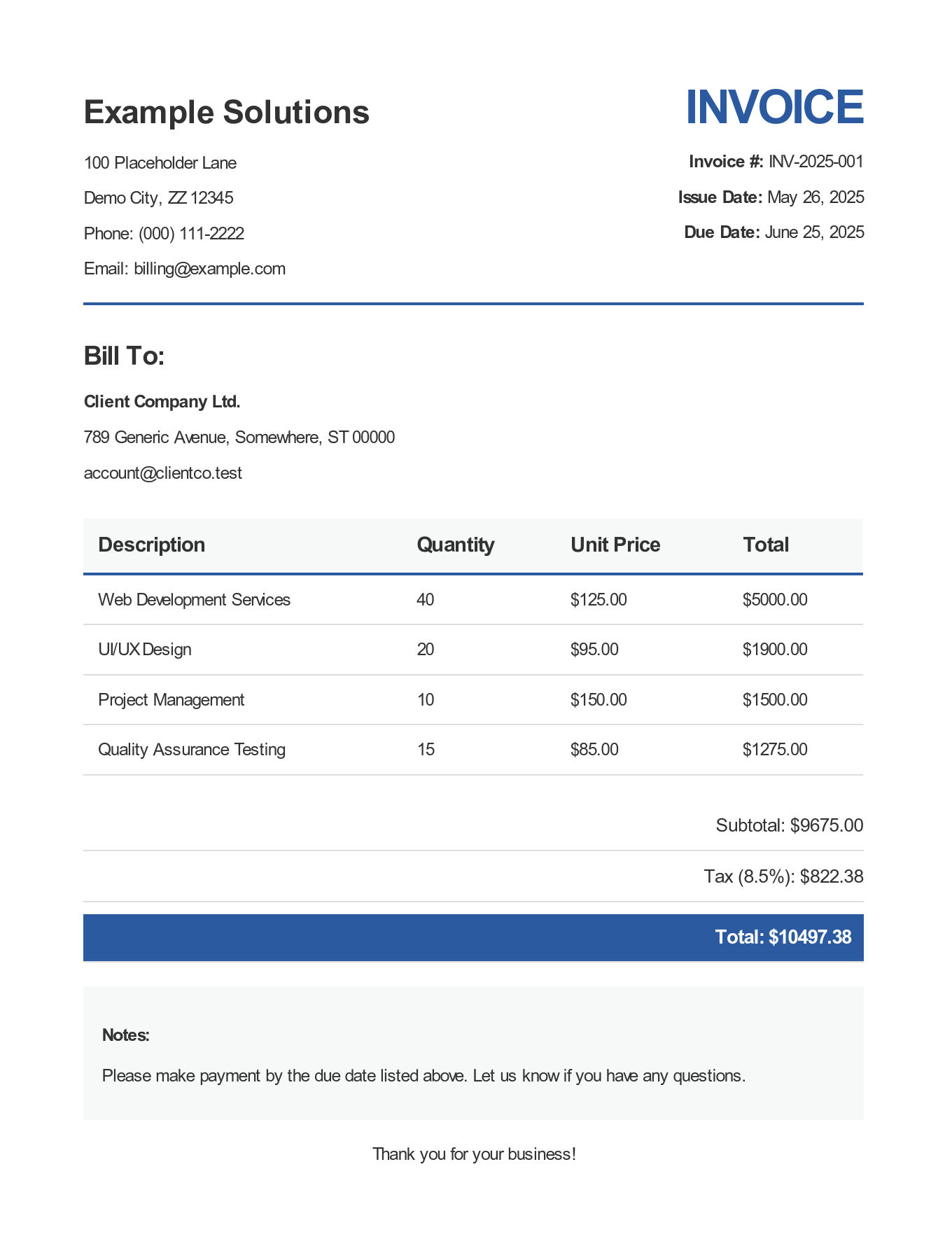
Preview of the Generated Invoice:
3. Verify the output:
When you visit the URL, the PDF should display directly in your browser.
Your generated PDF should include:
- Dynamic company and client information.
- Properly formatted currency values.
- Professional styling with headers and clean layout.
- Calculated subtotal, tax amount, and final total.
- Notes and footer.
This implementation demonstrates how to generate professional PDF invoices using WickedPDF with static data, embedded CSS styling, and Rails ERB templating – perfect for understanding the core concepts of HTML to PDF conversion in Rails applications.
If the PDF doesn't generate properly, check the Rails server logs for error messages.
The most common issue is Location of wkhtmltopdf unknown – add the exe_path setting in your WickedPDF configuration.
Advanced WickedPDF PDF Rendering Options
WickedPDF provides extensive customization options for fine-tuning your PDF output:
| Option | Description | Example Values |
|---|---|---|
| page_size | Standard paper dimensions | 'A4', 'A3', 'Letter', 'Legal' etc. |
| orientation | Page layout direction | 'Portrait', 'Landscape' |
| margin | Page margins | { top: '1in', bottom: '1in', left: '0.5in', right: '0.5in' } |
| dpi | Print resolution quality | 96, 150, 300 |
| background | Render background colors/images | true, false |
| grayscale | Convert to grayscale output | true, false |
| lowquality | Optimize for smaller file size | true, false |
| encoding | Character encoding | 'UTF-8' |
Example of advanced configuration:
# In your controller action
render pdf: "detailed_invoice_#{@invoice[:invoice_number]}",
       template: 'invoices/detailed_pdf',
       layout: 'pdf',
       page_size: 'A4',
       orientation: 'Landscape',
       margin: {
         top: '1.2in',
         bottom: '1in',
         left: '0.8in',
         right: '0.8in'
       },
       zoom: 1.3,
       background: true,
       print_media_type: true,
       grayscale: true,
       lowquality: true,
       encoding: 'UTF-8'
Troubleshooting Common WickedPDF Issues
| Problem | Cause | Solution |
|---|---|---|
| Binary not found | Missing wkhtmltopdf or wrong path | 1. Check installation: which wkhtmltopdf / where wkhtmltopdf2. Test: wkhtmltopdf --version.3. Set correct path in config. |
| CSS not working | Incorrect style linking | 1. Embed styles: <style>/* CSS here */</style>.2. Use PDF helpers: wicked_pdf_stylesheet_link_tag.3. Enable options: background: true, print_media_type: true. |
| Images not loading | Wrong paths or no file access | 1. Use PDF helper:<%= wicked_pdf_image_tag "logo.png" %>2. Enable file access: enable_local_file_access: true |
| Layout breaks | Wrong margins/page size | 1. Set proper margins: margin: { top: '15mm' }.2. Use page breaks: page-break-inside: avoid.3. Test different page sizes: page_size: 'A3'.4. Use simple CSS (avoid flexbox/grid). |
| Slow generation | Large files or complex CSS | 1. Optimize images and CSS. 2. Use background jobs for large PDFs. |
API-Based Alternative: Template-Driven PDF Generation
While WickedPDF gives you full control over PDF layout through ERB templates, it requires installing and maintaining wkhtmltopdf on every server. For teams that want to skip that setup, PDF generation APIs like PDFBolt offer a different approach.
- Design templates visually: Create invoice layouts in a template designer or choose from the template gallery.
- Eliminate dependencies: No wkhtmltopdf binary, no system-level packages to manage.
- Modern rendering: Full CSS3, Flexbox, Grid, and JavaScript support via headless Chrome.
- Simple integration: Just HTTP requests from your Rails application.
Add the faraday HTTP client to your Gemfile: gem 'faraday'
Template-Based Invoice Generation from Rails
class InvoicesController < ApplicationController
  def generate_pdf
    begin
      # Send template ID and data – PDFBolt renders the PDF
      response = Faraday.post('https://api.pdfbolt.com/v1/direct') do |req|
        req.headers['Content-Type'] = 'application/json'
        req.headers['API-KEY'] = 'XXXXXXXX-XXXX-XXXX-XXXX-XXXXXXXXXXXX'
        req.body = {
          templateId: 'your-template-id',
          templateData: {
            invoice_number: 'INV-2025-001',
            company_name: 'Example Solutions',
            client_name: 'Client Company Ltd.',
            items: [
              { description: 'Web Development Services', quantity: 40, unit_price: '$125.00' },
              { description: 'UI/UX Design', quantity: 20, unit_price: '$95.00' },
              { description: 'Project Management', quantity: 10, unit_price: '$150.00' }
            ],
            subtotal: '$8,400.00',
            tax_rate: '8.5%',
            total: '$9,114.00'
          }
        }.to_json
      end

      if response.success?
        send_data response.body,
                  filename: "invoice.pdf",
                  type: "application/pdf",
                  disposition: "inline"
      else
        render plain: "PDF generation failed: #{response.status}", status: 500
      end
    rescue => e
      render plain: "PDF generation error: #{e.message}", status: 500
    end
  end
end
The same invoice that required ERB templates, a PDF layout, and wkhtmltopdf becomes a single API call with just the data. The template handles all the styling and layout on PDFBolt's side.
- PDF Generation API Documentation
- Template Management Guide
- Quick Start Guide with code examples in 7 languages
Conclusion
WickedPDF handles Ruby HTML to PDF conversion well for most document types – it plugs into Rails' MVC architecture, uses ERB templates you already know, and gives you control over page layout, margins, and rendering quality.
The main limitation is wkhtmltopdf's older WebKit engine, which lacks Flexbox and Grid support. For applications that need modern CSS or zero-maintenance infrastructure, a cloud-based HTML to PDF API like PDFBolt is worth considering.
If WickedPDF's CSS limitations are a concern, explore browser-based alternatives like Grover or Puppeteer-Ruby. For programmatic PDF creation without HTML, see the Prawn gem tutorial or the HexaPDF guide. For a broader comparison across all options, check out Top Ruby on Rails PDF Generation Gems.
Go generate some wicked PDFs – just don't forget to spell it right. 🤓