AI PDF Generator: Create PDF Templates from Text


PDF generation has always been a developer task. You write HTML, style it with CSS, configure page settings, and connect it to a rendering engine. The template alone can take days, especially for complex documents like financial reports with charts, multi-page contracts with conditional sections, or product catalogs with varied layouts. PDFBolt's AI PDF generator changes this workflow. Instead of writing code, you describe the document you want. The AI builds the PDF template, you connect your data, and the API produces PDFs.
What Is an AI PDF Generator?
An AI PDF generator is a tool that creates PDF document templates from natural language descriptions. You write a prompt describing the layout, content structure, and styling you want. The AI produces a working template that you can fill with real data to generate PDFs.
You could ask ChatGPT or Claude to write HTML for a PDF, but then what? You copy the code somewhere, find a rendering engine, figure out page breaks, and wire up an API. PDFBolt handles all of that. It builds the template directly in the designer where you see a live preview, generates sample data so you can test immediately, and lets you refine with follow-up prompts. When it looks right, publish it – the template is ready to use via API.
The AI produces:
- HTML/CSS code for the document layout.
- Handlebars variables for dynamic content (names, dates, amounts, lists).
- Sample JSON data that demonstrates how to populate the template.
- PDF parameters (page size, orientation, margins, headers, footers).
The generated PDF template is a starting point. You can edit it in the visual designer, modify the HTML directly, or refine it with follow-up AI prompts.
How AI Template Generation Works
Step 1: Describe what you need
Start by writing a prompt that explains what the document should look like – be specific about layout, sections, and data fields.
Example for a quarterly business report:
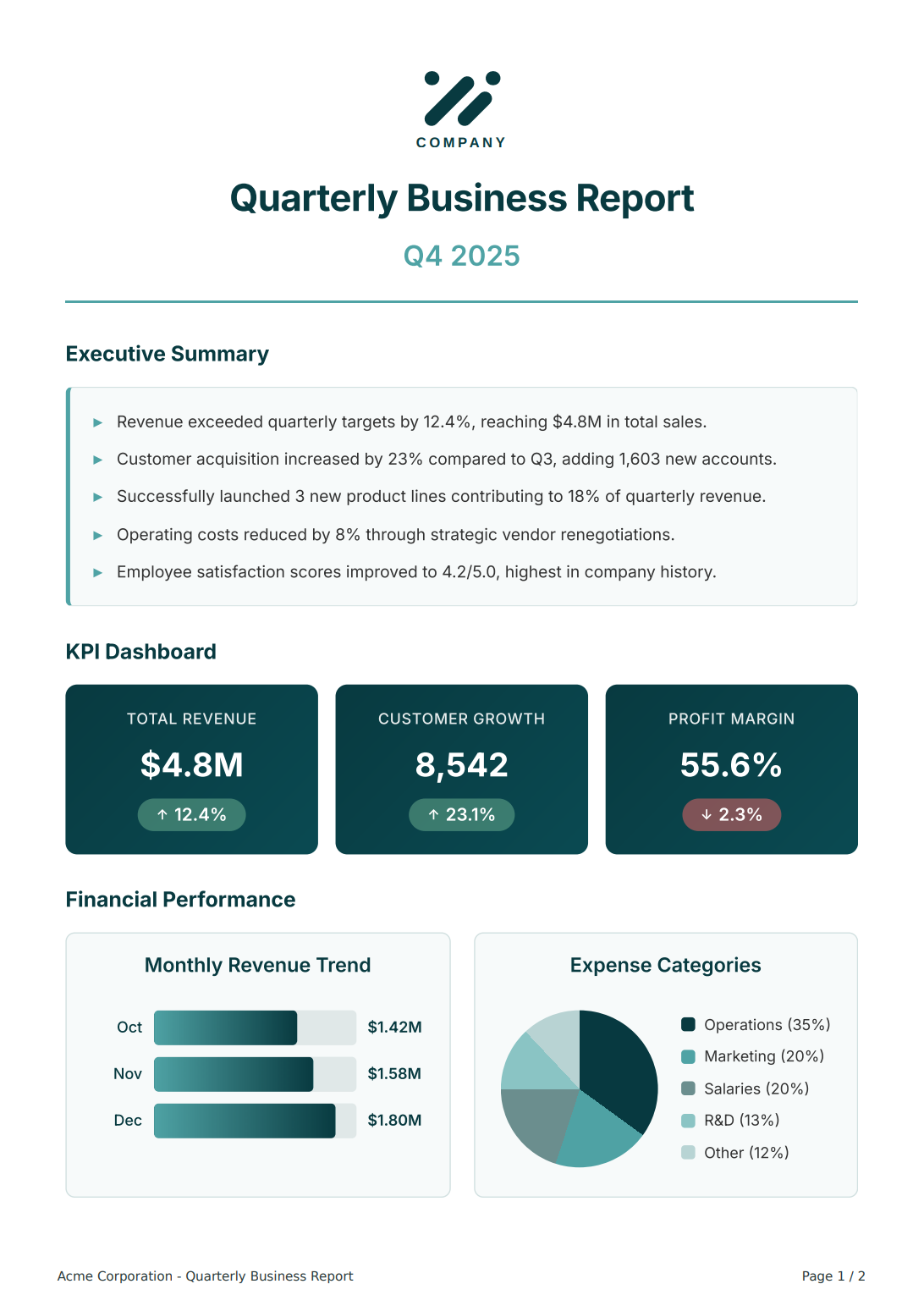
Create a quarterly business report. Header with company logo, title, quarter and year. Executive summary with bullet points. KPI dashboard showing metric cards with values and percentage change. Financial section with horizontal bar chart for monthly revenue and pie chart for expenses. Footer with company name and page numbers. Teal color scheme.
The more detail you provide, the closer the first result will be to what you want. Include specifics about colors, fonts, column names, and section order.
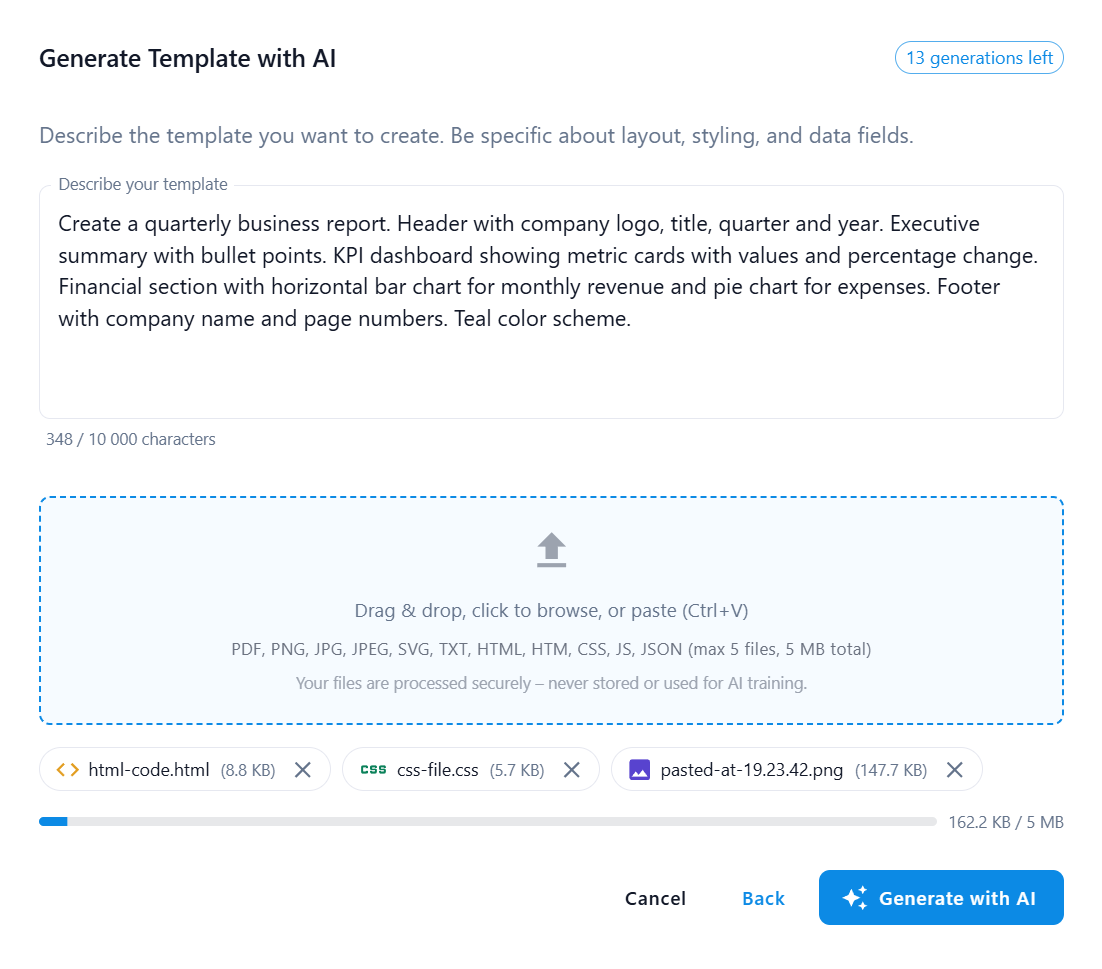
Mention specific colors (e.g. #1E3A5F), font names (Inter, Roboto), and exact column headers. Vague prompts like "make it professional" produce generic results.
Step 2: Add reference files if you have them
Got an existing design you want to replicate? Upload it as a reference. The AI analyzes the layout from a PDF, screenshot, or image and generates a matching template. This is especially useful when migrating from manual PDF creation in Canva, Word, or Google Docs.
Step 3: Review and refine
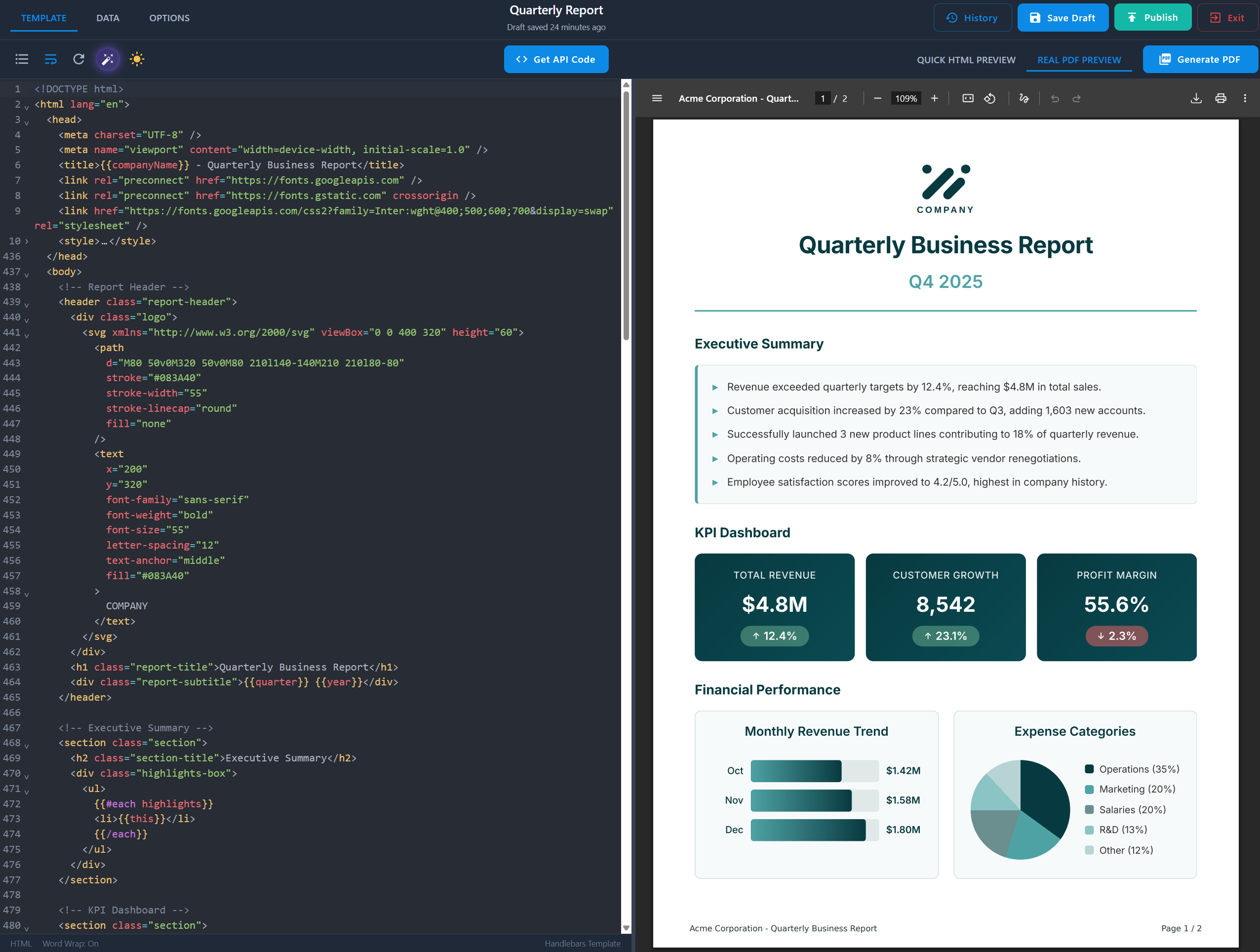
The AI generates the template in about 1-3 minutes. Preview it, then adjust with follow-up prompts:
- Make the KPI cards have rounded corners and subtle shadows
- Add alternating row colors to the table – #F9FAFB for odd rows
- Use Inter font for headings
Each refinement builds on the existing template. You can accept or reject each change, so you control what changes.
Step 4: Publish and call the API
Once the template looks right, publish it. From there, send data via API to produce PDFs.
For automated workflows, the generated draft can also be validated, previewed, and published programmatically through the Template API.
Here's a Node.js example – see also the quick-start guides for Python, Java, PHP, C#, Go, and Rust:
const fs = require('fs');

async function generateReport() {
  const response = await fetch('https://api.pdfbolt.com/v1/direct', {
    method: 'POST',
    headers: {
      'API-KEY': 'YOUR_API_KEY',
      'Content-Type': 'application/json',
    },
    body: JSON.stringify({
      templateId: 'YOUR_TEMPLATE_ID',
      templateData: {
        companyName: 'Acme Corporation',
        quarter: 'Q4',
        year: '2025',
        preparedDate: 'January 15, 2026',
        revenueChart: [
          { month: 'Oct', value: '$1.42M', percentage: 71 },
          { month: 'Nov', value: '$1.58M', percentage: 79 },
          { month: 'Dec', value: '$1.80M', percentage: 90 },
        ],
      },
    }),
  });

  if (!response.ok) {
    throw new Error(`HTTP error: ${response.status}`);
  }

  const pdf = await response.arrayBuffer();
  fs.writeFileSync('report-q4-2025.pdf', Buffer.from(pdf));
}

generateReport().catch(console.error);
Test your templates with real PDF preview directly in the designer. For additional adjustments, use the Playground to fine-tune PDF parameters like page size, margins, compression, or print settings.
Here's the quarterly business report generated with AI:
View full generated report (PDF)
A single template works for any data set. The same report template generates different reports by changing the templateData. No code changes needed between documents.
What Documents Work Well with AI Generation
An AI document generator handles a wide range of document types, but some are easier to describe than others. Structured layouts with clear sections work better than highly visual designs that rely on precise spacing and brand aesthetics.
| Document type | AI accuracy | Why |
|---|---|---|
| Invoices | High | Predictable structure – header, line items, totals, footer |
| Reports | High | Clear sections – tables, metrics, charts |
| Shipping labels | High | Standardized format, mostly text and QR code/barcode |
| Receipts | High | Simple layout – transaction details, amounts, payment info |
| Contracts | Medium | Structured but long, legal formatting may need tweaks |
| Resumes/CVs | Medium | Many styles exist – needs detailed prompt to match your vision |
| Certificates | Medium | Decorative borders and ornamental elements need detailed prompts |
| Marketing brochures | Low | Brand-specific visuals hard to describe |
| Art portfolios | Low | Image placement and visual balance need fine-tuned positioning |
"High" – first result is usually good enough to use. "Medium" – needs a few refinements. "Low" – gives you a starting point, expect more follow-up prompts or manual edits.
For tips on writing HTML that renders well as a PDF, see optimizing HTML for PDF. The HTML template engines guide covers how Handlebars and other engines handle dynamic data in PDF templates. Before starting from scratch, check the template gallery or generate a template with AI – you might find a ready-made match or let AI create one from your description.
Batch PDF Generation and Automation
Need to generate hundreds of documents at once? The /v1/async endpoint queues documents and delivers results via webhook. You can also upload generated PDFs directly to your S3 bucket. Ideal for end-of-month invoice runs, batch certificate generation, or scheduled report delivery. For print production needs, see generating print-ready PDFs with PDF/X.
Use /v1/direct for instant PDF bytes or /v1/sync for download URLs. All endpoints support templates, HTML to PDF, and URL to PDF.
PDFBolt also integrates with automation platforms like Zapier, Make, and n8n – connect PDF generation to your existing workflows without writing code. See automation platform integrations for setup guides, or the n8n PDF automation guide for a detailed example.
Frequently Asked Questions
How is an AI PDF generator different from ChatGPT, Claude, or Gemini?
These tools can write HTML code for you, but you still need to set up a rendering engine, handle page breaks, and connect it all to an API. An AI PDF generator like PDFBolt handles the full workflow: the AI builds templates in a visual designer with live preview, generates test data automatically, and published templates are immediately available via API. No copy-pasting code or infrastructure setup.
Do I need to know HTML/CSS to use an AI PDF generator?
No. You describe the document in plain text and attach reference files if needed – the AI generates the HTML/CSS. You can refine the template with follow-up prompts, or edit the HTML directly if you need precise control.
How do I generate PDFs with AI?
The process has two phases.
- Create a template: describe your document layout to the AI, review the result, and publish the template.
- Generate PDFs: send a POST request to the PDFBolt API with the template ID and your data as JSON. The API returns a PDF.
Can I edit AI-generated templates?
Yes. AI-generated templates are standard HTML/CSS with Handlebars syntax. You can edit them with follow-up AI prompts or directly in the code editor for full control.
What programming languages work with the API?
Is the AI template generation free?
PDFBolt's free plan includes 1 AI template generation. Adding a payment method is required for verification (no charges will be made). You can create templates, preview them, and generate PDFs within the free plan's limits. See the pricing for details.
Conclusion
With AI template generation, you describe the document in plain text, attach reference files if you have an existing design, and the AI builds the HTML/CSS structure. Preview, refine with follow-up prompts, publish. The whole process takes minutes instead of days.
For invoices, reports, certificates, or contracts, PDFBolt's AI PDF template generator gives you a working starting point faster than coding from scratch. Highly visual documents might need more refinements – but you're still ahead of building everything manually.
Let AI handle the templates – your PDFs will thank you! ✨