How to Generate Invoice PDFs with an API

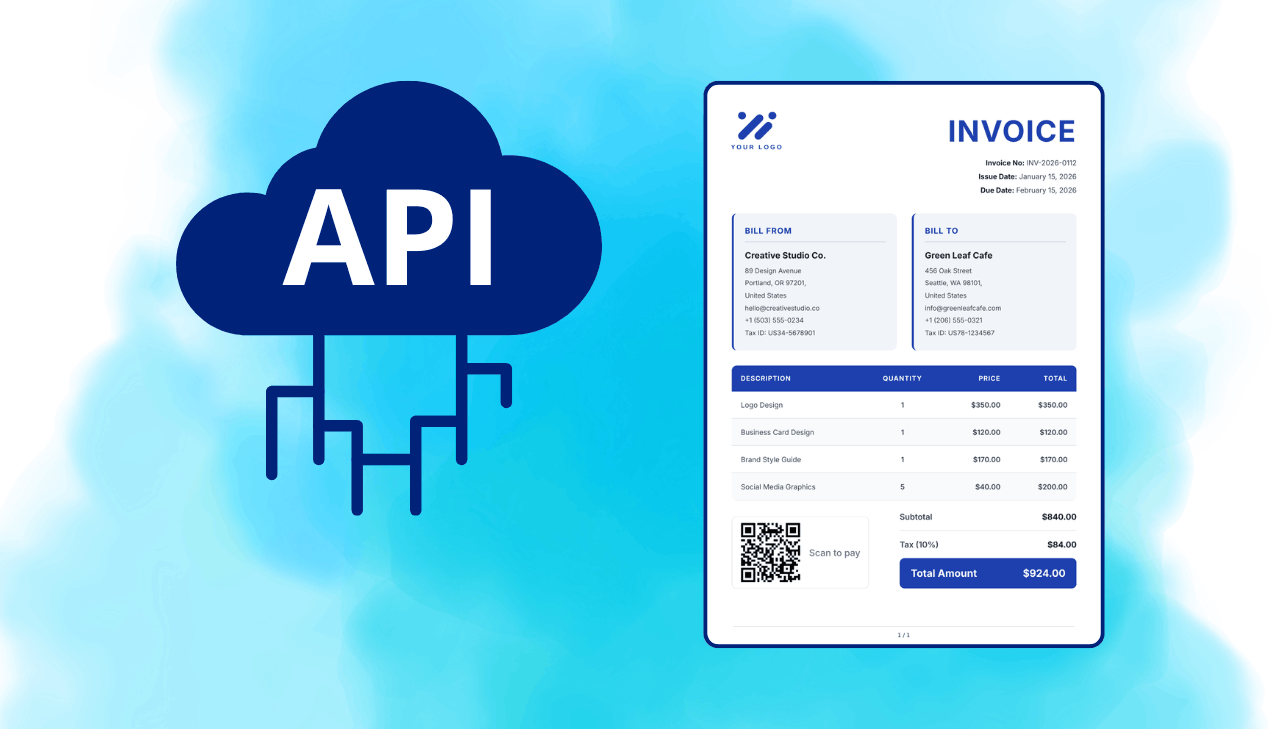
Every SaaS product and e-commerce store eventually needs to generate invoice PDFs. Most teams start with a Word template, Canva, or a drag-and-drop builder, and that works fine for five invoices a month. Once you hit hundreds or thousands, you need something that runs without human input.
This guide covers three ways to generate invoice PDFs with an HTML to PDF API: raw HTML templates, Handlebars-based templates with dynamic data, and AI-generated templates. Complete with working code in Node.js and Python that you can run.
Why Generate Invoice PDFs Programmatically
Manual invoice creation breaks down quickly. Someone has to open a document, fill in client details, calculate tax, export to PDF, and email it. One invoice takes five minutes. A hundred invoices take a full workday.
Programmatic generation solves this in a few ways:
- Your billing system already has the data (client info, line items, amounts). Generating the PDF is one API call.
- Every invoice looks identical. No accidental font changes, no misaligned columns, no forgotten fields.
- The same code works whether you send 10 invoices or 10,000. No extra hands needed.
- Invoices get created the moment a payment clears. Customers get their documents immediately.
Payment processors like Stripe or Paddle generate their own invoices, but those come with generic layouts and limited branding. If you want invoices that match your product's look, you can trigger custom PDF generation from a payment webhook using an HTML to PDF API. We cover that exact pattern later in this post.
Three Ways to Generate an Invoice PDF with an API
There's no single "right" way to build invoice PDFs. The best approach depends on your team and how often the template changes.
Raw HTML with Inline Data
Write a full HTML page with your invoice layout, inject the data as string variables, and send it to a PDF API. This is the simplest approach and works well for teams with one or two invoice formats.
Pros: no template engine dependency, full CSS control, easy to debug in a browser.
Cons: mixing data and presentation in the same string gets messy with complex invoices.
Handlebars Templates with Dynamic Data
Create the invoice layout once as a Handlebars template with placeholders like {{invoice_number}} and {{#each line_items}}, or pick a ready-made one from the template gallery. Store it in PDFBolt's template system, then pass only the data at generation time. For an overview of Handlebars and other template engines, see our template engines overview.
Pros: clean separation of layout and data, templates are reusable and stored in PDFBolt's template system.
Cons: requires basic knowledge of Handlebars syntax.
AI-Generated Invoice Template
Describe your invoice in natural language and attach reference files, then let the AI template generator build the HTML, CSS, and Handlebars variables for you. Edit the output in the template designer, then use it like any other template.
Pros: fastest way to get started, produces clean layouts.
Cons: complex layouts may need manual tweaks after generation.
Start with Handlebars templates if you plan to generate invoices regularly. The upfront setup pays off every time you need to change the layout without touching code. For a one-time project, raw HTML works fine.
Building an Invoice PDF Template in HTML
A good invoice template has five sections: company header, client details, line items table, totals, and payment instructions. Here is a Handlebars template that covers all five:
Invoice HTML template
<!DOCTYPE html>
<html lang="en">
  <head>
    <meta charset="UTF-8" />
    <title>Invoice {{invoice_number}}</title>
    <link
      href="https://fonts.googleapis.com/css2?family=Inter:wght@400;500;600;700&display=swap"
      rel="stylesheet"
    />
    <style>
      @page {
        margin: 15mm;
      }
      * {
        box-sizing: border-box;
        margin: 0;
        padding: 0;
      }
      body {
        font-family: 'Inter', sans-serif;
        font-size: 14px;
        line-height: 1.5;
        color: #374151;
        padding: 15mm;
      }
      @media print {
        body {
          padding: 0;
        }
        .billing-section,
        .items-table tr {
          page-break-inside: avoid;
        }
      }
      .header {
        display: flex;
        justify-content: space-between;
        align-items: flex-start;
        margin-bottom: 25px;
      }
      .logo {
        width: auto;
        height: 80px;
      }
      .invoice-title-section {
        text-align: right;
      }
      .invoice-title {
        font-size: 48px;
        font-weight: 700;
        color: #1e40af;
        letter-spacing: 2px;
        margin-bottom: 8px;
      }
      .invoice-meta {
        font-size: 14px;
        color: #374151;
      }
      .invoice-meta-row {
        margin-bottom: 6px;
      }
      .invoice-meta-label {
        font-weight: 700;
        color: #111827;
      }
      .billing-section {
        display: flex;
        gap: 30px;
        margin: 30px 0;
      }
      .billing-column {
        flex: 1;
        background-color: #f1f5f9;
        border-radius: 10px;
        padding: 22px;
        border-left: 4px solid #1e40af;
      }
      .billing-title {
        font-size: 16px;
        font-weight: 700;
        color: #1e40af;
        text-transform: uppercase;
        letter-spacing: 1px;
        margin-bottom: 14px;
        padding-bottom: 10px;
        border-bottom: 1px solid #cbd5e1;
      }
      .billing-name {
        font-weight: 700;
        color: #111827;
        font-size: 17px;
        margin-bottom: 4px;
      }
      .billing-details {
        color: #374151;
        font-size: 13px;
        line-height: 1.9;
      }
      .items-table {
        width: 100%;
        border-collapse: collapse;
        margin-bottom: 5px;
        border-radius: 10px;
        overflow: hidden;
      }
      .items-table thead tr {
        background: #1e40af;
      }
      .items-table th {
        padding: 16px 18px;
        text-align: left;
        font-size: 13px;
        font-weight: 700;
        color: #ffffff;
        text-transform: uppercase;
        letter-spacing: 1px;
      }
      .items-table th.text-center {
        text-align: center;
      }
      .items-table th.text-right {
        text-align: right;
      }
      .items-table td {
        padding: 16px 18px;
        border-bottom: 1px solid #e5e7eb;
        font-size: 14px;
      }
      .items-table td.text-center {
        text-align: center;
        font-weight: 600;
      }
      .items-table td.text-right {
        text-align: right;
        font-weight: 600;
      }
      .items-table tbody tr:nth-child(even) {
        background-color: #f8fafc;
      }
      .totals-section {
        display: flex;
        justify-content: flex-end;
        margin-bottom: 40px;
      }
      .totals-table {
        width: 350px;
      }
      .totals-row {
        display: flex;
        justify-content: space-between;
        padding: 15px 0;
        border-bottom: 1px solid #e5e7eb;
        font-size: 16px;
      }
      .totals-row.tax {
        border-bottom: none;
      }
      .totals-row.total-final {
        background: #1e40af;
        border-bottom: none;
        padding: 15px 22px;
        border-radius: 10px;
      }
      .totals-label {
        color: #374151;
        font-weight: 600;
      }
      .totals-value {
        font-weight: 700;
        color: #111827;
      }
      .total-final .totals-label,
      .total-final .totals-value {
        font-weight: 700;
        color: #ffffff;
        font-size: 20px;
      }
      .payment {
        margin-top: 30px;
        padding-top: 15px;
        border-top: 1px solid #e5e7eb;
        font-size: 13px;
        color: #6b7280;
      }
      .payment-label {
        font-size: 15px;
        font-weight: 700;
        color: #111827;
        margin-bottom: 4px;
      }
    </style>
  </head>
  <body>
    <div class="header">
      <div>
        {{#if company_logo_url}}
        <img
          class="logo"
          src="{{company_logo_url}}"
          alt="{{company_name}}"
        />
        {{/if}}
      </div>
      <div class="invoice-title-section">
        <div class="invoice-title">INVOICE</div>
        <div class="invoice-meta">
          <div class="invoice-meta-row">
            <span class="invoice-meta-label">Invoice No:</span>
            {{invoice_number}}
          </div>
          <div class="invoice-meta-row">
            <span class="invoice-meta-label">Issue Date:</span>
            {{issue_date}}
          </div>
          {{#if due_date}}
          <div class="invoice-meta-row">
            <span class="invoice-meta-label">Due Date:</span>
            {{due_date}}
          </div>
          {{/if}}
        </div>
      </div>
    </div>

    <div class="billing-section">
      <div class="billing-column">
        <div class="billing-title">Bill From</div>
        <div class="billing-name">{{company_name}}</div>
        <div class="billing-details">
          <p>{{company_address}}</p>
          <p>{{company_email}}</p>
          {{#if company_phone}}
          <p>{{company_phone}}</p>
          {{/if}} {{#if company_tax_id}}
          <p>Tax ID: {{company_tax_id}}</p>
          {{/if}}
        </div>
      </div>
      <div class="billing-column">
        <div class="billing-title">Bill To</div>
        <div class="billing-name">{{client_name}}</div>
        <div class="billing-details">
          <p>{{client_address}}</p>
          <p>{{client_email}}</p>
          {{#if client_phone}}
          <p>{{client_phone}}</p>
          {{/if}} {{#if client_tax_id}}
          <p>Tax ID: {{client_tax_id}}</p>
          {{/if}}
        </div>
      </div>
    </div>

    <table class="items-table">
      <thead>
        <tr>
          <th>Description</th>
          <th class="text-center">Qty</th>
          <th class="text-right">Unit Price</th>
          <th class="text-center">Tax</th>
          <th class="text-right">Total</th>
        </tr>
      </thead>
      <tbody>
        {{#each line_items}}
        <tr>
          <td>{{this.description}}</td>
          <td class="text-center">{{this.quantity}}</td>
          <td class="text-right">
            {{../currency_symbol}}{{this.unit_price}}
          </td>
          <td class="text-center">{{this.tax_rate}}%</td>
          <td class="text-right">
            {{../currency_symbol}}{{this.total_amount}}
          </td>
        </tr>
        {{/each}}
      </tbody>
    </table>

    <div class="totals-section">
      <div class="totals-table">
        <div class="totals-row">
          <span class="totals-label">Subtotal</span>
          <span class="totals-value">
            {{currency_symbol}}{{subtotal_amount}}
          </span>
        </div>
        {{#if tax_amount}}
        <div class="totals-row tax">
          <span class="totals-label">Tax</span>
          <span class="totals-value">
            {{currency_symbol}}{{tax_amount}}
          </span>
        </div>
        {{/if}}
        <div class="totals-row total-final">
          <span class="totals-label">Total Amount</span>
          <span class="totals-value">
            {{currency_symbol}}{{total_amount}}
          </span>
        </div>
      </div>
    </div>

    {{#if payment_instructions}}
    <div class="payment">
      <p class="payment-label">Payment Instructions</p>
      <p>{{payment_instructions}}</p>
    </div>
    {{/if}}
  </body>
</html>
Sample template data (JSON)
{
  "invoice_number": "INV-2026-0042",
  "issue_date": "March 5, 2026",
  "due_date": "April 5, 2026",
  "currency_symbol": "$",
  "company_name": "Acme Corp",
  "company_logo_url": "https://img.pdfbolt.com/logo-example-company.png",
  "company_address": "123 Main St, New York, NY 10001",
  "company_email": "billing@acme.com",
  "company_phone": "+1 555-123-4567",
  "company_tax_id": "US-EIN 12-3456789",
  "client_name": "Jane Smith",
  "client_address": "456 Oak Ave, Los Angeles, CA 90001",
  "client_email": "jane@example.com",
  "line_items": [
    {
      "description": "Website Redesign",
      "quantity": 1,
      "unit_price": "1800.00",
      "tax_rate": "10",
      "total_amount": "1980.00"
    },
    {
      "description": "Custom API Integration",
      "quantity": 8,
      "unit_price": "95.00",
      "tax_rate": "10",
      "total_amount": "836.00"
    },
    {
      "description": "Onboarding & Training (hours)",
      "quantity": 3,
      "unit_price": "75.00",
      "tax_rate": "10",
      "total_amount": "247.50"
    }
  ],
  "subtotal_amount": "2785.00",
  "tax_amount": "278.50",
  "total_amount": "3063.50",
  "payment_instructions": "Wire transfer to IBAN DE89 3704 0044 0532 0130 00. Please include the invoice number in the payment reference."
}
The template uses {{#each line_items}} to loop through rows and {{../currency_symbol}} to access the currency from the parent context. Conditional blocks like {{#if company_logo_url}} show or hide sections based on the data you pass. The @page and @media print rules handle page breaks in multi-page invoices.
You can paste both into the PDFBolt template designer to preview the rendered PDF before writing any backend code.
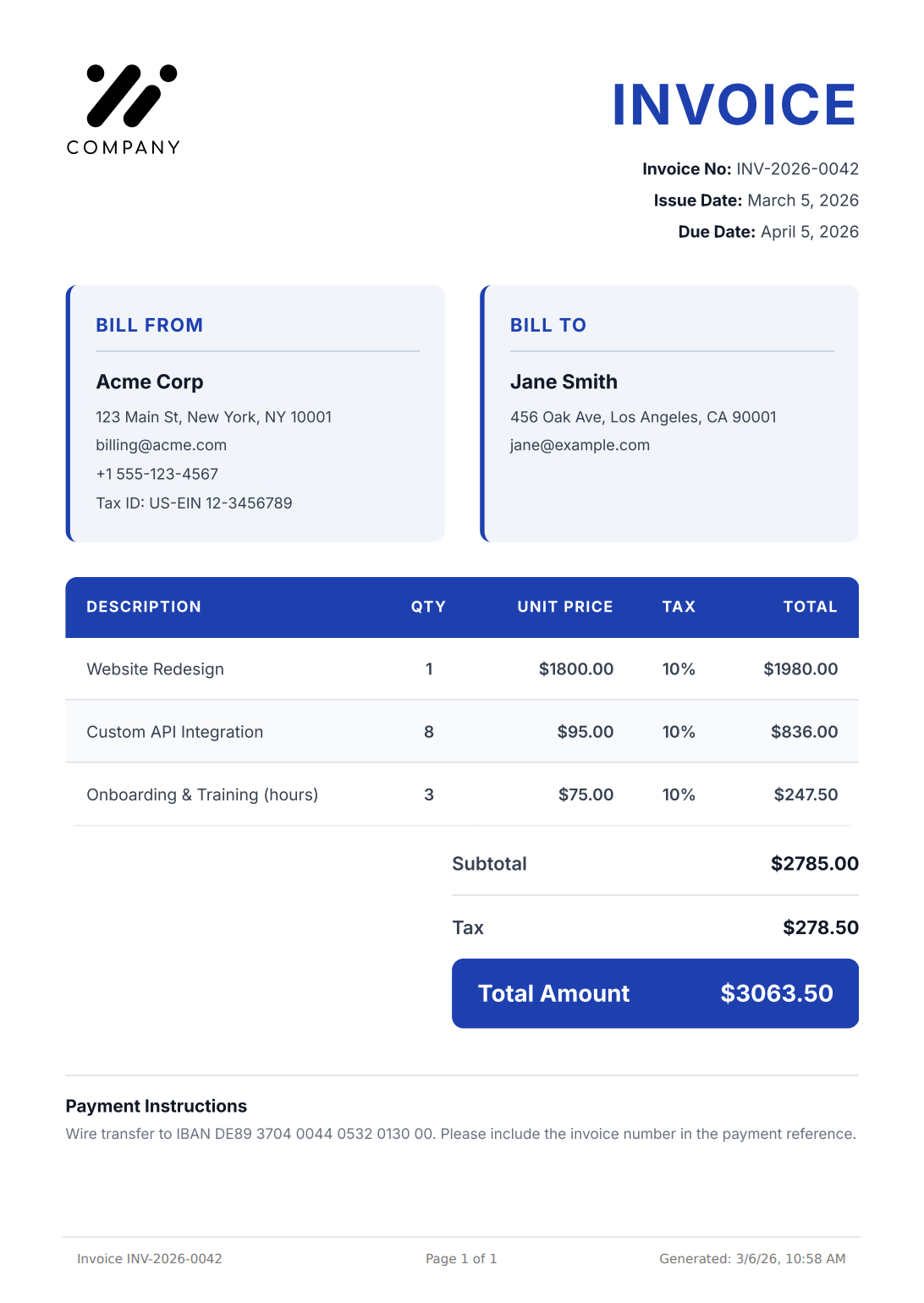
Browse the template gallery for professional invoice templates ready to use with the API, or generate one with AI.
Generate an Invoice PDF with Node.js
Once your template is saved in PDFBolt, generating an invoice takes one API call. Pass the templateId and your invoice data to the /v1/direct endpoint, and get back raw PDF bytes.
const fs = require('fs');

async function generateInvoice() {
  const response = await fetch(
    'https://api.pdfbolt.com/v1/direct',
    {
      method: 'POST',
      headers: {
        'API-KEY': 'YOUR-API-KEY',
        'Content-Type': 'application/json'
      },
      body: JSON.stringify({
        templateId: 'your-invoice-template-id',
        templateData: {
          invoice_number: 'INV-2026-0042',
          issue_date: 'March 5, 2026',
          due_date: 'April 5, 2026',
          currency_symbol: '$',
          company_name: 'Acme Corp',
          company_logo_url:
            'https://img.pdfbolt.com/logo-example-company.png',
          company_address:
            '123 Main St, New York, NY 10001',
          company_email: 'billing@acme.com',
          company_tax_id: 'US-EIN 12-3456789',
          client_name: 'Jane Smith',
          client_address:
            '456 Oak Ave, Los Angeles, CA 90001',
          client_email: 'jane@example.com',
          line_items: [
            {
              description: 'Website Redesign',
              quantity: 1,
              unit_price: '1800.00',
              tax_rate: '10',
              total_amount: '1980.00'
            },
            {
              description: 'Custom API Integration',
              quantity: 8,
              unit_price: '95.00',
              tax_rate: '10',
              total_amount: '836.00'
            },
            {
              description:
                'Onboarding & Training (hours)',
              quantity: 3,
              unit_price: '75.00',
              tax_rate: '10',
              total_amount: '247.50'
            }
          ],
          subtotal_amount: '2785.00',
          tax_amount: '278.50',
          total_amount: '3063.50',
          payment_instructions:
            'Wire transfer to IBAN DE89 3704 0044 ...'
        }
      })
    }
  );

  if (!response.ok) {
    const errorText = await response.text();
    throw new Error(`HTTP ${response.status} - ${errorText}`);
  }

  const pdfBuffer = await response.arrayBuffer();
  fs.writeFileSync(
    'invoice-2026-0042.pdf',
    Buffer.from(pdfBuffer)
  );
  console.log('Invoice PDF saved');
}

generateInvoice().catch(console.error);
Run this with node generate-invoice.js and you will find invoice-2026-0042.pdf in your working directory. PDFBolt renders the PDF in a headless Chromium browser, so your CSS works exactly as it does in Chrome.
Python example
The Python version follows the same pattern. Note the data_json = '''...''' syntax for clean multi-line JSON without escape headaches:
import requests
import json

url = "https://api.pdfbolt.com/v1/direct"
headers = {
    "API-KEY": "YOUR-API-KEY",
    "Content-Type": "application/json"
}

data_json = '''{
    "templateId": "your-invoice-template-id",
    "templateData": {
        "invoice_number": "INV-2026-0042",
        "issue_date": "March 5, 2026",
        "due_date": "April 5, 2026",
        "currency_symbol": "$",
        "company_name": "Acme Corp",
        "company_logo_url": "https://img.pdfbolt.com/logo-example-company.png",
        "company_address": "123 Main St, New York, NY 10001",
        "company_email": "billing@acme.com",
        "company_tax_id": "US-EIN 12-3456789",
        "client_name": "Jane Smith",
        "client_address": "456 Oak Ave, Los Angeles, CA 90001",
        "client_email": "jane@example.com",
        "line_items": [
            {
                "description": "Website Redesign",
                "quantity": 1,
                "unit_price": "1800.00",
                "tax_rate": "10",
                "total_amount": "1980.00"
            },
            {
                "description": "Custom API Integration",
                "quantity": 8,
                "unit_price": "95.00",
                "tax_rate": "10",
                "total_amount": "836.00"
            },
            {
                "description": "Onboarding & Training (hours)",
                "quantity": 3,
                "unit_price": "75.00",
                "tax_rate": "10",
                "total_amount": "247.50"
            }
        ],
        "subtotal_amount": "2785.00",
        "tax_amount": "278.50",
        "total_amount": "3063.50",
        "payment_instructions":
            "Wire transfer to IBAN DE89 3704 0044 ..."
    }
}'''

data = json.loads(data_json)

try:
    response = requests.post(
        url, headers=headers, json=data
    )
    response.raise_for_status()

    with open("invoice-2026-0042.pdf", "wb") as f:
        f.write(response.content)
    print("Invoice PDF saved")

except requests.exceptions.HTTPError as e:
    print(f"HTTP {response.status_code}")
    print(f"Error Message: {response.text}")
except requests.exceptions.RequestException as e:
    print(f"Error: {e}")
The quick-start guides have PDF generation examples in PHP, Java, C#, Go, Rust, and more – with examples for all endpoints and input sources.
Automate Invoice PDF Generation with Stripe Webhooks
The most common automated invoice generation pattern is: customer pays, webhook fires, your server generates the invoice PDF and emails it. Here's how that looks with Stripe and Node.js:
const express = require('express');
const stripe = require('stripe')('sk_...');
const app = express();

app.post(
  '/webhook',
  express.raw({ type: 'application/json' }),
  async (req, res) => {
    const event = stripe.webhooks.constructEvent(
      req.body,
      req.headers['stripe-signature'],
      'whsec_...'
    );

    if (event.type === 'invoice.payment_succeeded') {
      const inv = event.data.object;

      // Build line items from Stripe data
      const lineItems = inv.lines.data.map(
        (line) => ({
          description: line.description,
          quantity: line.quantity,
          unit_price: (line.amount / line.quantity / 100)
            .toFixed(2),
          tax_rate: '0',
          total_amount: (line.amount / 100)
            .toFixed(2)
        })
      );

      // Generate invoice PDF
      const pdfResponse = await fetch(
        'https://api.pdfbolt.com/v1/direct',
        {
          method: 'POST',
          headers: {
            'API-KEY': 'YOUR-API-KEY',
            'Content-Type': 'application/json'
          },
          body: JSON.stringify({
            templateId: 'your-template-id',
            templateData: {
              // Add company_name, company_logo_url,
              // company_address etc. from your config
              invoice_number: inv.number,
              issue_date: new Date(
                inv.created * 1000
              ).toISOString().split('T')[0],
              due_date: inv.due_date
                ? new Date(
                    inv.due_date * 1000
                  ).toISOString().split('T')[0]
                : '',
              client_name:
                inv.customer_name,
              client_email:
                inv.customer_email,
              currency_symbol:
                inv.currency.toUpperCase()
                  === 'USD' ? '$' : '€',
              line_items: lineItems,
              subtotal_amount:
                (inv.subtotal / 100).toFixed(2),
              tax_amount:
                ((inv.total - inv.subtotal) / 100)
                  .toFixed(2),
              total_amount:
                (inv.total / 100).toFixed(2)
            }
          })
        }
      );

      // Send the PDF by email, save to S3,
      // or store in your database
      const pdfBuffer =
        await pdfResponse.arrayBuffer();

      // ... your email/storage logic here
    }

    res.sendStatus(200);
  }
);

app.listen(3000);
This webhook handler listens for invoice.payment_succeeded events, maps the Stripe line items to the template format, calls PDFBolt to generate the PDF, and returns the raw bytes for you to email or store.
This example covers the most common case. In production, you would add error handling, handle paginated line items for invoices with many line items, guard against null quantity values, and map the currency symbol from a lookup table instead of a simple USD/EUR check.
For batch invoices or long-running jobs, use the async endpoint with webhook callbacks instead of the direct endpoint. PDFBolt will POST the finished PDF URL to your callback endpoint when it is ready.
Tools like n8n can trigger invoice generation from any event – CRM updates, form submissions, or payment notifications. See our n8n integration guide for a step‑by‑step setup.
Multi-Currency and Tax Rules for Invoice PDFs
Real invoices rarely have a flat tax rate. Depending on where your customer is, you might need to show VAT, GST, sales tax, or reverse charge notices. The Handlebars template handles this with conditionals:
<div class="totals">
  <div>Subtotal: {{currency_symbol}}{{subtotal_amount}}</div>
  {{#if vat_number}}
  <div>
    VAT ({{vat_rate}}%): {{currency_symbol}}{{vat_amount}}
  </div>
  {{/if}}
  {{#if reverse_charge}}
  <div style="font-size: 12px;">
    Tax to be paid on reverse charge basis
  </div>
  {{/if}}
  <div class="total-row">
    Total: {{currency_symbol}}{{total_amount}}
  </div>
</div>
Supply vat_number and vat_rate as strings, and reverse_charge as a boolean in templateData. The template shows or hides sections based on what you send. This keeps your PDF logic clean without building separate templates for each tax jurisdiction.
For multi-currency support, pass currency_symbol as $, €, or £ and format amounts in your backend before sending them to the API.
Frequently Asked Questions
Can I use my own HTML and CSS for the invoice layout?
Yes. Send your HTML as a base64-encoded string in the html field instead of using templateId. The API renders it in a headless Chromium browser, so any CSS that works in Chrome works in the PDF. See the HTML to PDF API page for details.
How do I add a company logo to the invoice?
Include an <img> tag in your HTML template pointing to a publicly accessible URL. For Handlebars templates, use <img src="{{company_logo_url}}" /> and pass the URL in templateData. Base64-encoded images and inline SVGs also work if you prefer not to host the file externally.
What file size are generated invoice PDFs?
A typical text-based invoice with a logo is 50-150 KB. If your invoices are image-heavy, you can use PDFBolt's compression feature to reduce the file size significantly.
Can I add a QR code or barcode to the invoice?
Yes. Generate the QR code in your backend and pass the image URL through templateData (e.g. <img src="{{qr_code_url}}" />), or generate it with a JavaScript library like QRious directly in the template. Since templates are rendered by a full browser engine, JavaScript works. See the PDF templates docs for a QR code example.
Can I generate print-ready invoice PDFs?
Yes. PDFBolt supports PDF/X-1a and PDF/X-4 output for commercial printing. Add "printProduction": {"pdfStandard": "pdf-x-4"} to your API request to get a print-ready file with CMYK color conversion.
Does PDFBolt handle page breaks for long invoices?
Yes. Use the CSS property page-break-inside: avoid on your table rows to prevent items from splitting across pages. For a forced break, add page-break-before: always to any element. The optimizing HTML for PDF guide covers all pagination options.
How do I set up automated invoice generation?
Connect a payment webhook (Stripe, Paddle, or any billing system) to your server. When a payment event fires, your handler maps the transaction data to your template and calls the PDFBolt API. The Stripe webhook example above shows the full pattern. For no-code automation, use n8n or Zapier.
Conclusion
Generating invoice PDFs with an API comes down to three things: an HTML template with clean CSS, an API call with your invoice data, and a trigger like a webhook or cron job. Whether you use Handlebars templates for full control, automate with Stripe webhooks, or handle multi-currency tax rules – the same API call powers it all.
Take a code snippet from this guide, swap in your API key and template ID, and you will have a PDF file in seconds. Pick a template from the template gallery, try it in the playground, and generate your first invoice PDF for free.
Your invoices should look as good as your product. Now they can. 🧾