Request Logs
The Request Logs section shows conversion requests made by your team, including API conversions, Playground runs, Dashboard Template Designer previews, and Template API preview and diff renders.
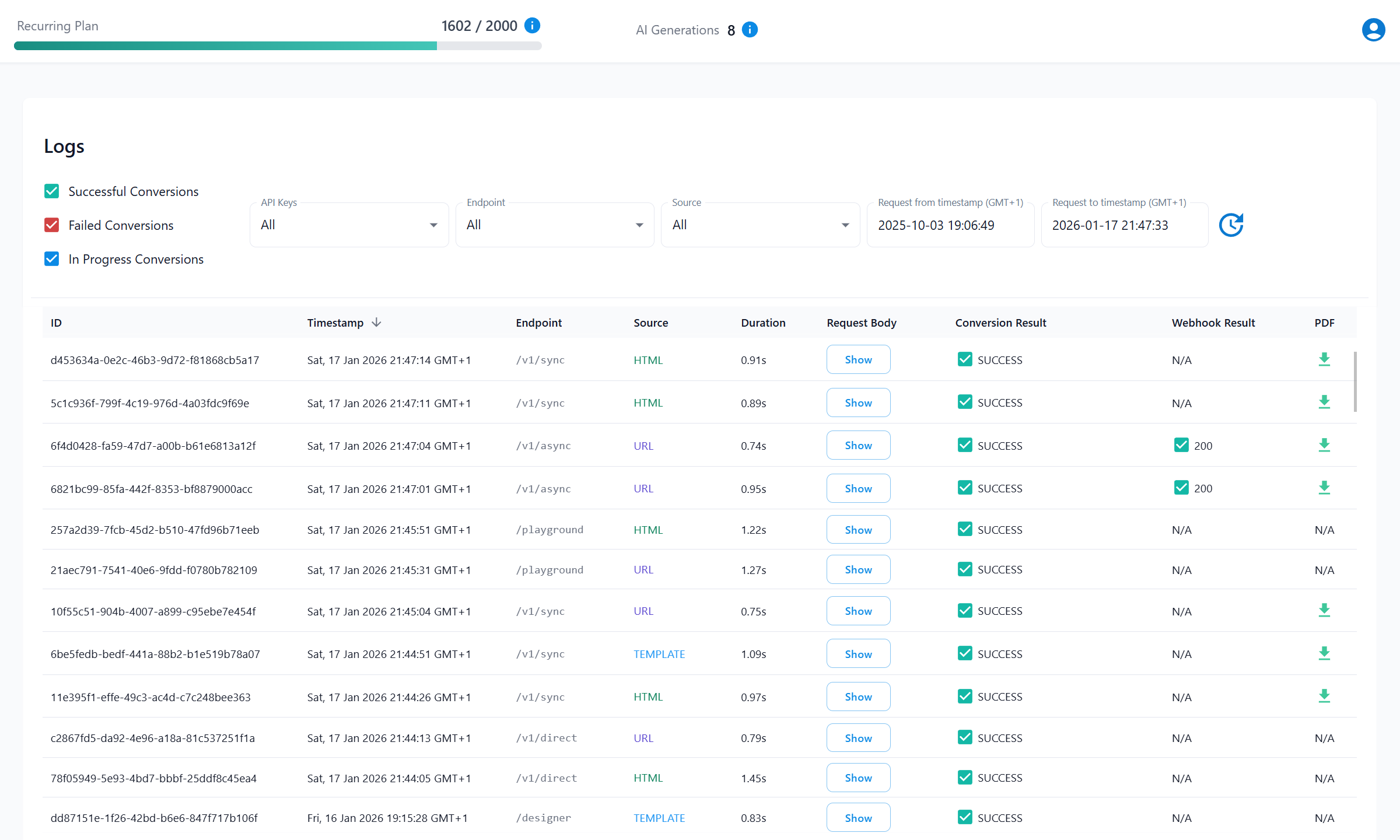
Log Table Fields
| Field | Description |
|---|---|
| 1. ID | A unique identifier for each request. |
| 2. Timestamp | When the request was made. |
| 3. Endpoint | The endpoint recorded for the conversion. |
| 4. Source | The conversion source: HTML, URL, or TEMPLATE. |
| 5. Duration | Time taken to complete the request. |
| 6. Request Body | Click Show to inspect the request body. Redacted parameters appear as *****. |
| 7. Conversion Result | Shows the conversion status. Failed conversions include an error code and message. |
| 8. Webhook Result | Shows the webhook delivery result for async requests. |
| 9. PDF | Shows PDF availability. PDFs stored by PDFBolt can be downloaded until they expire after 24 hours. Custom S3 uploads are stored in your bucket. |
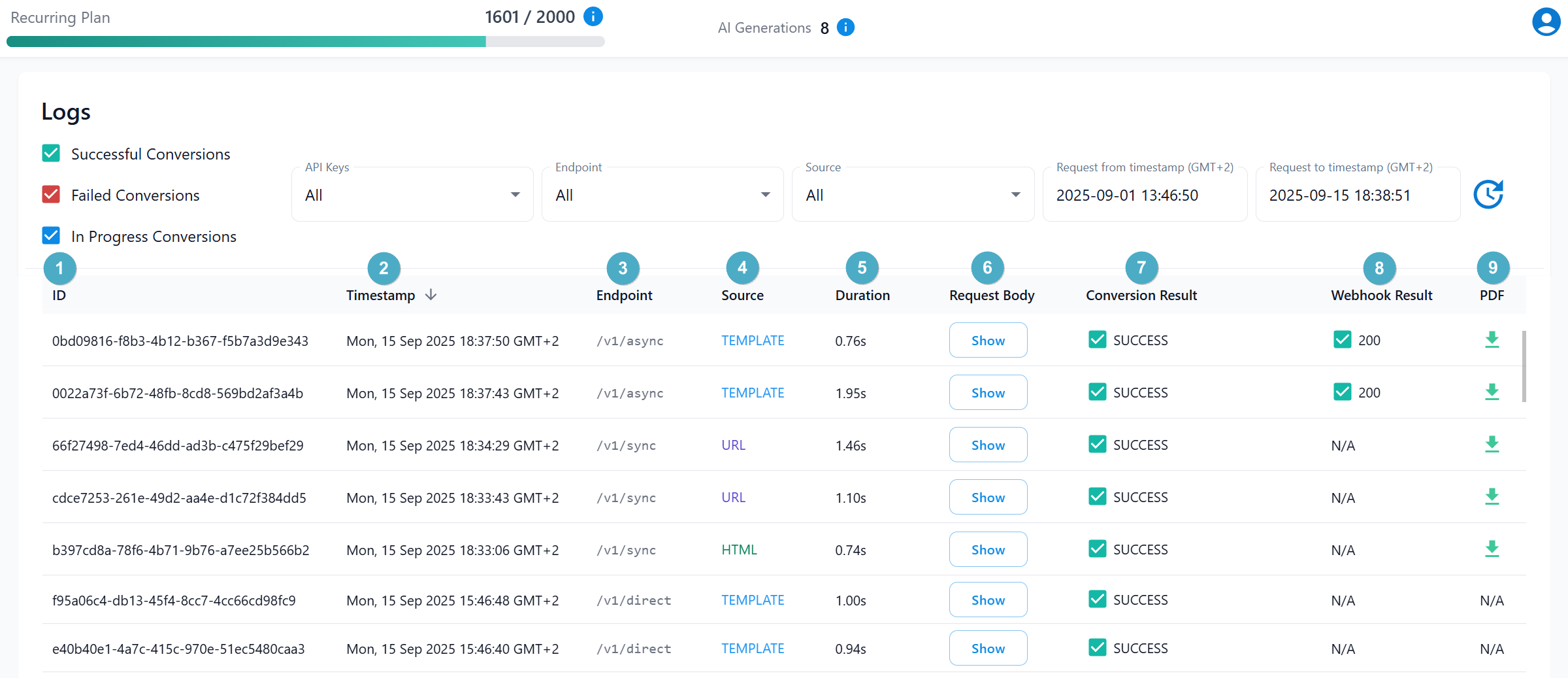
Filtering Options
Use these filters to narrow the log table:
- Result: Select requests by conversion status:
Successful,Failed, orIn Progress. - API Keys: Filter by a Conversion API key or the team's Preview Conversions system API key.
- Endpoint: Filter by the recorded conversion endpoint:
- Conversion API:
/v1/direct,/v1/sync,/v1/async - Template API:
/v1/templates/preview,/v1/templates/diff - Dashboard Template Designer:
/designer,/designer/historic-version-diff,/designer/ai-edit-diff - Playground:
/playground
- Conversion API:
- Source: Filter by the source type:
HTML,URL, orTEMPLATE. - Date Range: Use timestamp filters to view requests within a specific time frame.

- Use filters to locate specific requests when debugging an issue.
- Use the Refresh icon to update the table with the latest requests.
Preview Conversions
PDF renders from the Dashboard Template Designer, Playground, AI edit and version history comparisons, and the Template API are recorded under the team's system API key named Preview Conversions. They appear under that key in Request Logs and Usage Summary.
A Template API preview creates one log entry, while a diff creates a separate entry for each rendered side. These entries use the TEMPLATE source. Each successful render counts separately toward your available document conversions; failed renders do not.
Conversion API requests remain associated with the API key used in the request.